> ## Documentation Index
> Fetch the complete documentation index at: https://cloud-architect.ipoint-labs.com/llms.txt
> Use this file to discover all available pages before exploring further.
# FAQs and Troubleshooting
> Help for Cloud Practitioner labs
## How do I login to the AWS management console
1. Click on the **Launch lab** button to start the lab and wait till the process is completed.
2. Once the Lab has started successfully, you will be provided with ***Username***, ***Password***, **Access Key** and ***Secret Key***.
 3. Click on the **Open console** button to open the AWS Management Console in a new tab in your browser.
4. Now **Sign in as IAM user** page, the Account ID will be present by default.
* Leave the Account ID as default. Do not remove or change the Account ID otherwise you cannot proceed with the lab.
5. Copy and paste the ***User Name*** and ***Password*** from the lab's console into AWS Console. Click on the **Sign in** button to login into the AWS Management Console.
3. Click on the **Open console** button to open the AWS Management Console in a new tab in your browser.
4. Now **Sign in as IAM user** page, the Account ID will be present by default.
* Leave the Account ID as default. Do not remove or change the Account ID otherwise you cannot proceed with the lab.
5. Copy and paste the ***User Name*** and ***Password*** from the lab's console into AWS Console. Click on the **Sign in** button to login into the AWS Management Console.
 ## When I click on the Open Console button, IAM user name and password are already present. What should I do ?
1. If you have saved any of your AWS login details previously, the IAM user name and password of that account will be shown. In that case, **only remove the IAM user name and Password and paste the login details**.
## When I click on the Open Console button, IAM user name and password are already present. What should I do ?
1. If you have saved any of your AWS login details previously, the IAM user name and password of that account will be shown. In that case, **only remove the IAM user name and Password and paste the login details**.
 ## In which AWS region should I perform the labs ?
1. For any lab, make sure that AWS region is set to **US East (N. Virginia) us-east-1**. If not, change the region to **us-east-1**.
## In which AWS region should I perform the labs ?
1. For any lab, make sure that AWS region is set to **US East (N. Virginia) us-east-1**. If not, change the region to **us-east-1**.
 2. You are only allowed to change the AWS Region if mentioned in my lab.
## When I open a service in AWS, I’m getting a network connection error ?
1. If you are seeing any network connection error while performing the lab, **Refresh the page**.
2. You are only allowed to change the AWS Region if mentioned in my lab.
## When I open a service in AWS, I’m getting a network connection error ?
1. If you are seeing any network connection error while performing the lab, **Refresh the page**.
 **How do I login into the VM on getting the VM connection failure issue?**
1. Go to the **virtual machine** page and check the status of your VM. If the VM is in **already running** stage and you are getting the following error:
**How do I login into the VM on getting the VM connection failure issue?**
1. Go to the **virtual machine** page and check the status of your VM. If the VM is in **already running** stage and you are getting the following error:
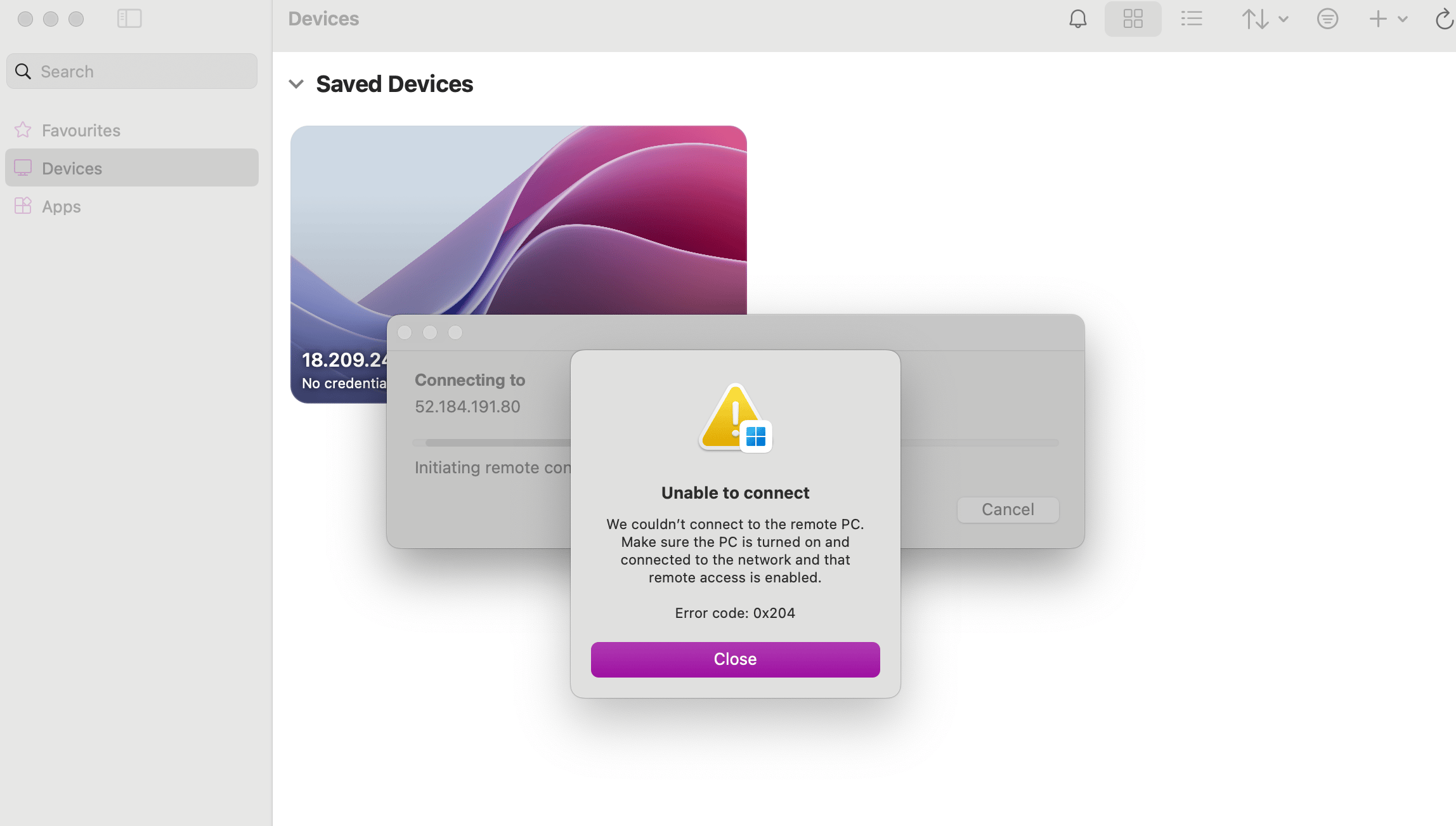 then click on the **Stop VM** button.
 2. After the VM is stopped, click on the **Restart** button that will now appear on the screen. On restarting the VM, you should now be able to connect to the VM using your credentials.
