> ## Documentation Index
> Fetch the complete documentation index at: https://cloud-architect.ipoint-labs.com/llms.txt
> Use this file to discover all available pages before exploring further.
# Enable VPC Peering through Transit Gateway Challenge
> Hands-on lab · 45m
Launch this lab in the IP Lab Portal, then follow the steps below in the AWS console.
Open IP Lab Portal
## Overview
### Prerequisites
1. Good knowledge of AWS service
* Virtual Private Cloud (VPC)
* Elastic Compute (EC2)
2. Laptop/Desktop
3. Internet Browser
4. Internet connection
### Challenge Instructions
1. **Region** : Make sure to use **us-east-1** region to create all the resources.
2. You will be provided with the requirements of the challenge. If you are new to AWS Cloud, we recommend you go through our hands-on Labs before taking this challenge.
3. **Challenge Duration**: 45 min
### How to submit the challenge
1. After building the infrastructure, click on the **Validation** button, to validate if you have built the required infrastructure and completed the challenge successfully.
2. Validation status:
o **Success** - You have completed the challenge successfully.
o **Failed** - You have failed to complete the challenge.
3. Once you have successfully validated the challenge, click on **End Lab** button to end the challenge.
### Launching Challenge Environment
1. To launch the challenge environment, Click on the **Start Challenge** button.
2. Please wait until the cloud environment is provisioned. It will take less than a minute to provision.
3. Once the Challenge is started, you will be provided with **IAM user name**, **Password**, **Access** **Key**, and **Secret** **Access** **Key**.
**Note** : You can only start one challenge at any given time
## Lab guide
### Sign in to AWS Management Console
### Click on the Open Console button, and you will get redirected to AWS Console in a new browser tab.
* On the AWS sign-in page, leave the Account ID as default. Never edit/remove the 12 digit Account ID present in the AWS Console. otherwise, you cannot proceed with the challenge.
* Now copy your **User Name** and **Password** in the Lab Console to the **IAM Username and Password** in AWS Console and click on the **Sign in** button.
* Once Signed In to the AWS Management Console, Make the default AWS Region as **US East (N. Virginia) us-east-1.**
### Cloud Challenge Details
In this challenge, your Virtual Private Cloud (VPC) skills are put to the test. You'll be given a requirement and you have to reach it using your knowledge of Elastic Compute (EC2), Internet Gateway, Route Tables, Subnets and Transit gateway which will be used in this challenge. This Challenge will help you understand the real-time scenarios.
### Architecture Diagram
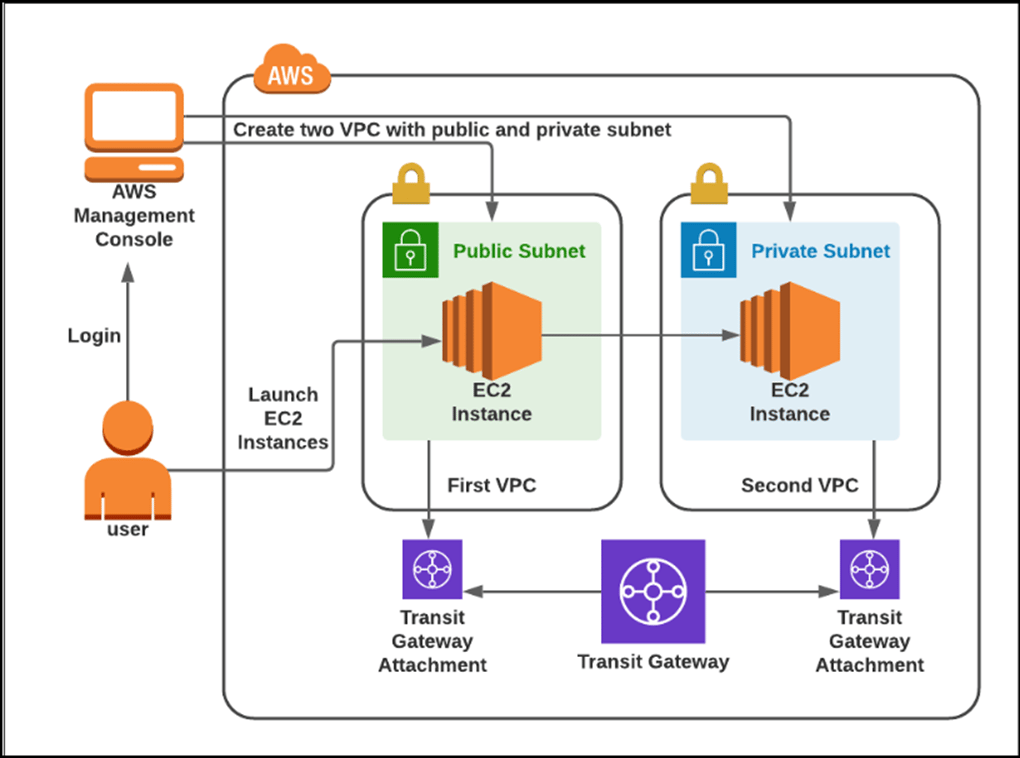 **A company XYZ wants to connect two VPCs with public and private subnets by establishing VPC peering through Transit Gateway. The Transit gateway attachment is required in order to install VPC and add the new entry to the route table. Then from the public EC2 instance, you must use SSH to access the private EC2.The below are the tasks that need to be performed by you in order to create the stack.**
1. Create VPC with **10.0.0.0/24** IPv4 block and give **access to DNS**.
2. Create **Public Subnet in VPC** with **10.0.0.0/25** IPv4 block.
3. Create **Internet gateway** and attach VPC.
4. Create **Public Route Table** and associate it with Subnet.
5. Add **public route** in the Route Table:
* Default Route with **Internet Gateway**.
6. Create EC2 Instance in the VPC:
* AMI: **Amazon Linux 2023 kernel-6.1**
Instance type: **t2.micro**
* Create key pair
* Create Security Group with 3 ports like **SSH, HTTP and HTTPS**.
* Create an **script HTML page** served by Apache httpd web server.
7. Create another VPC with **20.0.0.0/24** IPv4 block with DNS access.
8. Create **Private Subnet** with **20.0.0.0/25** IPv4 block.
9. Create same for another EC2 Instance in the VPC with **SSH** port.
10. Create 2 Transit Gateway attachments for the VPCs created.
11. Add the routes in the first VPC’s route table:
* Destination as **20.0.0.0/24**
* Target: **Transit Gateway**
12. Add the routes in the second VPC’s route table:
* Destination as **20.0.0.0/24**
13. Test the connectivity between two VPCs.
14. Click on the **Validate** to complete the challenge.
15. **Delete** the resources after Validation.
### End Challenge
1. Sign out of the AWS Account.
2. You have successfully completed the challenge.
3. Click on **End Challenge** button from IP Lab Portal Labs console and wait till the process gets completed.
## What gets checked
When you press **Check my work**, the platform verifies each of these:
* **Launch an EC2 Instance** — Check whether an EC2 Instance is launched or not.
* **Validate EC2 Instance Type t2.micro** — Check whether the EC2 instance type is t2.micro.
* **Create VPC Transit Gateway** — Check whether a Transit Gateway is created with status Available or not.
* **Create VPC Transit Gateway Attachment** — Check whether a Transit Gateway Attachment is created with Resource Type VPC and status Available or not.
* **Create Amazon Custom VPC** — Check whether a Custom VPC is created or not.
* **Create Amazon Custom VPC Subnet** — Check whether a Subnet is created for the Custom VPC or not.
* **Create Amazon Custom VPC Public Route Table** — Check whether a Custom VPC Public Route Table is created and an Internet Gateway route is added or not.
* **Create Internet Gateway** — Check whether an Internet Gateway is created and attached to the Custom VPC or not.
## Related help
* [FAQs and Troubleshooting](/aws-saa/support/faqs-and-troubleshooting)
* [SSH into EC2 Instance](/aws-saa/support/ssh-into-ec2-instance)
This documentation is built and hosted on [Mintlify](https://mintlify.com), a developer documentation platform.
**A company XYZ wants to connect two VPCs with public and private subnets by establishing VPC peering through Transit Gateway. The Transit gateway attachment is required in order to install VPC and add the new entry to the route table. Then from the public EC2 instance, you must use SSH to access the private EC2.The below are the tasks that need to be performed by you in order to create the stack.**
1. Create VPC with **10.0.0.0/24** IPv4 block and give **access to DNS**.
2. Create **Public Subnet in VPC** with **10.0.0.0/25** IPv4 block.
3. Create **Internet gateway** and attach VPC.
4. Create **Public Route Table** and associate it with Subnet.
5. Add **public route** in the Route Table:
* Default Route with **Internet Gateway**.
6. Create EC2 Instance in the VPC:
* AMI: **Amazon Linux 2023 kernel-6.1**
Instance type: **t2.micro**
* Create key pair
* Create Security Group with 3 ports like **SSH, HTTP and HTTPS**.
* Create an **script HTML page** served by Apache httpd web server.
7. Create another VPC with **20.0.0.0/24** IPv4 block with DNS access.
8. Create **Private Subnet** with **20.0.0.0/25** IPv4 block.
9. Create same for another EC2 Instance in the VPC with **SSH** port.
10. Create 2 Transit Gateway attachments for the VPCs created.
11. Add the routes in the first VPC’s route table:
* Destination as **20.0.0.0/24**
* Target: **Transit Gateway**
12. Add the routes in the second VPC’s route table:
* Destination as **20.0.0.0/24**
13. Test the connectivity between two VPCs.
14. Click on the **Validate** to complete the challenge.
15. **Delete** the resources after Validation.
### End Challenge
1. Sign out of the AWS Account.
2. You have successfully completed the challenge.
3. Click on **End Challenge** button from IP Lab Portal Labs console and wait till the process gets completed.
## What gets checked
When you press **Check my work**, the platform verifies each of these:
* **Launch an EC2 Instance** — Check whether an EC2 Instance is launched or not.
* **Validate EC2 Instance Type t2.micro** — Check whether the EC2 instance type is t2.micro.
* **Create VPC Transit Gateway** — Check whether a Transit Gateway is created with status Available or not.
* **Create VPC Transit Gateway Attachment** — Check whether a Transit Gateway Attachment is created with Resource Type VPC and status Available or not.
* **Create Amazon Custom VPC** — Check whether a Custom VPC is created or not.
* **Create Amazon Custom VPC Subnet** — Check whether a Subnet is created for the Custom VPC or not.
* **Create Amazon Custom VPC Public Route Table** — Check whether a Custom VPC Public Route Table is created and an Internet Gateway route is added or not.
* **Create Internet Gateway** — Check whether an Internet Gateway is created and attached to the Custom VPC or not.
## Related help
* [FAQs and Troubleshooting](/aws-saa/support/faqs-and-troubleshooting)
* [SSH into EC2 Instance](/aws-saa/support/ssh-into-ec2-instance)
This documentation is built and hosted on [Mintlify](https://mintlify.com), a developer documentation platform.