> ## Documentation Index
> Fetch the complete documentation index at: https://cloud-architect.ipoint-labs.com/llms.txt
> Use this file to discover all available pages before exploring further.
# Working with CloudFront distributions and Restricted Region Challenge
> Hands-on lab · 45m
Launch this lab in the IP Lab Portal, then follow the steps below in the AWS console.
Open IP Lab Portal
## Overview
### Prerequisites
1. Good knowledge of AWS services
* Amazon S3 service
* Amazon CloudFront distribution
* Amazon CloudFront distribution policies
2. Laptop/Desktop
3. Internet Browser
4. Internet connection
### Challenge Instructions
1. Region: Make sure to use the **US-east-1** region to create all the resources.
2. You will be provided with the requirements of the challenge. If you are new to AWS Cloud, we recommend you go through our hands-on Labs before taking this challenge.
3. Challenge Duration: **60 minutes**
### How to submit the challenge
1. After building the infrastructure, click on the **Validation** button, to validate if you have built the required infrastructure and completed the challenge successfully.
2. Validation status
* **Success** - You have completed the challenge successfully.
* **Failed** - You have failed to complete the challenge.
3. Once you have successfully validated the challenge, click on the **End Challenge** button.
### Launching Challenge Environment
1. To launch the challenge environment, Click on the **Start Challenge** button.
2. Please wait until the cloud environment is provisioned. It will take less than a minute to provision.
3. Once the challenge is started, you will be provided with **IAM user name**, **Password**, **Access** **Key**, and **Secret** **Access** **Key**.
**Note** : You can only start one challenge at any given time
## Lab guide
### Sign in to AWS Management Console
1. Click on the **Open Console** button, and you will get redirected to AWS Console in a new browser tab.
2. On the AWS sign-in page, Leave the Account ID as default. Never edit/remove the 12-digit Account ID present in the AWS Console. otherwise, you cannot proceed with the challenge.
3. Now copy your **User Name** and **Password** in the Lab Console to the **IAM Username and Password** in AWS Console and click on the **Sign in** button.
4. Once Signed In to the AWS Management Console, Make the default AWS Region as **US East (N. Virginia) us-east-1.**
### Cloud Challenge Details
In this lab challenge, your Amazon S3 and AWS CloudFront skills are put to the test. You'll be given a requirement and you have to reach it using your knowledge of AWS CloudFront and other AWS services. The Lab Challenge helps you understand real-time scenarios.
### Architecture Diagram
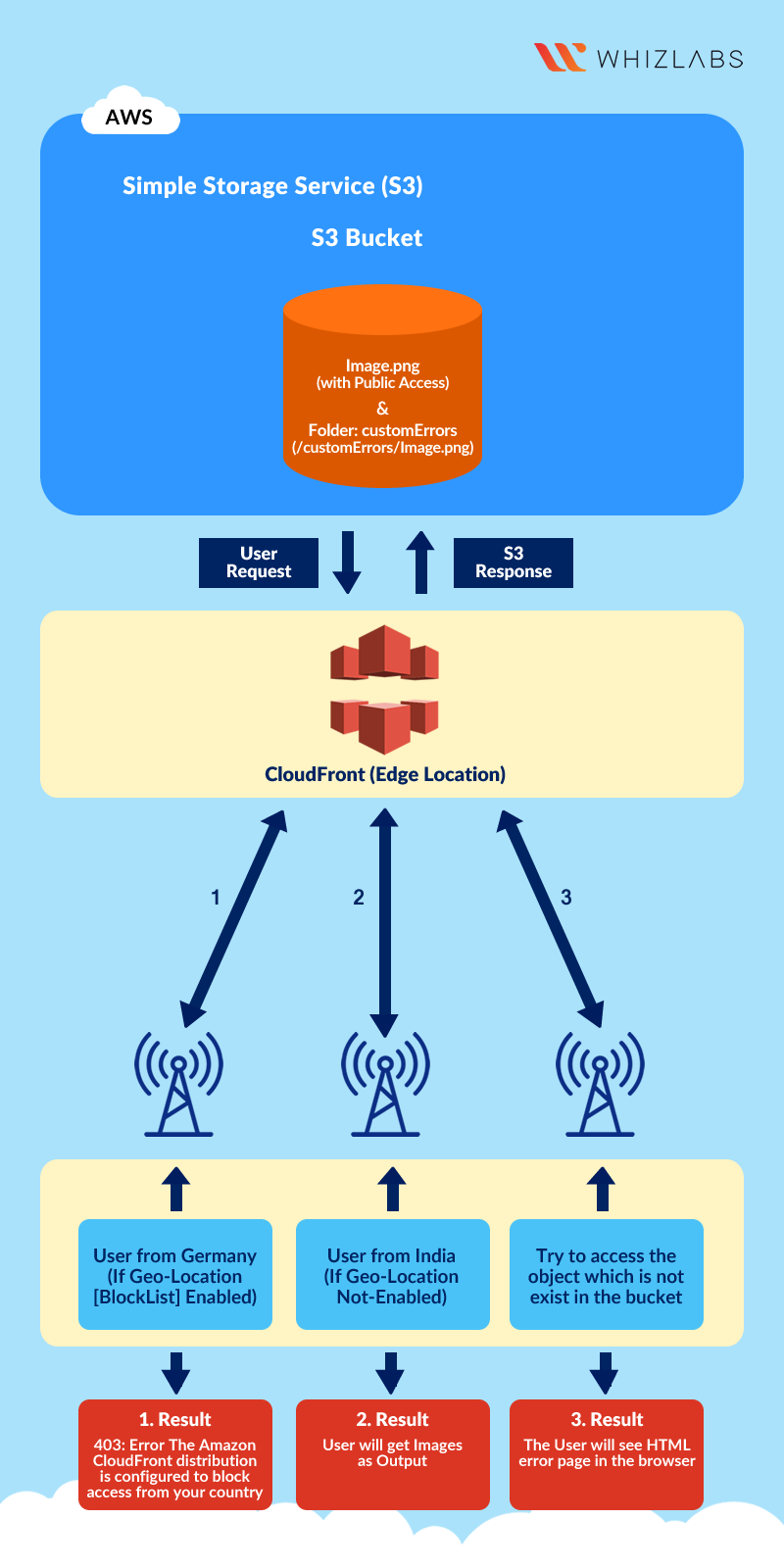 **A company XYZ is deploying a new web application. As a part of the infrastructure, they need their website highly available for edge locations for testing environments. Also, they want their website cannot be accessible in a few countries, so your company wants it to be restricted in those regions. And third condition is if the user enters a misspelled link or object link it should throw an error. Now your challenge is to set up cloudfront distribution with the above restrictions.**
1. Create an **S3 bucket** with a Custom folder for error and block pages.
2. Create **Cloudfront distribution**
3. Accessing images through Cloudfront.
4. Configuring Custom Error Page
5. Restricting the **Geographic Distribution** of your content.
6. Click on the **Validate** to complete the challenge.
7. After Validation **Terminate** all the resources.
### End Challenge
1. Sign out of the AWS Account
2. You have successfully completed the lab.
3. Once you have completed the steps, click on **End Challenge** from the IP Lab Portal dashboard.
## What gets checked
When you press **Check my work**, the platform verifies each of these:
* **Create CloudFront Distribution** — Check whether a CloudFront Distribution is created and status as Deployed or not.
* **Invoke CloudFront Distribution Domain** — Check whether the CloudFront Distribution domain is accessible from the internet or not.
* **Create an AWS S3 Bucket with Policy** — Check whether S3 bucket is created and bucket policy added or not
* **Invoke S3 Object URL** — Check whether an S3 Object URL is accessible from the internet or not.
* **Create an S3 Bucket from CloudFormation** — Check whether an S3 Bucket is created from CloudFormation or not.
## Related help
* [FAQs and Troubleshooting](/aws-saa/support/faqs-and-troubleshooting)
This documentation is built and hosted on [Mintlify](https://mintlify.com), a developer documentation platform.
**A company XYZ is deploying a new web application. As a part of the infrastructure, they need their website highly available for edge locations for testing environments. Also, they want their website cannot be accessible in a few countries, so your company wants it to be restricted in those regions. And third condition is if the user enters a misspelled link or object link it should throw an error. Now your challenge is to set up cloudfront distribution with the above restrictions.**
1. Create an **S3 bucket** with a Custom folder for error and block pages.
2. Create **Cloudfront distribution**
3. Accessing images through Cloudfront.
4. Configuring Custom Error Page
5. Restricting the **Geographic Distribution** of your content.
6. Click on the **Validate** to complete the challenge.
7. After Validation **Terminate** all the resources.
### End Challenge
1. Sign out of the AWS Account
2. You have successfully completed the lab.
3. Once you have completed the steps, click on **End Challenge** from the IP Lab Portal dashboard.
## What gets checked
When you press **Check my work**, the platform verifies each of these:
* **Create CloudFront Distribution** — Check whether a CloudFront Distribution is created and status as Deployed or not.
* **Invoke CloudFront Distribution Domain** — Check whether the CloudFront Distribution domain is accessible from the internet or not.
* **Create an AWS S3 Bucket with Policy** — Check whether S3 bucket is created and bucket policy added or not
* **Invoke S3 Object URL** — Check whether an S3 Object URL is accessible from the internet or not.
* **Create an S3 Bucket from CloudFormation** — Check whether an S3 Bucket is created from CloudFormation or not.
## Related help
* [FAQs and Troubleshooting](/aws-saa/support/faqs-and-troubleshooting)
This documentation is built and hosted on [Mintlify](https://mintlify.com), a developer documentation platform.