> ## Documentation Index
> Fetch the complete documentation index at: https://cloud-architect.ipoint-labs.com/llms.txt
> Use this file to discover all available pages before exploring further.
# Build API Gateway with Lambda Integration
> Hands-on lab · 45m
Launch this lab in the IP Lab Portal, then follow the steps below in the AWS console.
Open IP Lab Portal
## Overview
### Lab Details
1. This lab walks you through the steps to create an integration between Lambda and API Gateway
2. You will practice using Amazon API Gateway.
3. Duration: **45 minutes.**
4. AWS Region: **US East (N. Virginia) us-east-1.**
### Introduction
#### Amazon API Gateway
* Amazon API Gateway is a **fully managed service** that makes it easy for developers to create, publish, maintain, monitor, and secure APIs at any scale.
* APIs act as the **front door** for applications to access data, business logic, or functionality from your backend services.
* API Gateway handles all the tasks involved in accepting and processing up to hundreds of thousands of concurrent API calls, including traffic management, CORS support, authorization and access control, throttling, monitoring, and API version management.
* Using API Gateway, you can create RESTful APIs and WebSocket APIs that enable real-time two-way communication applications. API Gateway supports containerized and serverless workloads, as well as web applications.
* AWS Lambda lets you run code without provisioning or managing servers. You pay only for the compute time you consume.
* With Lambda, you can run code for virtually any type of application or backend service - all with zero administration. Just upload your code and Lambda takes care of everything required to run and scale your code with high availability. You can set up your code to automatically trigger from other AWS services or call it directly from any web or mobile app.
### Architecture Diagram
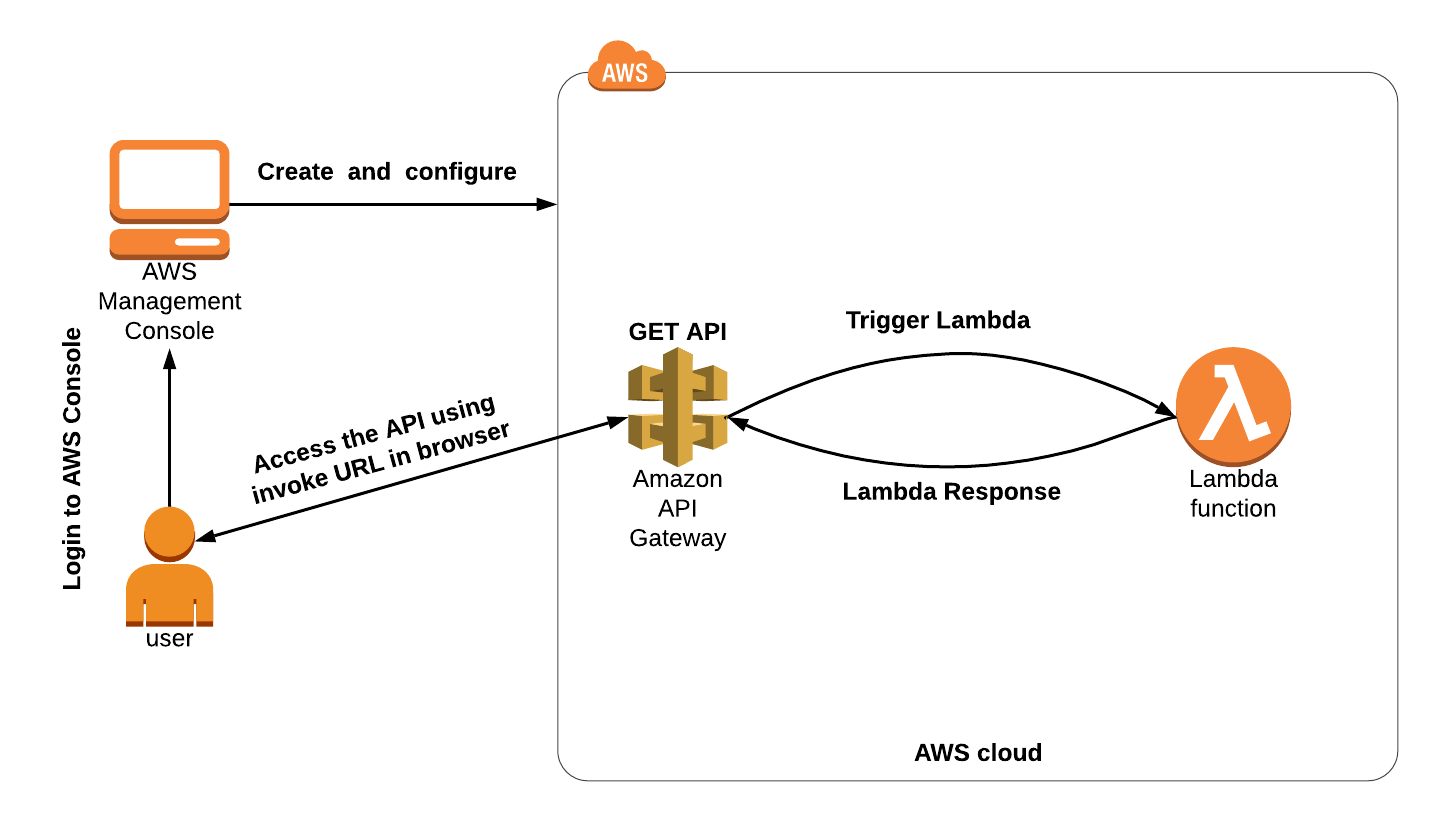 ### Task Details
1. Sign into the AWS Management Console.
2. Create a Lambda Function.
3. Create a new API.
4. Create a Resource.
5. Create a Method.
6. Deploy the API
### Launching Lab Environment
1. To launch the lab environment, Click on the **Start Lab** button.
2. Please wait until the cloud environment is provisioned. It will take less than a minute to provision.
3. Once the Lab is started, you will be provided with **IAM user name**, **Password**, **Access** **Key**, and **Secret** **Access** **Key**.
> **Note** : You can only start one lab at any given time
## Lab guide
### Lab Steps
#### Task 1: Sign in to AWS Management Console
1. Click on the **Open Console** button, and you will get redirected to AWS Console in a new browser tab.
2. On the AWS sign-in page,
* Leave the Account ID as default. Never edit/remove the 12 digit Account ID present in the AWS Console. otherwise, you cannot proceed with the lab.
* Now copy your **User Name** and **Password** in the Lab Console to the **IAM Username and Password** in AWS Console and click on the **Sign in** button
3. Once Signed In to the AWS Management Console, Make the default AWS Region as **US East (N. Virginia) us-east-1.**
#### Task 2: Create a Lambda Function
1. Navigate to the **services** menu at the top, then click on **Lambda** under the **Compute** section.
2. Click on the **Create a function** button.
* Choose: **Author from scratch**.
* Function name: Enter **whizfunction**
* Runtime: Select **Python 3.12**
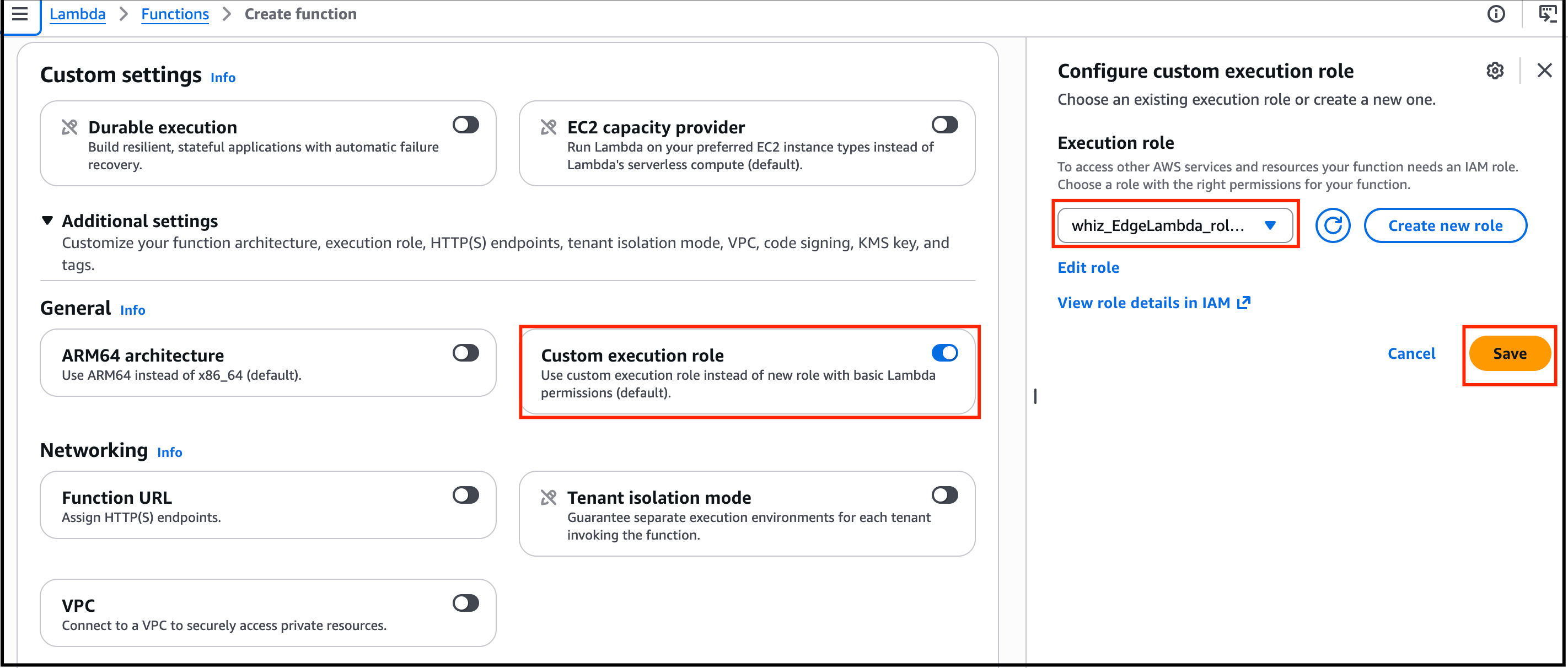
* Role: In the permissions section, choose **Use existing role.**
* Enter the Role name as ***AWSLambdaEdgeExecutionRole\***
* Click on **Create function**
### Task Details
1. Sign into the AWS Management Console.
2. Create a Lambda Function.
3. Create a new API.
4. Create a Resource.
5. Create a Method.
6. Deploy the API
### Launching Lab Environment
1. To launch the lab environment, Click on the **Start Lab** button.
2. Please wait until the cloud environment is provisioned. It will take less than a minute to provision.
3. Once the Lab is started, you will be provided with **IAM user name**, **Password**, **Access** **Key**, and **Secret** **Access** **Key**.
> **Note** : You can only start one lab at any given time
## Lab guide
### Lab Steps
#### Task 1: Sign in to AWS Management Console
1. Click on the **Open Console** button, and you will get redirected to AWS Console in a new browser tab.
2. On the AWS sign-in page,
* Leave the Account ID as default. Never edit/remove the 12 digit Account ID present in the AWS Console. otherwise, you cannot proceed with the lab.
* Now copy your **User Name** and **Password** in the Lab Console to the **IAM Username and Password** in AWS Console and click on the **Sign in** button
3. Once Signed In to the AWS Management Console, Make the default AWS Region as **US East (N. Virginia) us-east-1.**
#### Task 2: Create a Lambda Function
1. Navigate to the **services** menu at the top, then click on **Lambda** under the **Compute** section.
2. Click on the **Create a function** button.
* Choose: **Author from scratch**.
* Function name: Enter **whizfunction**
* Runtime: Select **Python 3.12**
* Role: In the permissions section, choose **Use existing role.**
* Enter the Role name as ***AWSLambdaEdgeExecutionRole\***
* Click on **Create function**
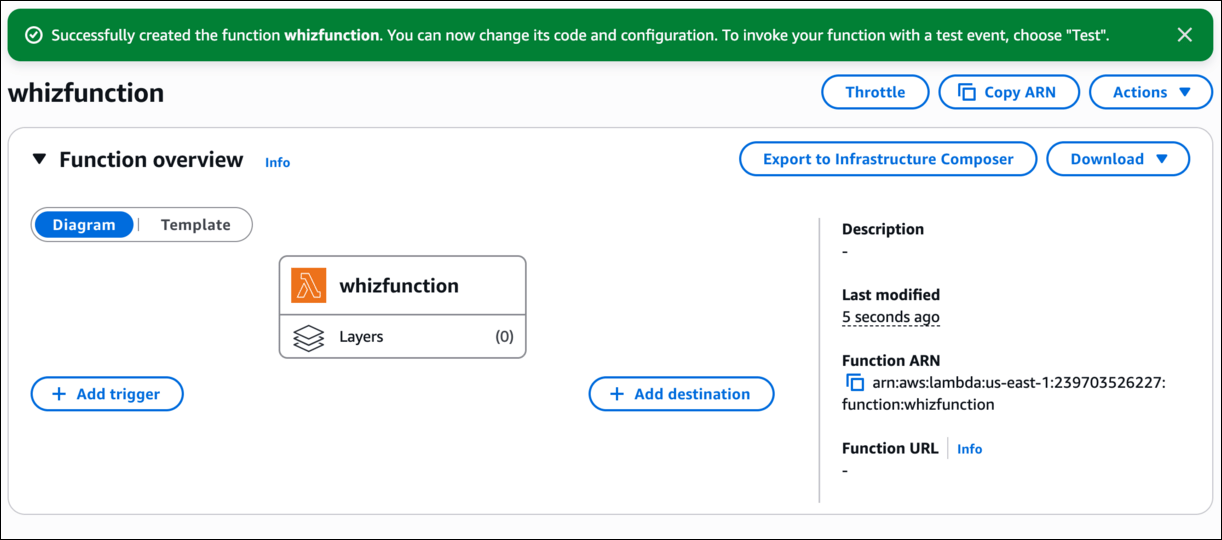
 3. Once the Lambda Function is created successfully, it will look like the screenshot below:
 #### Task 3: Create an API
1. Navigate to the **services** menu at the top, then click on **API Gateway** in the **Network and Content Delivery** section.
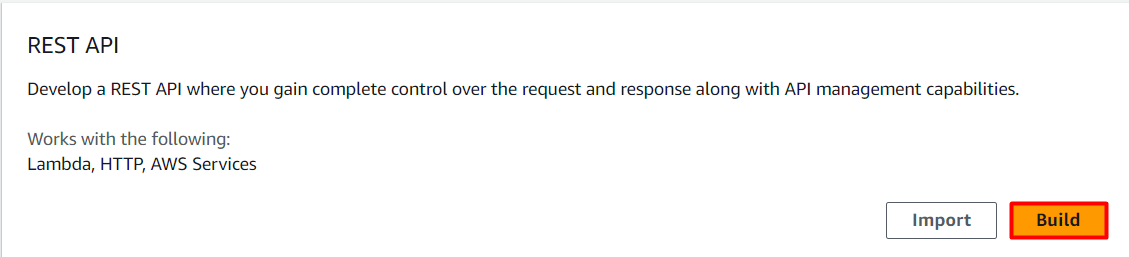
2. Click on **Create an API**. (If gets started and is not visible), then click on **Build** in REST API and select Protocol as **REST**. (Close the pop up message for Create your first API,if it is present and ignore the error warning).
#### Task 3: Create an API
1. Navigate to the **services** menu at the top, then click on **API Gateway** in the **Network and Content Delivery** section.
2. Click on **Create an API**. (If gets started and is not visible), then click on **Build** in REST API and select Protocol as **REST**. (Close the pop up message for Create your first API,if it is present and ignore the error warning).
 3. Choose to create a new API as **New API.** Under settings, choose the API name ***WhizlabAPI***\*\*.\*\* Leave other options as default and click on **Create API**.
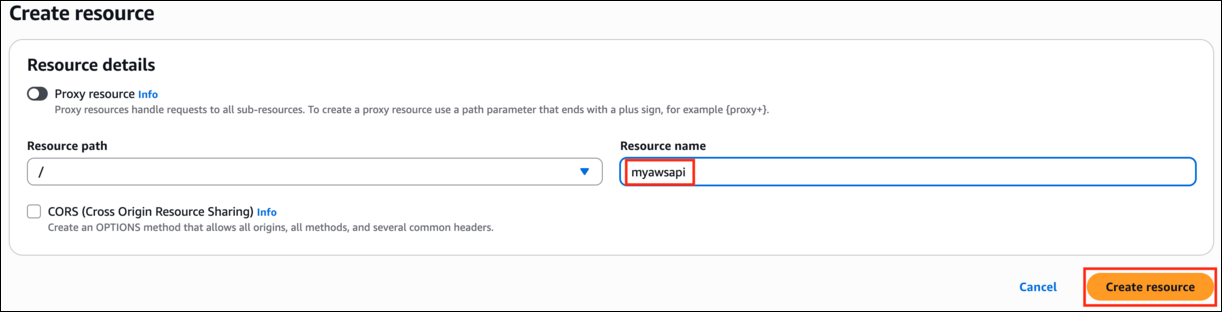
 #### Task 4: Creating a Resource
1. Once the API is created, select the API.
2. Select **Create Resource** in actions.
* Resource Name: Enter ***myawsapi***
3. Enter the resource name and click on **Create Resource**
#### Task 4: Creating a Resource
1. Once the API is created, select the API.
2. Select **Create Resource** in actions.
* Resource Name: Enter ***myawsapi***
3. Enter the resource name and click on **Create Resource**
 #### Task 5: Creating a Method
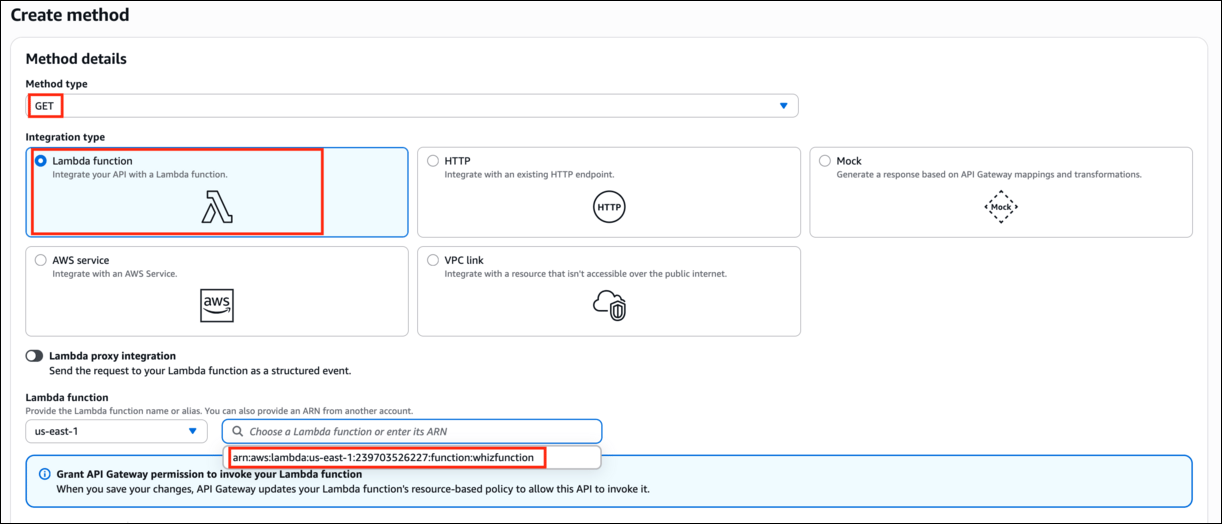
1. Once you create a resource, click on **Create Method**. Select **Get** in the drop-down list of **Method Type**.
2. Select the Integration Type as **Lambda function.**
3. Enter the Lambda Function as ***whizfunction*** and choose the **us-east-1** region. Click on **Create Method**
#### Task 5: Creating a Method
1. Once you create a resource, click on **Create Method**. Select **Get** in the drop-down list of **Method Type**.
2. Select the Integration Type as **Lambda function.**
3. Enter the Lambda Function as ***whizfunction*** and choose the **us-east-1** region. Click on **Create Method**
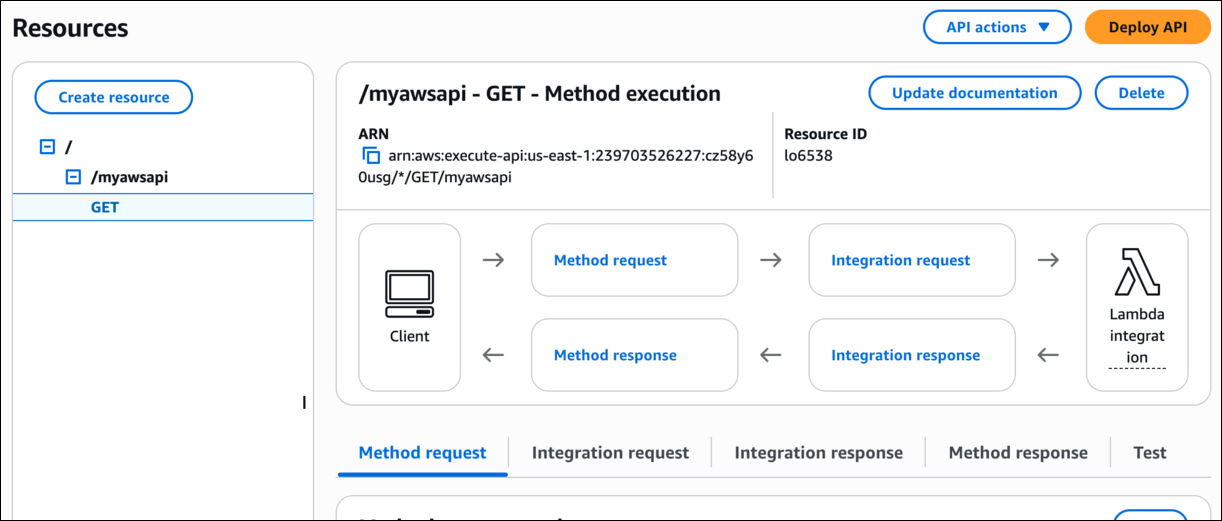
 4. Once the method has been created, your screen will look similar to the screenshot below:
 #### Task 6: Deploy the API
1. Once the resource and the method have been created successfully, you can deploy the API.
2. Click on **Deploy API**.
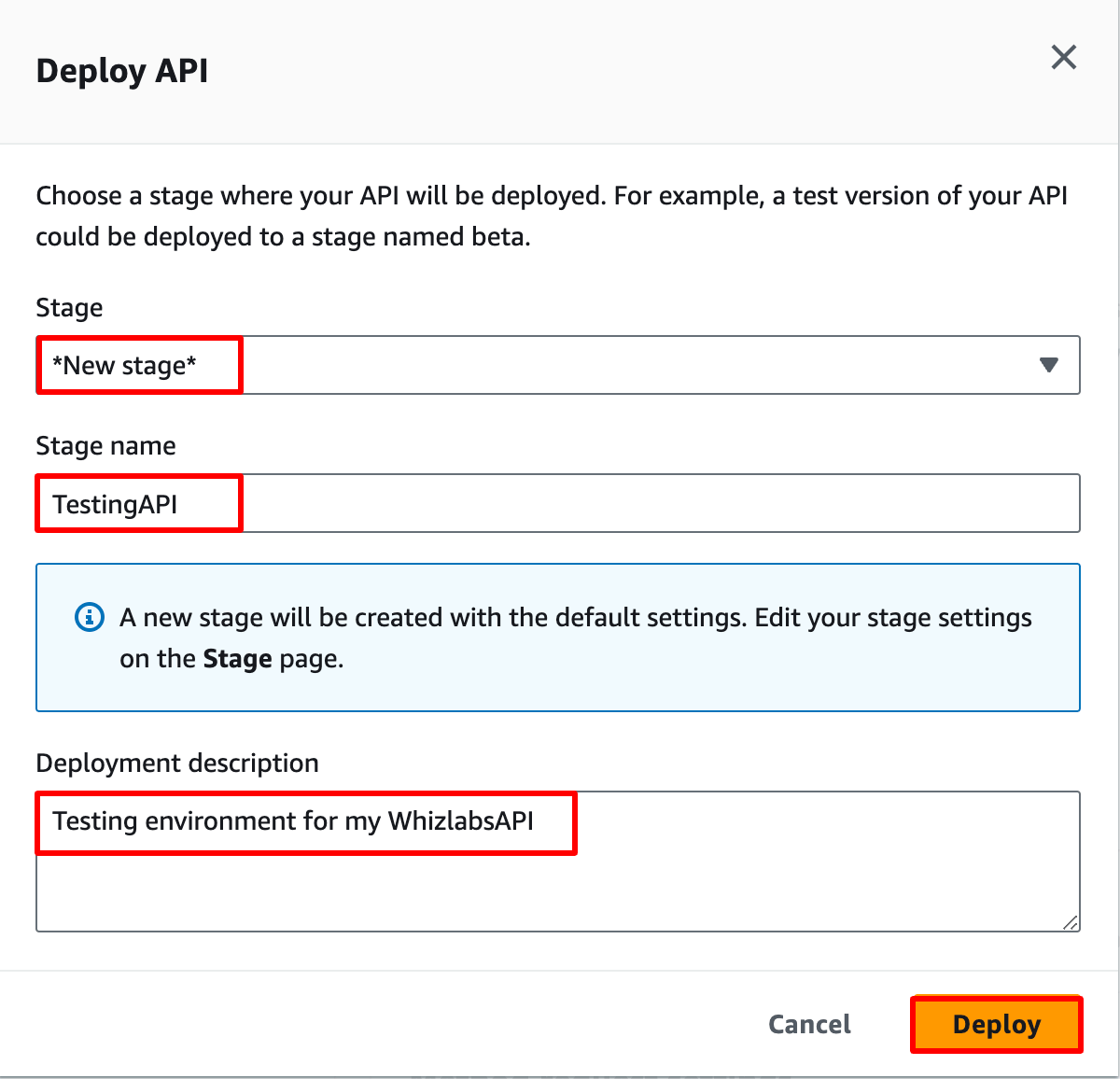
3. Select the Deployment Stage in the drop-down as **New Stage**.
4. Enter Stage Name: ***TestingAPI*** and Stage description as **Testing environment for my WhizlabsAPI.**
5. Click on **Deploy.**
#### Task 6: Deploy the API
1. Once the resource and the method have been created successfully, you can deploy the API.
2. Click on **Deploy API**.
3. Select the Deployment Stage in the drop-down as **New Stage**.
4. Enter Stage Name: ***TestingAPI*** and Stage description as **Testing environment for my WhizlabsAPI.**
5. Click on **Deploy.**
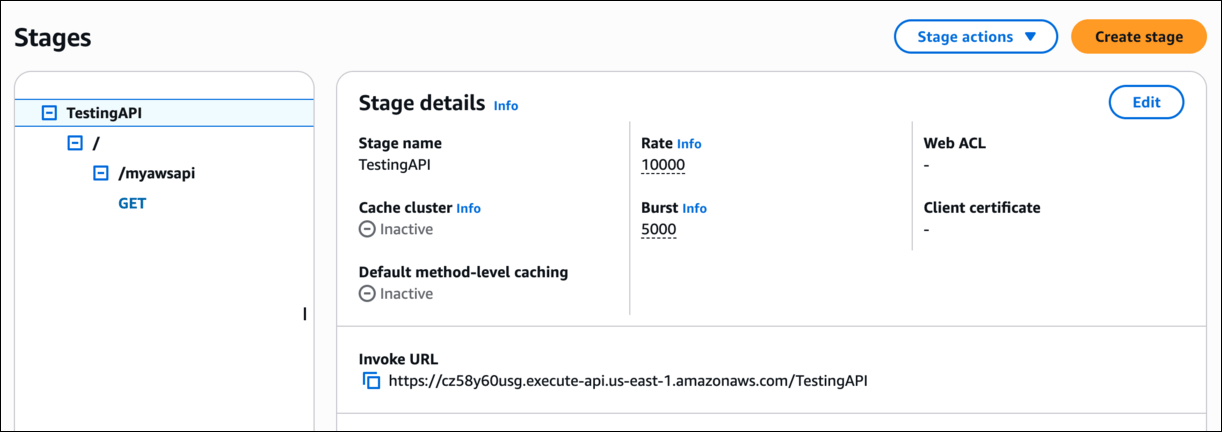
 6. Once the API has been deployed, navigate to **Stages**. You will be able to see the following:
 7. If you are getting the below permission error, ignore it. It is not required for this lab.
 8. Copy the **URL** under the **Invoke URL** and paste the URL in the search bar of a browser tab.
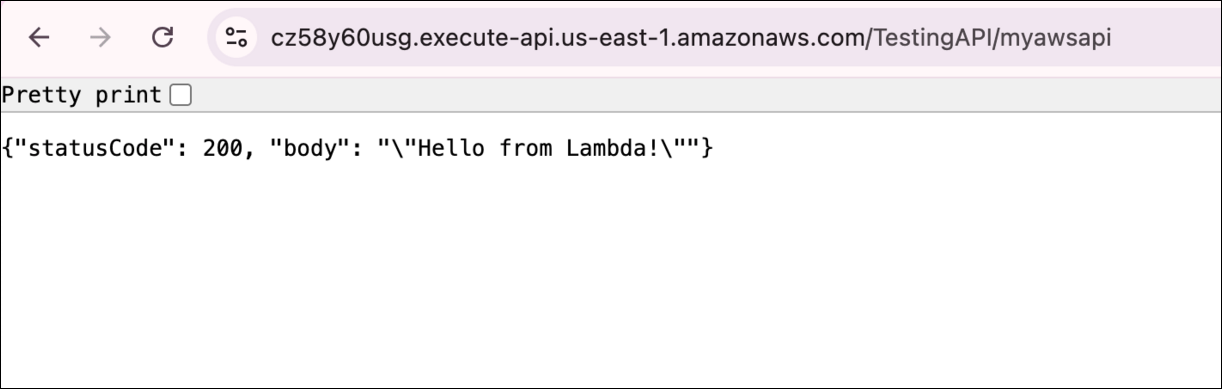
9. Now add ***/myawsapi*** at the end of deploy URL and hit Enter.
10. You will receive the GET request from the API. Here's an example:
8. Copy the **URL** under the **Invoke URL** and paste the URL in the search bar of a browser tab.
9. Now add ***/myawsapi*** at the end of deploy URL and hit Enter.
10. You will receive the GET request from the API. Here's an example:
 > ##### Do you know?
>
> 1. API Gateway is a fully managed AWS service that enables developers to create, publish, and manage APIs for their applications. It acts as a front-door to your backend services, allowing you to securely expose your APIs to clients, handle authentication and authorization, and apply various transformations and optimizations.
> 2. AWS Lambda is a serverless compute service provided by Amazon Web Services. It allows developers to write and execute code without provisioning or managing servers. A Lambda function is a piece of code that performs a specific task or handles a specific API request. It can be written in various programming languages and is triggered by events, such as an API request.
> 3. Lambda integration in API Gateway refers to the process of connecting an API endpoint with a Lambda function. It enables API Gateway to invoke the Lambda function in response to incoming API requests, allowing the function to process the request, perform business logic, and generate a response.
1. This will validate the resources in the AWS account and shows you whether you have completed this lab successfully or not.
### Completion and Conclusion
1. You have successfully created a Lambda function.
2. You have successfully created the API.
3. You have successfully created the API Resource and Method.
4. You have successfully tested the API.
### End Lab
1. Sign out of AWS Account.
2. You have successfully completed the lab.
3. Once you have completed the steps, click on **End Lab** from the IP Lab Portal dashboard.
## What gets checked
When you press **Check my work**, the platform verifies each of these:
* **Create an AWS Lambda Function** — Check whether a Lambda Function is created or not
* **Create a API Gateway** — Check whether a REST/HTTP?WEBSOCKET API gateway is created or not
* **Deploy and Invoke REST API Gateway** — Check whether a Rest API gateway is deployed and can invoke the URL or not
## Related help
* [FAQs and Troubleshooting](/aws-saa/support/faqs-and-troubleshooting)
This documentation is built and hosted on [Mintlify](https://mintlify.com), a developer documentation platform.
> ##### Do you know?
>
> 1. API Gateway is a fully managed AWS service that enables developers to create, publish, and manage APIs for their applications. It acts as a front-door to your backend services, allowing you to securely expose your APIs to clients, handle authentication and authorization, and apply various transformations and optimizations.
> 2. AWS Lambda is a serverless compute service provided by Amazon Web Services. It allows developers to write and execute code without provisioning or managing servers. A Lambda function is a piece of code that performs a specific task or handles a specific API request. It can be written in various programming languages and is triggered by events, such as an API request.
> 3. Lambda integration in API Gateway refers to the process of connecting an API endpoint with a Lambda function. It enables API Gateway to invoke the Lambda function in response to incoming API requests, allowing the function to process the request, perform business logic, and generate a response.
1. This will validate the resources in the AWS account and shows you whether you have completed this lab successfully or not.
### Completion and Conclusion
1. You have successfully created a Lambda function.
2. You have successfully created the API.
3. You have successfully created the API Resource and Method.
4. You have successfully tested the API.
### End Lab
1. Sign out of AWS Account.
2. You have successfully completed the lab.
3. Once you have completed the steps, click on **End Lab** from the IP Lab Portal dashboard.
## What gets checked
When you press **Check my work**, the platform verifies each of these:
* **Create an AWS Lambda Function** — Check whether a Lambda Function is created or not
* **Create a API Gateway** — Check whether a REST/HTTP?WEBSOCKET API gateway is created or not
* **Deploy and Invoke REST API Gateway** — Check whether a Rest API gateway is deployed and can invoke the URL or not
## Related help
* [FAQs and Troubleshooting](/aws-saa/support/faqs-and-troubleshooting)
This documentation is built and hosted on [Mintlify](https://mintlify.com), a developer documentation platform.