> ## Documentation Index
> Fetch the complete documentation index at: https://cloud-architect.ipoint-labs.com/llms.txt
> Use this file to discover all available pages before exploring further.
# Difference between SQS Visibility Timeout and Delay Queue
> Hands-on lab · 30m
Launch this lab in the IP Lab Portal, then follow the steps below in the AWS console.
Open IP Lab Portal
## Overview
### Lab Details
1. This lab will walk you through the steps to create a SQS Queue, set visibility and delivery delay time. Send a message from the queue and receive the message in the lambda function.
2. Duration: **30 minutes**
3. AWS Region: **US East (N. Virginia) us-east-1**
### Introduction
#### SQS(Simple Queueing Service)
**Fact: This was the first ever AWS service offering made publicly available.**
* Amazon SQS is a reliable, easy to manage, scalable queuing service. SQS is a simple and cost effective cloud application.
* AWS SQS can be used to transmit any amount of data, at any level of throughput, without losing messages.It doesn’t interrupt other services when run continuously.
* SQS helps to reduce admirative task by scaling high-available messaging clusters. While we pay only for what we use. AWS SQS helps us to save important data which could be lost if an entire application goes down or if any component becomes unavailable.
* SQS queue acts as a buffer between the application components that receive the data and the other parts that process the data in the system.
* SQS is used for message-oriented architecture. If the processing server cannot process the work fast enough (for whatever reason) the work is queued so that the processing servers can work on it when they have available resources to process the request. This means that work is not lost due to insufficient resources.
* The default Amazon SQS ensures that each message is delivered at least once.
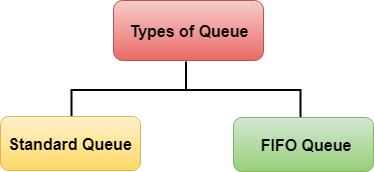
**There are two types of Queues**:
 #### What is Visibility TimeOut
1. Visibility timeout is a time duration which AWS SQS avoids the other components from receiving and processing the messages.
2. **Case Study:**
* Lets try to understand the definition by an example. So if you keep your visibility timeout to 1 minute for a big data job, what's going to happen is the message is going to come back into the queue because it's not going to complete in 1 minute.
* Let's say it takes five minutes to actually process the large amount of data.The message is going to become visible in the queue and then another EC2 instance will pick it up. Because of this you could be delivering your messages multiple times because your visibility timeout is too low.
3. Default Visibility timeout is 30 seconds.
4. Increase it if your task takes > 30 seconds.
5. Maximum it can go up to is 12 hours.
#### What is Delay Queue
1. Delay queue allows us to delay/postpone the delivery of a new message for a given period of time. We can easily turn any queue into a delay queue by configuring **SetQueueAttributes** to set the queue’s **DelaySeconds** attribute.
* If we create a delay queue, any message that has been sent to this queue will remain invisible to the consumer for the configured delay time.
* To create a delay queue set **DelaySeconds** attribute to a value between 0 to 900 seconds.
2. **Case Study:**
* Let's try to understand the definition by an example. Consider a case where an application is trying to insert millions of data into a database. The application will send a message about the availability of this new data that has been recently inserted to other subsystems, which in turn process this message and subsequently make updates to the same row. Now there is a dependency that until the first batch completes its job and commits after the updates the next batch should not get triggered. If the message gets triggered before the updates complete, it would fail the next batch. In this case, delay delivery helps.
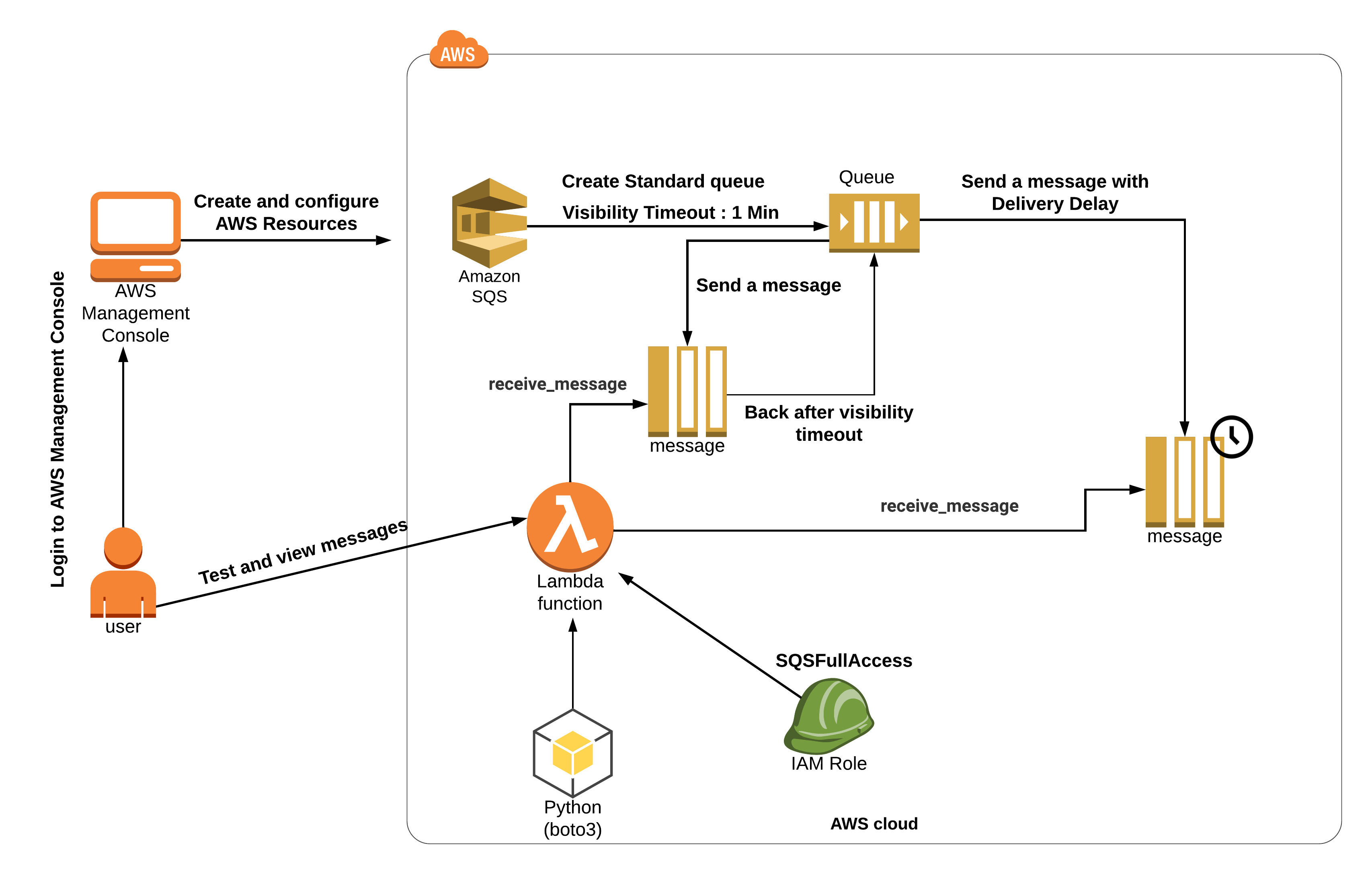
### Architecture Diagram
#### What is Visibility TimeOut
1. Visibility timeout is a time duration which AWS SQS avoids the other components from receiving and processing the messages.
2. **Case Study:**
* Lets try to understand the definition by an example. So if you keep your visibility timeout to 1 minute for a big data job, what's going to happen is the message is going to come back into the queue because it's not going to complete in 1 minute.
* Let's say it takes five minutes to actually process the large amount of data.The message is going to become visible in the queue and then another EC2 instance will pick it up. Because of this you could be delivering your messages multiple times because your visibility timeout is too low.
3. Default Visibility timeout is 30 seconds.
4. Increase it if your task takes > 30 seconds.
5. Maximum it can go up to is 12 hours.
#### What is Delay Queue
1. Delay queue allows us to delay/postpone the delivery of a new message for a given period of time. We can easily turn any queue into a delay queue by configuring **SetQueueAttributes** to set the queue’s **DelaySeconds** attribute.
* If we create a delay queue, any message that has been sent to this queue will remain invisible to the consumer for the configured delay time.
* To create a delay queue set **DelaySeconds** attribute to a value between 0 to 900 seconds.
2. **Case Study:**
* Let's try to understand the definition by an example. Consider a case where an application is trying to insert millions of data into a database. The application will send a message about the availability of this new data that has been recently inserted to other subsystems, which in turn process this message and subsequently make updates to the same row. Now there is a dependency that until the first batch completes its job and commits after the updates the next batch should not get triggered. If the message gets triggered before the updates complete, it would fail the next batch. In this case, delay delivery helps.
### Architecture Diagram
 ### Task Details
1. Sign to AWS Management Console
2. Create a SQS queue.
3. Create a Lambda function.
4. Send a message with Visibility Timeout.
5. Purge the Queue
6. Send a message with Delivery Delay
7. Purge the Queue
8. Deleting AWS resources
### Launching Lab Environment
1. To launch the lab environment, Click on the **Start Lab** button.
2. Please wait until the cloud environment is provisioned. It will take less than a minute to provision.
3. Once the Lab is started, you will be provided with **IAM user name**, **Password**, **Access** **Key**, and **Secret** **Access** **Key**.
> **Note** : You can only start one lab at any given time
## Lab guide
### Lab Steps
#### Task 1: Sign in to AWS Management Console
1. Click on the **Open Console** button, and you will get redirected to AWS Console in a new browser tab.
2. On the AWS sign-in page,
* Leave the Account ID as default. Never edit/remove the 12 digit Account ID present in the AWS Console. otherwise, you cannot proceed with the lab.
* Now copy your **User Name** and **Password** in the Lab Console to the **IAM Username and Password** in AWS Console and click on the **Sign in** button.
3. Once Signed In to the AWS Management Console, Make the default AWS Region as **US East (N. Virginia) us-east-1.**
#### Task 2: Create a SQS Queue
1. Navigate to the **Services** menu on the top, select **Simple Queue Service** under **Application Integration**.
2. Make sure you are in the **N. Virginia** region.
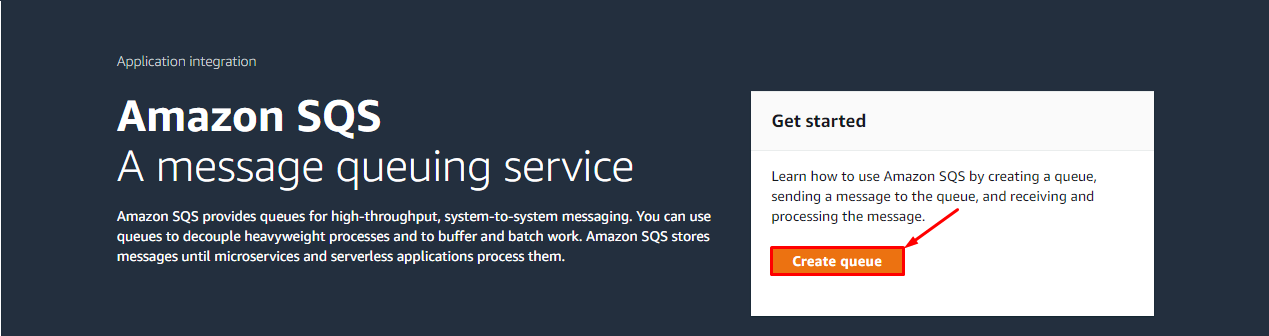
3. Click on the **Create queue** button.
### Task Details
1. Sign to AWS Management Console
2. Create a SQS queue.
3. Create a Lambda function.
4. Send a message with Visibility Timeout.
5. Purge the Queue
6. Send a message with Delivery Delay
7. Purge the Queue
8. Deleting AWS resources
### Launching Lab Environment
1. To launch the lab environment, Click on the **Start Lab** button.
2. Please wait until the cloud environment is provisioned. It will take less than a minute to provision.
3. Once the Lab is started, you will be provided with **IAM user name**, **Password**, **Access** **Key**, and **Secret** **Access** **Key**.
> **Note** : You can only start one lab at any given time
## Lab guide
### Lab Steps
#### Task 1: Sign in to AWS Management Console
1. Click on the **Open Console** button, and you will get redirected to AWS Console in a new browser tab.
2. On the AWS sign-in page,
* Leave the Account ID as default. Never edit/remove the 12 digit Account ID present in the AWS Console. otherwise, you cannot proceed with the lab.
* Now copy your **User Name** and **Password** in the Lab Console to the **IAM Username and Password** in AWS Console and click on the **Sign in** button.
3. Once Signed In to the AWS Management Console, Make the default AWS Region as **US East (N. Virginia) us-east-1.**
#### Task 2: Create a SQS Queue
1. Navigate to the **Services** menu on the top, select **Simple Queue Service** under **Application Integration**.
2. Make sure you are in the **N. Virginia** region.
3. Click on the **Create queue** button.
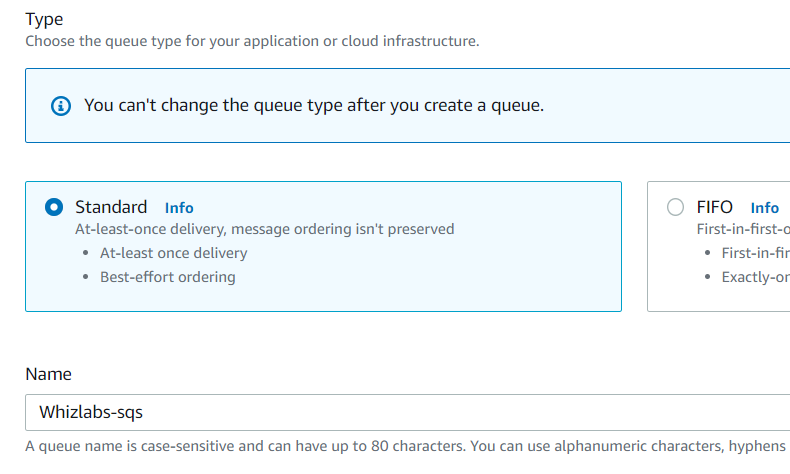
 4. **Details :**
* Type : Select **Standard**
* Name : Enter ***IP Lab Portal-sqs***
4. **Details :**
* Type : Select **Standard**
* Name : Enter ***IP Lab Portal-sqs***
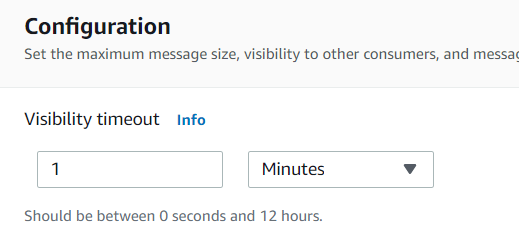
 5. **Configuration :**
* Visibility timeout : Enter ***1*** Minute
* Leave everything as default.
5. **Configuration :**
* Visibility timeout : Enter ***1*** Minute
* Leave everything as default.
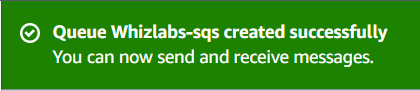
 6. Click on the **Create queue** button.
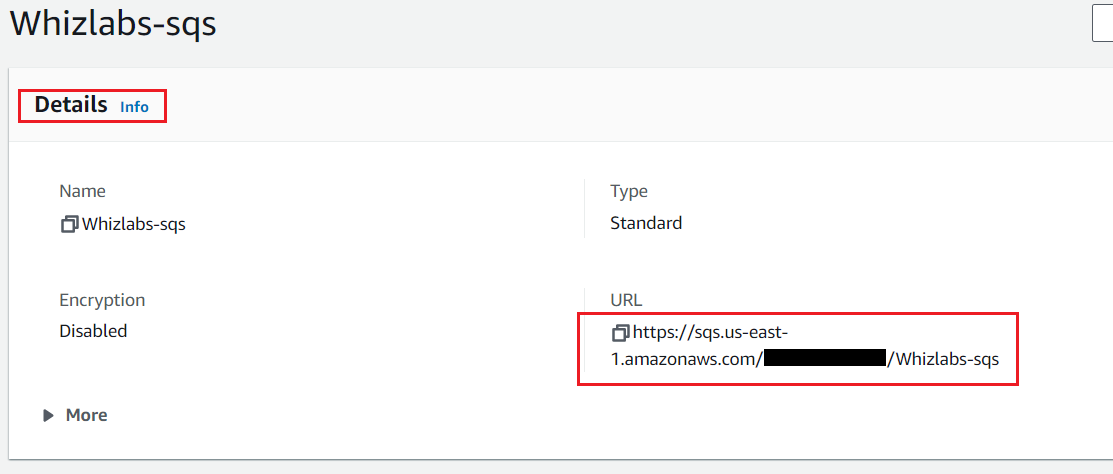
 7. Now copy the Queue **URL** under **Details** and place it in the text editor, we will be using this while creating the lambda function.
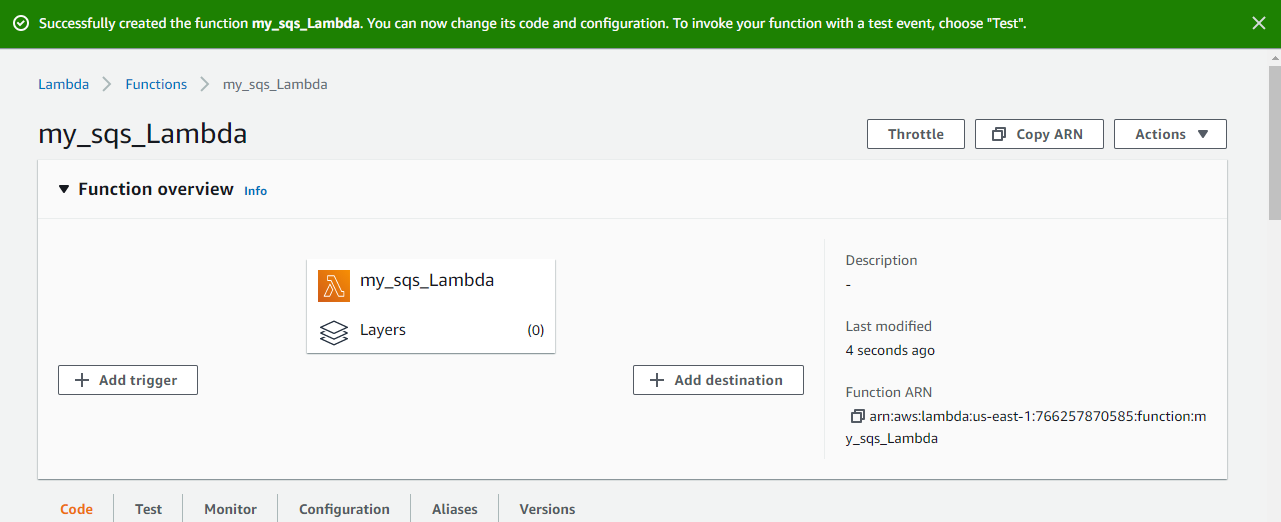
 #### Task 3: Create a lambda function
1. Click on the link [https://console.aws.amazon.com/lambda/home?region=us-east-1#/functions](https://console.aws.amazon.com/lambda/home?region=us-east-1#/functions) to open the Lambda console in a new tab in the browser. **It is important to have both SQS and Lambda functions opened in two tabs**.
2. Make sure you are in the **US East (N. Virginia)** region.
3. Click on the **Create Function**
* Choose **Author From Scratch**.
* Function name: Enter ***my\_sqs\_Lambda***
* Runtime: Select ***Python 3.13***
* Permissions: Click on the **Change default execution role** and choose **Use an existing role**
* **Existing role:** Select **whiz\_lambda\_role\** from the dropdown list.
* Click on **Create function** button.
#### Task 3: Create a lambda function
1. Click on the link [https://console.aws.amazon.com/lambda/home?region=us-east-1#/functions](https://console.aws.amazon.com/lambda/home?region=us-east-1#/functions) to open the Lambda console in a new tab in the browser. **It is important to have both SQS and Lambda functions opened in two tabs**.
2. Make sure you are in the **US East (N. Virginia)** region.
3. Click on the **Create Function**
* Choose **Author From Scratch**.
* Function name: Enter ***my\_sqs\_Lambda***
* Runtime: Select ***Python 3.13***
* Permissions: Click on the **Change default execution role** and choose **Use an existing role**
* **Existing role:** Select **whiz\_lambda\_role\** from the dropdown list.
* Click on **Create function** button.
 5. **Code** section, Replace the existing code with the below
```python theme={null}
import json
import boto3
def lambda_handler(event, context):
try:
sqsClient = boto3.client("sqs", region_name="us-east-1")
try:
response = sqsClient.receive_message(
QueueUrl="",
AttributeNames=['All'],
)
print(response)
return response
except Exception as e:
print("Get queue message failed because ", e)
except Exception as e:
print("Client connection to SQS failed because ", e)
```
6. **Note:** Please paste the SQS Queue URL which you copied and placed in the text editor.
5. **Code** section, Replace the existing code with the below
```python theme={null}
import json
import boto3
def lambda_handler(event, context):
try:
sqsClient = boto3.client("sqs", region_name="us-east-1")
try:
response = sqsClient.receive_message(
QueueUrl="",
AttributeNames=['All'],
)
print(response)
return response
except Exception as e:
print("Get queue message failed because ", e)
except Exception as e:
print("Client connection to SQS failed because ", e)
```
6. **Note:** Please paste the SQS Queue URL which you copied and placed in the text editor.
 7. Save the function by clicking on **Deploy** in the top right corner.
8. Now click on the **Test** button, Event name: Enter ***LambdaTest*** and click on the **Save** button.
#### Task 4: Send a message with Visibility Timeout
1. Go to the SQS Queue browser tab.
2. Click on the **Send and receive messages** button on the top right side.
3. Under **Send message:**
* Message body: Enter ***Test Visibility timeout***
4. Now click on the **Send message** button.
5. You will be able to see a similar message.
7. Save the function by clicking on **Deploy** in the top right corner.
8. Now click on the **Test** button, Event name: Enter ***LambdaTest*** and click on the **Save** button.
#### Task 4: Send a message with Visibility Timeout
1. Go to the SQS Queue browser tab.
2. Click on the **Send and receive messages** button on the top right side.
3. Under **Send message:**
* Message body: Enter ***Test Visibility timeout***
4. Now click on the **Send message** button.
5. You will be able to see a similar message.
 6. Now go to the Lambda function Browser tab.
7. Click on the **Test** button of your function and check the lambda function execution output.
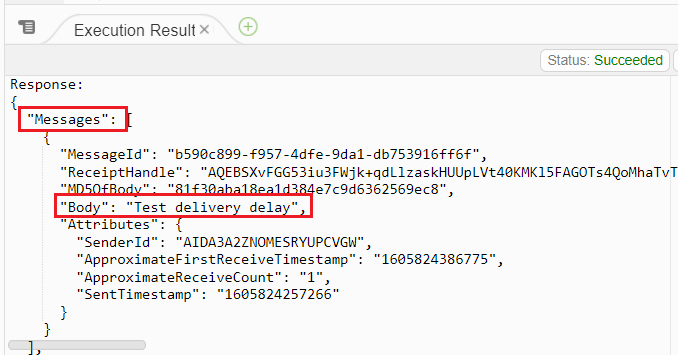
8. You will be able to see the message that you have sent in the Queue, as shown below.
6. Now go to the Lambda function Browser tab.
7. Click on the **Test** button of your function and check the lambda function execution output.
8. You will be able to see the message that you have sent in the Queue, as shown below.
 9. Now again click on the **Test** button and check the lambda output.
10. **You won't be able to see the message, this is because once the message is received by the lambda function (Consumer), the visibility timeout starts, which you have set to 1 Minute.**
9. Now again click on the **Test** button and check the lambda output.
10. **You won't be able to see the message, this is because once the message is received by the lambda function (Consumer), the visibility timeout starts, which you have set to 1 Minute.**
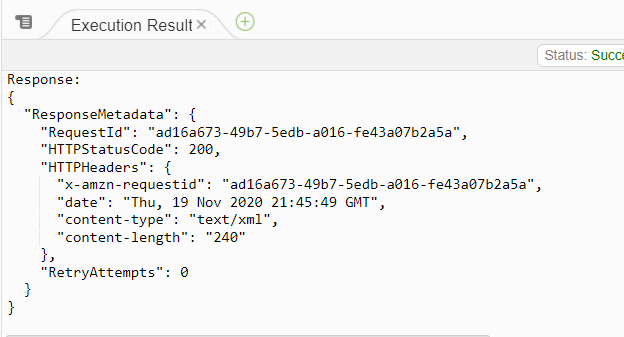 11. For 1 Minute the message will not be available in the queue to be received by the consumer. This is what visibility timeout is set.
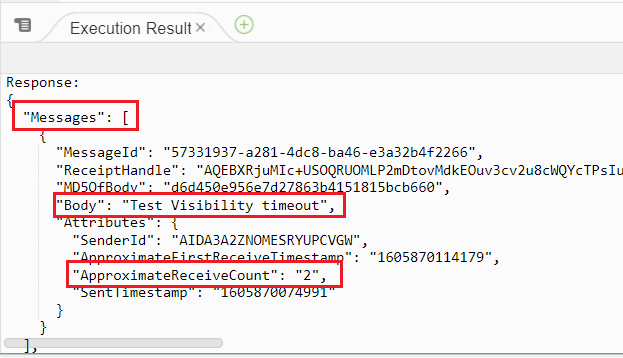
12. Try to **Test** the lambda function after **1 Minute** and you will be able to receive the message again.
11. For 1 Minute the message will not be available in the queue to be received by the consumer. This is what visibility timeout is set.
12. Try to **Test** the lambda function after **1 Minute** and you will be able to receive the message again.
 #### Task 5: Purge the Queue
1. Navigate to the SQS browser tab.
2. Click on the queue name on the top left of the page.
#### Task 5: Purge the Queue
1. Navigate to the SQS browser tab.
2. Click on the queue name on the top left of the page.
 3. Now click on the **Purge** button.
4. Enter ***purge*** in the confirm box and click on the **Purge** button.
5. Purge will delete all the messages present in the queue.
#### Task 6: Send a message with Delivery Delay
1. Click on the **Send and receive messages** button on the top right side.
2. Under **Send message:**
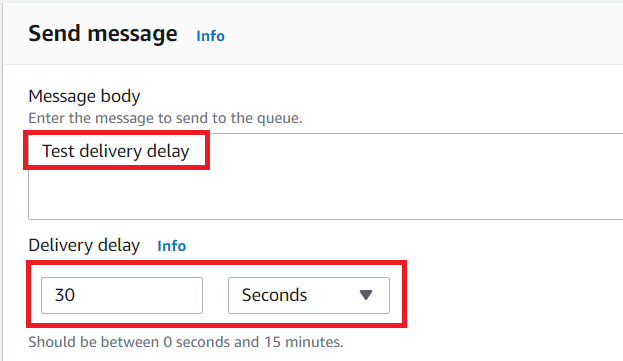
* Message body: Enter ***Test delivery delay***
* Delivery Delay: Enter ***30*** Seconds
3. Now click on the **Purge** button.
4. Enter ***purge*** in the confirm box and click on the **Purge** button.
5. Purge will delete all the messages present in the queue.
#### Task 6: Send a message with Delivery Delay
1. Click on the **Send and receive messages** button on the top right side.
2. Under **Send message:**
* Message body: Enter ***Test delivery delay***
* Delivery Delay: Enter ***30*** Seconds
 3. Now click on the **Send message** button.
4. You will be able to see a similar message.
3. Now click on the **Send message** button.
4. You will be able to see a similar message.
 5. Now go to the Lambda function Browser tab.
6. Click on the **Test** button of your function and check the lambda function execution output.
5. Now go to the Lambda function Browser tab.
6. Click on the **Test** button of your function and check the lambda function execution output.
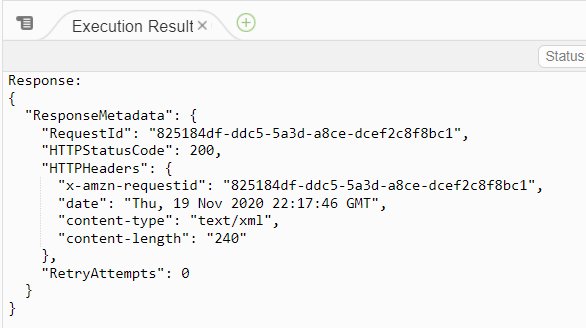 7. The message is not available, because we have added a delay to deliver the message to the consumer (Lambda function)
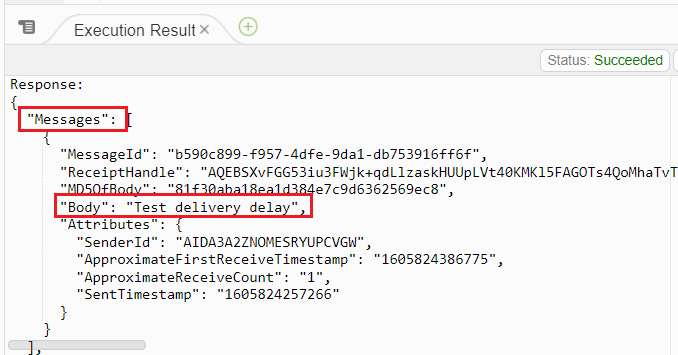
8. Now **wait for 30 seconds** and then again click on the **Test** button of your function and check the lambda function execution output.
7. The message is not available, because we have added a delay to deliver the message to the consumer (Lambda function)
8. Now **wait for 30 seconds** and then again click on the **Test** button of your function and check the lambda function execution output.
 #### Task 7: Purge the Queue
1. Navigate to the SQS browser tab.
2. Click on the queue name on the top left of the page.
3. Now click on the **Purge** button.
4. Enter ***purge*** in the confirm box and click on the **Purge** button.
> ##### Do You Know ?
>
> The Visibility Timeout controls the visibility of messages to consumers after they are fetched from the queue, while the Delay Queue introduces a fixed delay before delivering messages to consumers.
1. Once the lab steps are completed, please click on the Validation button on the left side panel.
#### Task 8: Delete AWS Resources
##### Delete SQS Queue
1. Navigate to the **Services** menu on the top and select **Simple Queue Service** under **Application Integration**.
2. Make sure you are in the **N. Virginia** region.
3. In the left top side click on the **Menu icon** and then click on **Queues**.
4. Select your SQS Queue IP Lab Portal-sqs and click on the **Delete** button.
#### Task 7: Purge the Queue
1. Navigate to the SQS browser tab.
2. Click on the queue name on the top left of the page.
3. Now click on the **Purge** button.
4. Enter ***purge*** in the confirm box and click on the **Purge** button.
> ##### Do You Know ?
>
> The Visibility Timeout controls the visibility of messages to consumers after they are fetched from the queue, while the Delay Queue introduces a fixed delay before delivering messages to consumers.
1. Once the lab steps are completed, please click on the Validation button on the left side panel.
#### Task 8: Delete AWS Resources
##### Delete SQS Queue
1. Navigate to the **Services** menu on the top and select **Simple Queue Service** under **Application Integration**.
2. Make sure you are in the **N. Virginia** region.
3. In the left top side click on the **Menu icon** and then click on **Queues**.
4. Select your SQS Queue IP Lab Portal-sqs and click on the **Delete** button.
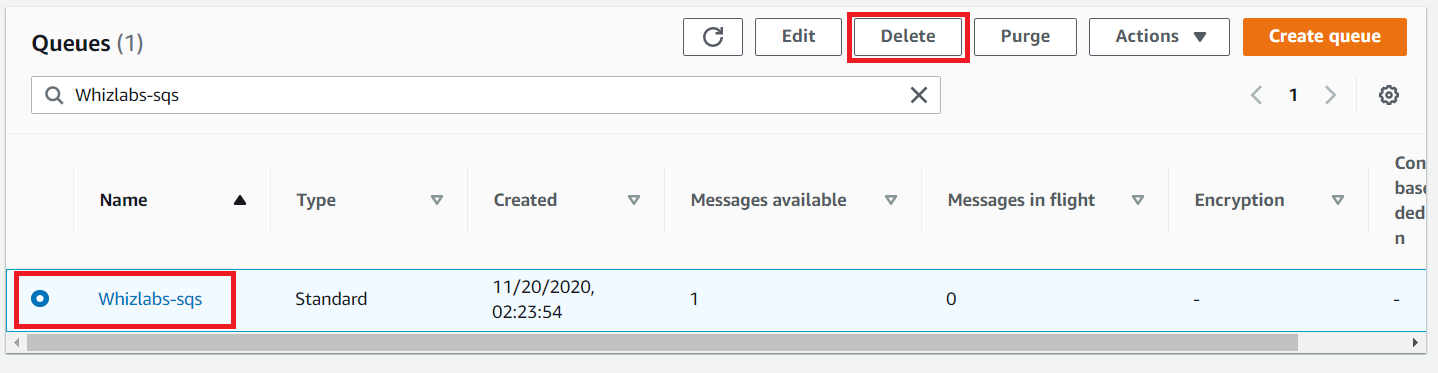 5. Enter ***delete*** in the confirm box and click on the **Delete** button.
##### Delete Lambda Function
1. Navigate to **Lambda** by clicking on the **Services** menu at the top, then click on **Lambda** in the **Compute** section.
2. Make sure you are in the **US East (N. Virginia)** region.
3. Select the lambda function my\_sqs\_Lambda and click **Actions** and click the **Delete** button.
5. Enter ***delete*** in the confirm box and click on the **Delete** button.
##### Delete Lambda Function
1. Navigate to **Lambda** by clicking on the **Services** menu at the top, then click on **Lambda** in the **Compute** section.
2. Make sure you are in the **US East (N. Virginia)** region.
3. Select the lambda function my\_sqs\_Lambda and click **Actions** and click the **Delete** button.
 4. Click the **Delete** button to confirm the deletion.
### Completion and Conclusion
1. You have successfully created a SQS queue.
2. You have successfully created a Lambda function.
3. You have successfully sent a message with Visibility Timeout.
4. You have successfully purged the Queue.
5. You have successfully sent a message with Delivery Delay.
6. You have successfully purged the Queue.
### End Lab
1. Sign out of the AWS Account.
2. You have successfully completed the lab.
3. Once you have completed the steps, click on **End Lab** from your whizlab’s dashboard.
## What gets checked
When you press **Check my work**, the platform verifies each of these:
* **Create an AWS Lambda Function** — Check whether a Lambda Function is created or not
* **Create Standard SQS Queue** — Check whether a Standard SQS Queue is created or not.
## Related help
* [FAQs and Troubleshooting](/aws-saa/support/faqs-and-troubleshooting)
This documentation is built and hosted on [Mintlify](https://mintlify.com), a developer documentation platform.
4. Click the **Delete** button to confirm the deletion.
### Completion and Conclusion
1. You have successfully created a SQS queue.
2. You have successfully created a Lambda function.
3. You have successfully sent a message with Visibility Timeout.
4. You have successfully purged the Queue.
5. You have successfully sent a message with Delivery Delay.
6. You have successfully purged the Queue.
### End Lab
1. Sign out of the AWS Account.
2. You have successfully completed the lab.
3. Once you have completed the steps, click on **End Lab** from your whizlab’s dashboard.
## What gets checked
When you press **Check my work**, the platform verifies each of these:
* **Create an AWS Lambda Function** — Check whether a Lambda Function is created or not
* **Create Standard SQS Queue** — Check whether a Standard SQS Queue is created or not.
## Related help
* [FAQs and Troubleshooting](/aws-saa/support/faqs-and-troubleshooting)
This documentation is built and hosted on [Mintlify](https://mintlify.com), a developer documentation platform.