> ## Documentation Index
> Fetch the complete documentation index at: https://cloud-architect.ipoint-labs.com/llms.txt
> Use this file to discover all available pages before exploring further.
# Enabling CloudWatch Logs in API Gateway
> Hands-on lab · 30m
Launch this lab in the IP Lab Portal, then follow the steps below in the AWS console.
Open IP Lab Portal
## Overview
### Lab Details
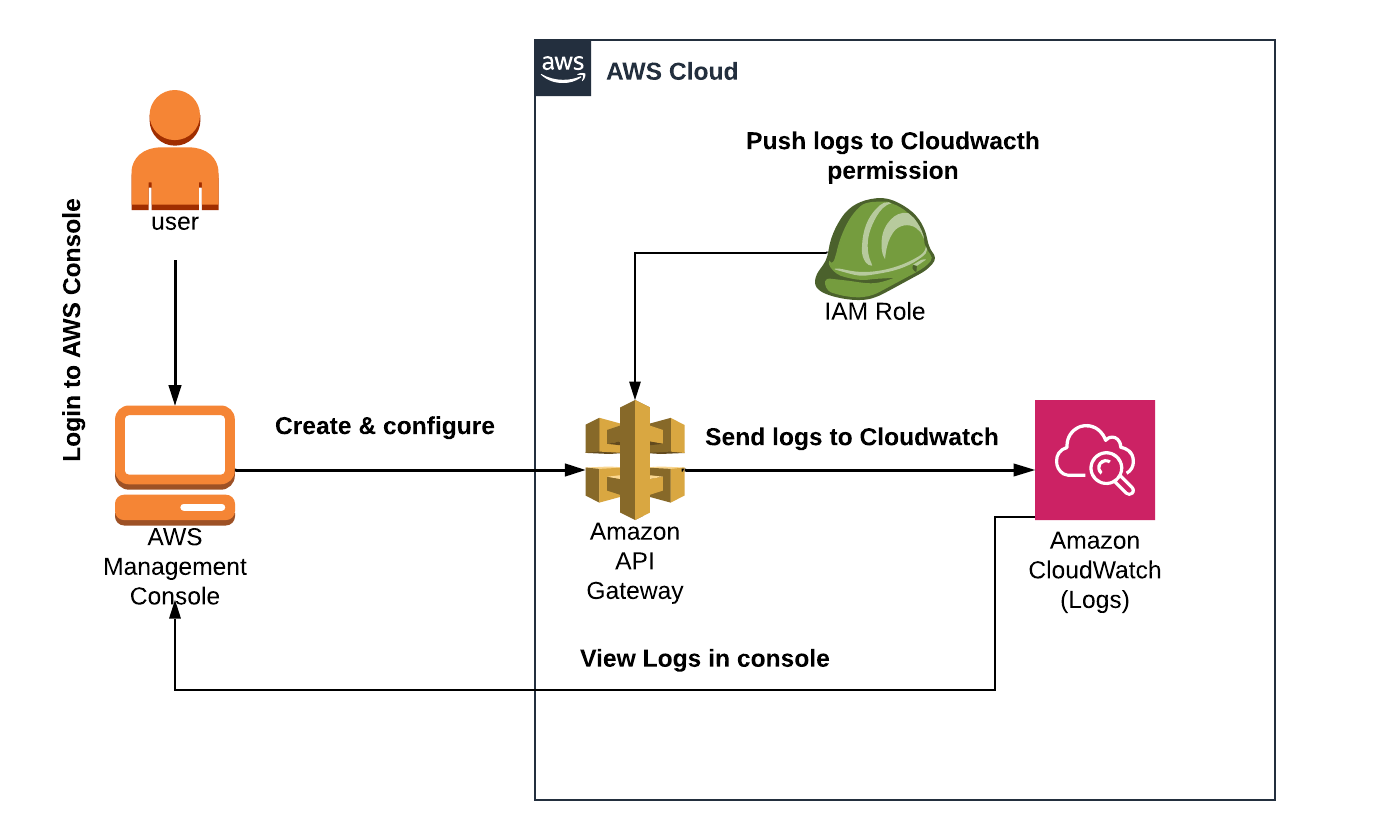
1. This lab walks you through the steps to enable CloudWatch Logs in API Gateway.
2. You will practice using AWS CloudWatch to view logs produced by API Gateway.
3. Duration: **30 minutes**
4. AWS Region: **US East (N. Virginia) us-east-1**
### Introduction
#### Amazon API Gateway
* Amazon API Gateway is a **fully managed service** that makes it easy for developers to create, publish, maintain, monitor, and secure APIs at any scale.
* APIs act as the **front door** for applications to access data, business logic, or functionality from your backend services.
* API Gateway handles all the tasks involved in accepting and processing up to hundreds of thousands of concurrent API calls, including traffic management, CORS support, authorization and access control, throttling, monitoring, and API version management.
* Using API Gateway, you can create RESTful APIs and WebSocket APIs that enable real-time two-way communication applications. API Gateway supports containerized and serverless workloads, as well as web applications.
### Architecture Diagram
 ### Task Details
1. Sign into the AWS Management Console
2. Create an API.
3. Copy the ARN of the IAM Role.
4. Create a Resource
5. Create a Method.
6. Deploy API
### Launching Lab Environment
1. To launch the lab environment, click on the **Start Lab** button.
2. Please wait until the cloud environment is provisioned. It will take less than a minute to provision.
3. Once the Lab is started, you will be provided with **IAM username**, **Password**, **Access** **Key**, and **Secret** **Access** **Key**.
## Lab guide
### Lab Steps
#### Task 1: Sign in to AWS Management Console
1. Click on the **open console** button, and you will get redirected to AWS Console in a new browser tab.
2. On the AWS sign-in page,
* Leave the Account ID as default. Never edit/remove the 12 digit Account ID present in the AWS Console. otherwise, you cannot proceed with the lab.
* Now copy your **User Name** and **Password** in the Lab Console to the **IAM Username and Password** in AWS Console and click on the **Sign in** button
3. Once Signed In to the AWS Management Console, Make the default AWS Region as **US East (N. Virginia) us-east-1.**
#### Task 2: Create an API
1. Make sure you are in the **US East (N. Virginia) us-east-1** Region.
2. Navigate to **services** menu at the top, then click on **API Gateway** in the **Network and Content Delivery** section.
3. Click on **build** in **REST API.**(Close the pop up message for Create your first API,if it is present and ignore the error warning)
### Task Details
1. Sign into the AWS Management Console
2. Create an API.
3. Copy the ARN of the IAM Role.
4. Create a Resource
5. Create a Method.
6. Deploy API
### Launching Lab Environment
1. To launch the lab environment, click on the **Start Lab** button.
2. Please wait until the cloud environment is provisioned. It will take less than a minute to provision.
3. Once the Lab is started, you will be provided with **IAM username**, **Password**, **Access** **Key**, and **Secret** **Access** **Key**.
## Lab guide
### Lab Steps
#### Task 1: Sign in to AWS Management Console
1. Click on the **open console** button, and you will get redirected to AWS Console in a new browser tab.
2. On the AWS sign-in page,
* Leave the Account ID as default. Never edit/remove the 12 digit Account ID present in the AWS Console. otherwise, you cannot proceed with the lab.
* Now copy your **User Name** and **Password** in the Lab Console to the **IAM Username and Password** in AWS Console and click on the **Sign in** button
3. Once Signed In to the AWS Management Console, Make the default AWS Region as **US East (N. Virginia) us-east-1.**
#### Task 2: Create an API
1. Make sure you are in the **US East (N. Virginia) us-east-1** Region.
2. Navigate to **services** menu at the top, then click on **API Gateway** in the **Network and Content Delivery** section.
3. Click on **build** in **REST API.**(Close the pop up message for Create your first API,if it is present and ignore the error warning)
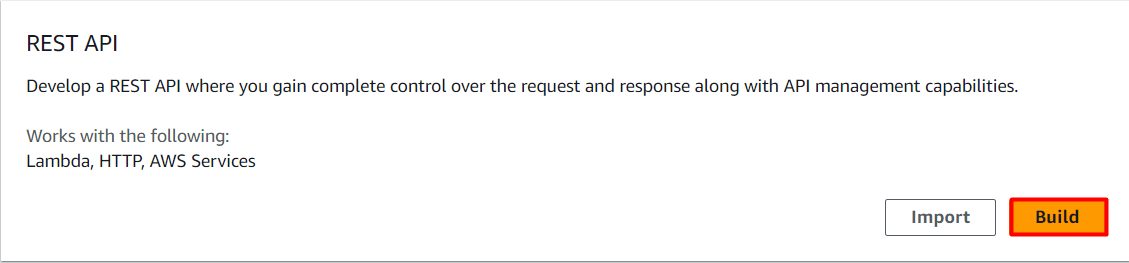 4. Choose create new API. Under settings, enter the API name as ***Whizlab API*** and click on **create API.**
5. Note: If any pop-ups appear, ignore them.
4. Choose create new API. Under settings, enter the API name as ***Whizlab API*** and click on **create API.**
5. Note: If any pop-ups appear, ignore them.
 #### Task 3: Copy the ARN of the IAM role
1. Navigate to **Services** at the top and choose **IAM** under **Security, Identity, & Compliance.** Select **Roles** in left side panel.
2. There is a role already created for you. Search using **whiz** and you will find a role with the name
**whiz\_apigateway\_role-\**
#### Task 3: Copy the ARN of the IAM role
1. Navigate to **Services** at the top and choose **IAM** under **Security, Identity, & Compliance.** Select **Roles** in left side panel.
2. There is a role already created for you. Search using **whiz** and you will find a role with the name
**whiz\_apigateway\_role-\**
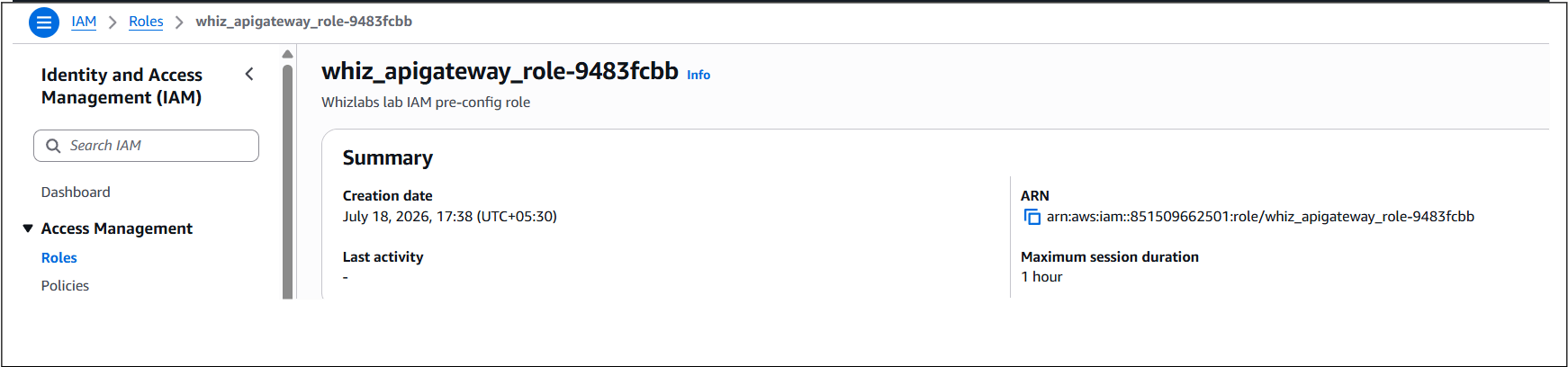
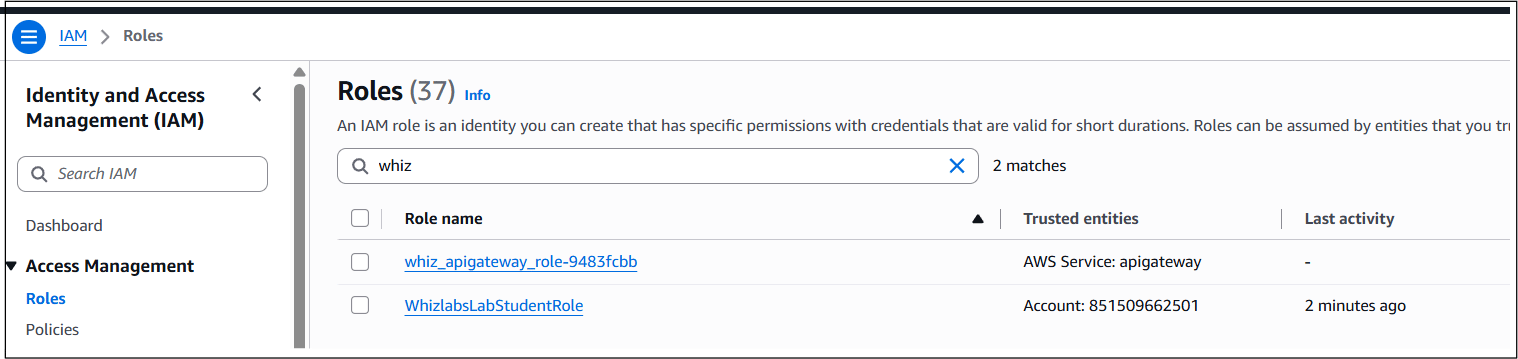 3. Click on the Role and copy its ARN. This will be used in POST setup of the API gateway method.
 #### Task 4: Creating a Resource
1. Navigate to **Services** and click on **API Gateway** under **Networking & Content Delivery.**
2. Once the **API** is created, select the **Whizlab API.**
3. Select **create resource** in actions.
* Resource Name: ***TestResource***
4. Once you enter the resource name, click on **create resource.**
#### Task 5: Creating Method
1. Once you create the resource, click on **Create method**. Select **Post** in the drop-down list of **Method Type**.
2. Ignore this error if it appears:
3. Select the **Integration Type** as **AWS service.**
#### Task 4: Creating a Resource
1. Navigate to **Services** and click on **API Gateway** under **Networking & Content Delivery.**
2. Once the **API** is created, select the **Whizlab API.**
3. Select **create resource** in actions.
* Resource Name: ***TestResource***
4. Once you enter the resource name, click on **create resource.**
#### Task 5: Creating Method
1. Once you create the resource, click on **Create method**. Select **Post** in the drop-down list of **Method Type**.
2. Ignore this error if it appears:
3. Select the **Integration Type** as **AWS service.**
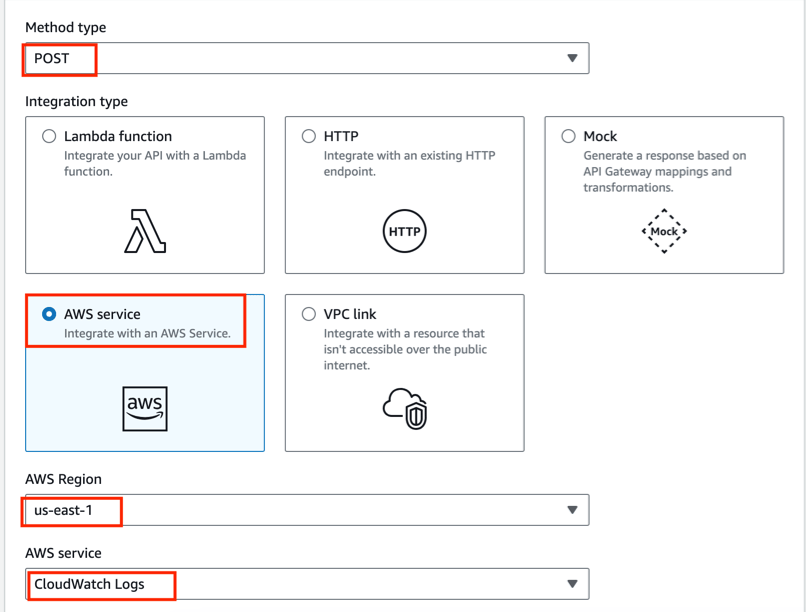 4. Enter the following details:
* Select AWS Region: **us-east-1**
* Select AWS Service\*\*: CloudWatch Logs\*\*
* Http Method: **POST**
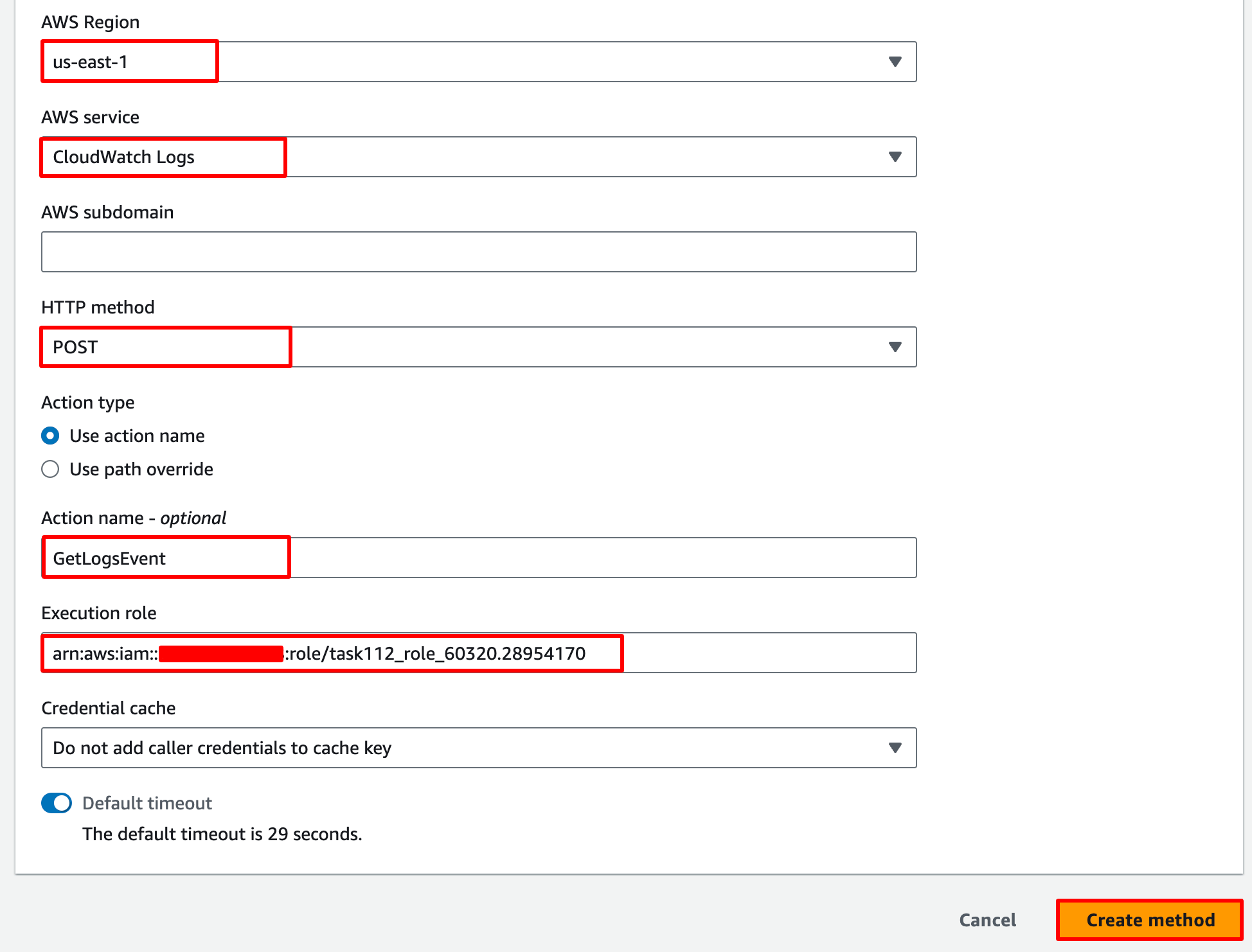
* Action: Enter **GetLogsEvent**
* On the execution role, copy and paste the **ARN** of your role which we noted down earlier\*\*.\*\*
* Leave other options as default and click on the **Create method**.
4. Enter the following details:
* Select AWS Region: **us-east-1**
* Select AWS Service\*\*: CloudWatch Logs\*\*
* Http Method: **POST**
* Action: Enter **GetLogsEvent**
* On the execution role, copy and paste the **ARN** of your role which we noted down earlier\*\*.\*\*
* Leave other options as default and click on the **Create method**.
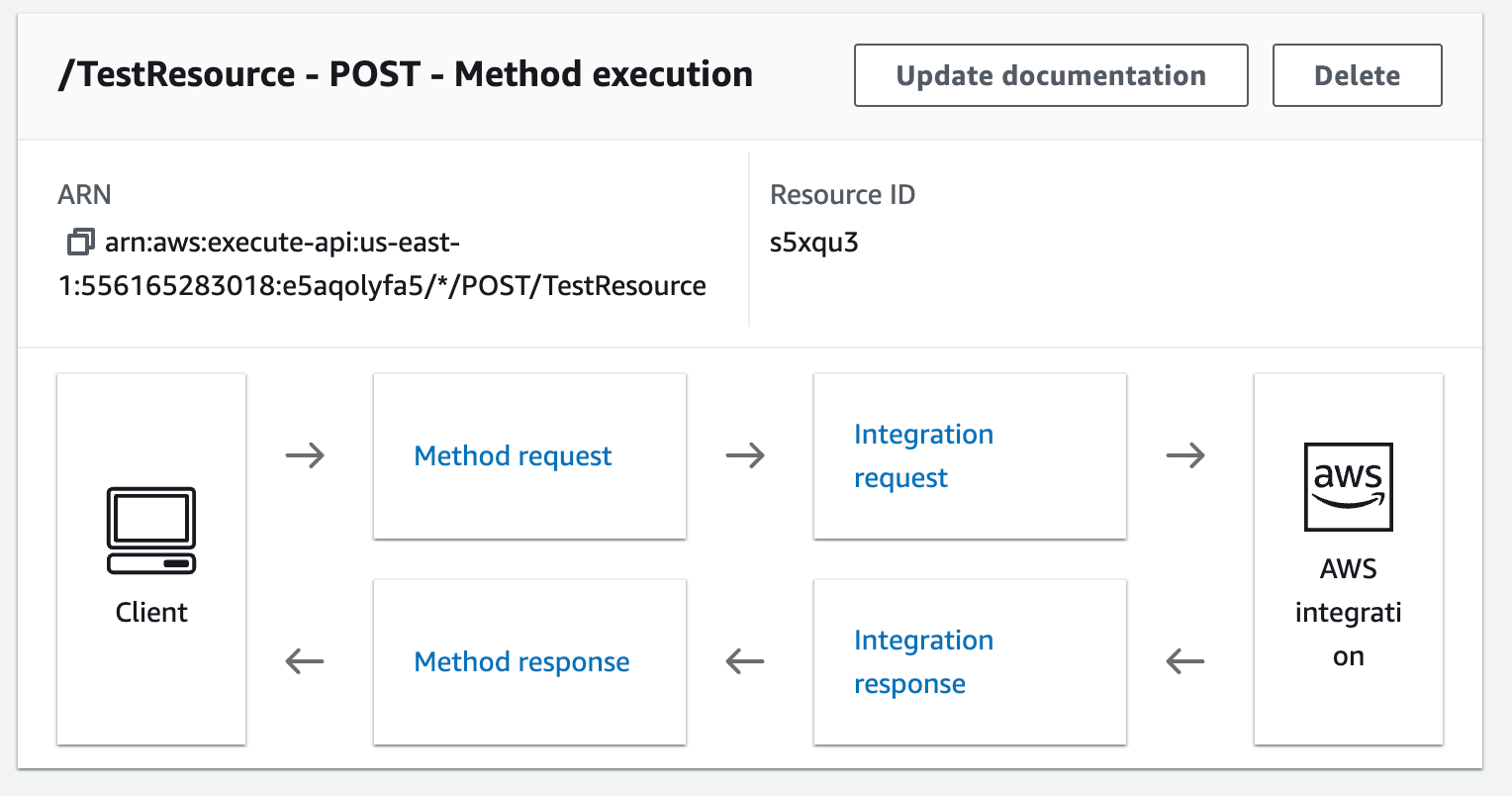
 5. Once it has been created, you will see this page.
 #### Task 6: Deploy API
1. Once the resource and the method have been created successfully, you can deploy the API.
2. Click on **deploy API**.
3. Set the Deployment Stage in the drop-down as **New Stage.**
4. Enter Stage Name : ***TestingAPI***
5. Click on **deploy**.
6. Navigate to **Stages** and click on **Testing API**.
7. After deploying the API, scroll down and click the **Edit** button in the **logs and tracing** section.
#### Task 6: Deploy API
1. Once the resource and the method have been created successfully, you can deploy the API.
2. Click on **deploy API**.
3. Set the Deployment Stage in the drop-down as **New Stage.**
4. Enter Stage Name : ***TestingAPI***
5. Click on **deploy**.
6. Navigate to **Stages** and click on **Testing API**.
7. After deploying the API, scroll down and click the **Edit** button in the **logs and tracing** section.
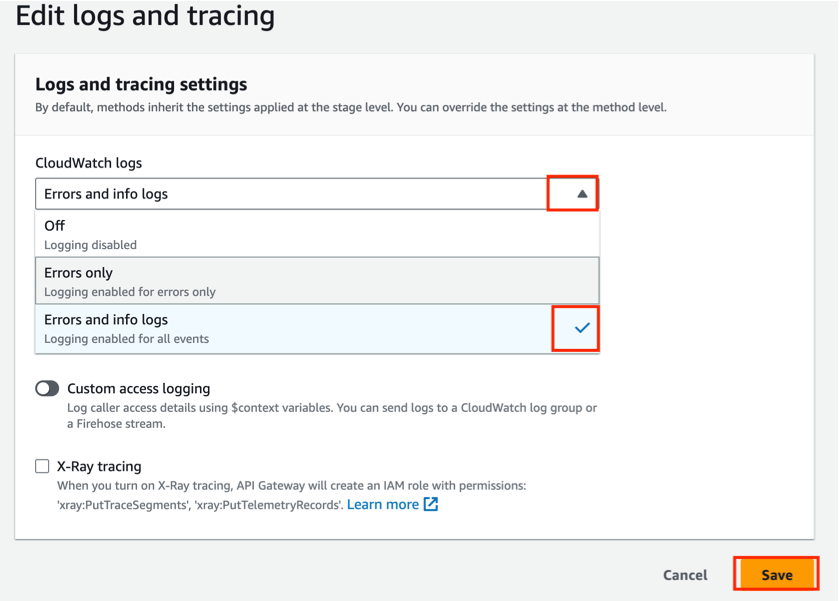
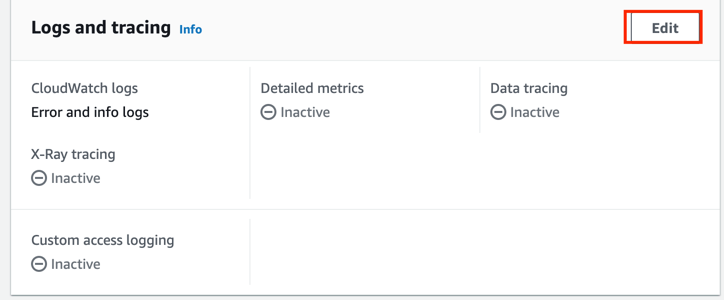 8. Under **CloudWatch** **logs** click on the dropdown list and select **Errors and info logs** and then click on **Save** button.
 > **Note:** If any error occurs\*\*,\*\* we have to replace our IAM role ARN.
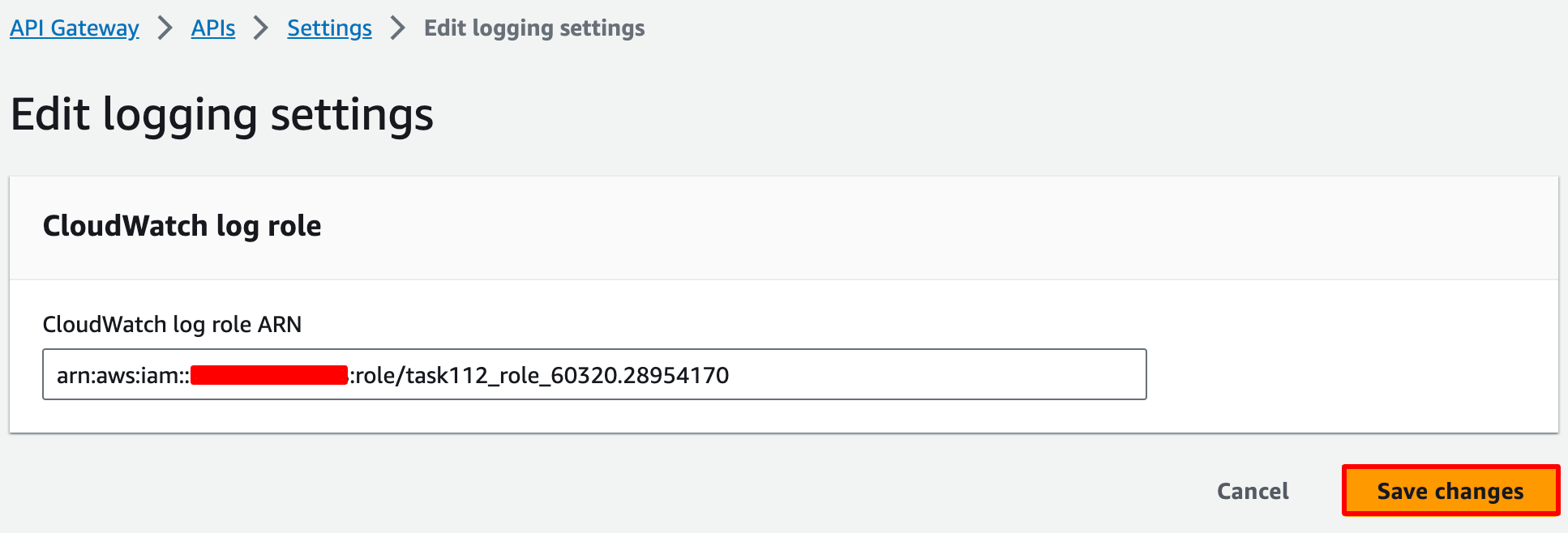
> To do that copy the **ARN of our IAM Role** and paste it in the **CloudWatch Log role ARN** (under Settings in left sidebar) and click on **save.**
> **Note:** If any error occurs\*\*,\*\* we have to replace our IAM role ARN.
> To do that copy the **ARN of our IAM Role** and paste it in the **CloudWatch Log role ARN** (under Settings in left sidebar) and click on **save.**
 9. Navigate to Logs Groups under CloudWatch Logs to see the logs. **(Wait for 3-5 minutes to see log group)**
 10. You have successfully created CloudWatch logs for API Gateway. Whenever traffic passes through API Gateway, streams will be generated.
> ##### Do you know?
>
> Enabling CloudWatch Logs in API Gateway allows you to capture and store log files for your API Gateway APIs in Amazon CloudWatch Logs. CloudWatch Logs is a fully managed service provided by AWS that enables you to collect, monitor, and analyze log data from various AWS resources and applications.
####
#### Completion and Conclusion
1. You have successfully created an API.
2. You have successfully created an API Gateway Resource and API Method.
3. You have successfully deployed the API.
4. You have successfully created CloudWatch Logs for API Gateway.
5. You have successfully validated the lab.
### End Lab
1. Sign out of the AWS Account.
2. You have successfully completed the lab.
3. Once you have completed the steps, click on **End Lab** from the IP Lab Portal dashboard.
## What gets checked
When you press **Check my work**, the platform verifies each of these:
* **Create a API Gateway** — Check whether a REST/HTTP?WEBSOCKET API gateway is created or not
## Related help
* [FAQs and Troubleshooting](/aws-saa/support/faqs-and-troubleshooting)
This documentation is built and hosted on [Mintlify](https://mintlify.com), a developer documentation platform.
10. You have successfully created CloudWatch logs for API Gateway. Whenever traffic passes through API Gateway, streams will be generated.
> ##### Do you know?
>
> Enabling CloudWatch Logs in API Gateway allows you to capture and store log files for your API Gateway APIs in Amazon CloudWatch Logs. CloudWatch Logs is a fully managed service provided by AWS that enables you to collect, monitor, and analyze log data from various AWS resources and applications.
####
#### Completion and Conclusion
1. You have successfully created an API.
2. You have successfully created an API Gateway Resource and API Method.
3. You have successfully deployed the API.
4. You have successfully created CloudWatch Logs for API Gateway.
5. You have successfully validated the lab.
### End Lab
1. Sign out of the AWS Account.
2. You have successfully completed the lab.
3. Once you have completed the steps, click on **End Lab** from the IP Lab Portal dashboard.
## What gets checked
When you press **Check my work**, the platform verifies each of these:
* **Create a API Gateway** — Check whether a REST/HTTP?WEBSOCKET API gateway is created or not
## Related help
* [FAQs and Troubleshooting](/aws-saa/support/faqs-and-troubleshooting)
This documentation is built and hosted on [Mintlify](https://mintlify.com), a developer documentation platform.