

How do I login to the AWS management console
- Click on the Launch lab button to start the lab and wait till the process is completed.
- Once the Lab has started successfully, you will be provided with Username, Password, Access Key and Secret Key.

- Click on the Open console button to open the AWS Management Console in a new tab in your browser.
-
Now Sign in as IAM user page, the Account ID will be present by default.
- Leave the Account ID as default. Do not remove or change the Account ID otherwise you cannot proceed with the lab.
-
Copy and paste the User Name and Password from the lab’s console into AWS Console. Click on the Sign in button to login into the AWS Management Console.

When I click on the Open Console button, IAM user name and password are already present. What should I do ?
-
If you have saved any of your AWS login details previously, the IAM user name and password of that account will be shown. In that case, only remove the IAM user name and Password and paste the login details.

In which AWS region should I perform the labs ?
-
For any lab, make sure that AWS region is set to US East (N. Virginia) us-east-1. If not, change the region to us-east-1.

- You are only allowed to change the AWS Region if mentioned in my lab.
When I open a service in AWS, I’m getting a network connection error ?
-
If you are seeing any network connection error while performing the lab, Refresh the page.

- Go to the virtual machine page and check the status of your VM. If the VM is in already running stage and you are getting the following error:
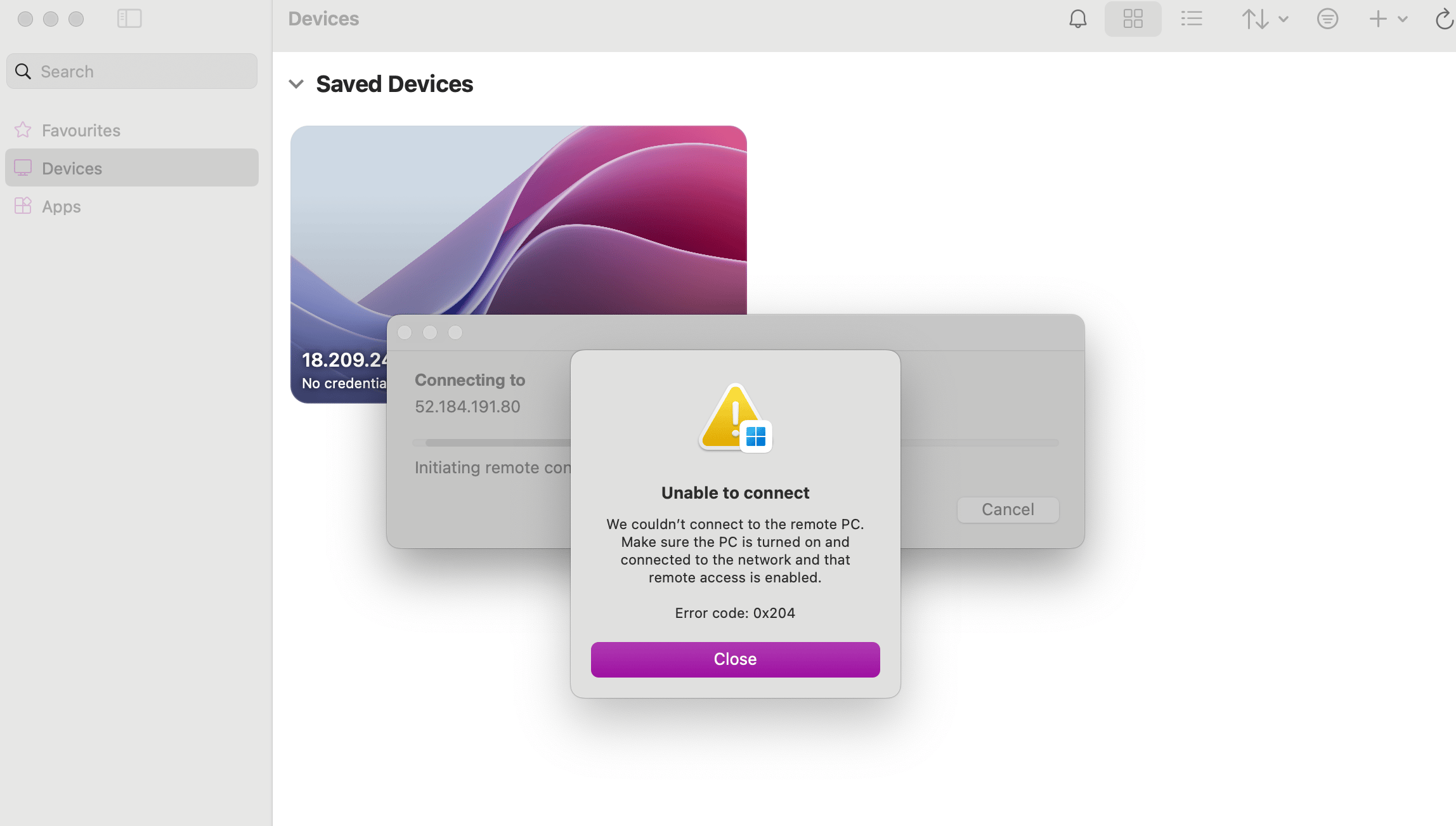

- After the VM is stopped, click on the Restart button that will now appear on the screen. On restarting the VM, you should now be able to connect to the VM using your credentials.
