

Overview
Prerequisites
-
Good knowledge of AWS services
- Amazon RDS
- Amazon EC2
- Laptop/Desktop
- Internet Browser
- Internet connection
Challenge Instructions
- Region : Make sure to use us-east-1 region to create all the resources.
- You will be provided with the requirements of the challenge. If you are new to AWS Cloud, we recommend you go through our hands-on Labs before taking this challenge.
- Challenge Duration: 60 minutes
Introduction
What is Amazon EC2 ?
Amazon EC2 (Elastic Compute Cloud) is a web service provided by Amazon Web Services (AWS) that allows users to rent virtual servers, known as instances, on which they can run their applications. Here’s an overview of Amazon EC2:- Scalability: EC2 allows users to scale computing capacity up or down as needed. This means you can quickly scale your application’s infrastructure in response to changing demand.
- Variety of Instance Types: EC2 offers a wide range of instance types optimized for different workloads, such as general-purpose, compute-optimized, memory-optimized, storage-optimized, and GPU instances.
- Customization: Users can choose the operating system, CPU, memory, storage, and other configurations for their EC2 instances to match their specific requirements.
- Pay-As-You-Go Pricing: With EC2, you only pay for the computing capacity you use, on an hourly or per-second basis, depending on the instance type and pricing model chosen.
- Integration with Other AWS Services: EC2 integrates seamlessly with other AWS services like Amazon RDS, Amazon S3, AWS Lambda, and more, enabling you to build highly scalable and flexible applications.
- Security: EC2 provides various security features such as security groups, network access control lists (ACLs), identity and access management (IAM), and encrypted EBS volumes to help you secure your instances and data.
What is Amazon RDS ?
Amazon RDS (Relational Database Service) is a managed database service provided by Amazon Web Services (AWS) that makes it easy to set up, operate, and scale relational databases in the cloud. Here’s an overview of Amazon RDS:- Managed Service: With Amazon RDS, AWS takes care of database administration tasks such as provisioning, patching, backup, recovery, and monitoring, allowing you to focus on your applications rather than managing database infrastructure.
- Multiple Database Engines: Amazon RDS supports several popular relational database engines, including Amazon Aurora, MySQL, PostgreSQL, MariaDB, Oracle Database, and Microsoft SQL Server, giving you the flexibility to choose the engine that best fits your application requirements.
- Automated Backups and Snapshots: Amazon RDS automatically backs up your database instance and maintains transaction logs to enable point-in-time recovery. You can also create manual snapshots of your database instance for additional backup and recovery options.
- Scalability: RDS allows you to easily scale your database instance up or down in terms of compute and storage capacity, either manually or automatically, to accommodate changes in workload demand without downtime.
- High Availability and Durability: Amazon RDS provides high availability and durability for your databases by replicating data across multiple Availability Zones within a region. This ensures that your databases remain accessible and resilient to hardware failures and other disruptions.
- Security: RDS offers various security features, including network isolation using Amazon VPC, encryption at rest and in transit using SSL/TLS, IAM database authentication, database encryption using AWS Key Management Service (KMS), and fine-grained access control using database user accounts and roles.
How to submit the challenge
- After building the infrastructure, click on the Validation button, to validate if you have built the required infrastructure and completed the challenge successfully.
-
Validation status
- Success - You have completed the challenge successfully.
- Failed - You have failed to complete the challenge.
- Once you have successfully validated the challenge, click on the End Lab button to end the challenge.
Launching Challenge Environment
- To launch the challenge environment, Click on the Start Challenge button.
- Please wait until the cloud environment is provisioned. It will take less than a minute to provision.
- Once the Lab is started, you will be provided with an IAM user name, Password, Access Key, and Secret Access Key.
Note : You can only start one Challenge at any given time
Lab guide
Challenge Steps
Task 1 : Sign in to AWS Management Console
- Click on the Open Console button, and you will get redirected to AWS Console in a new browser tab.
- On the AWS sign-in page,
- Leave the Account ID as default. Never edit/remove the 12-digit Account ID present in the AWS Console. otherwise, you cannot proceed with the lab.
- Now copy your User Name and Password in the Lab Console to the IAM Username and Password in the AWS Console and click on the Sign in button.
- Once Signed In to the AWS Management Console, Make the default AWS Region US East (N. Virginia) us-east-1.
Task 2 : Cloud Challenge Details
In this challenge, your Compute and Database skills are put to the test. You’ll be given a requirement and you have to reach it using your knowledge of AWS EC2 Instance and RDS services which will be needed for the challenge.Architecture Diagram
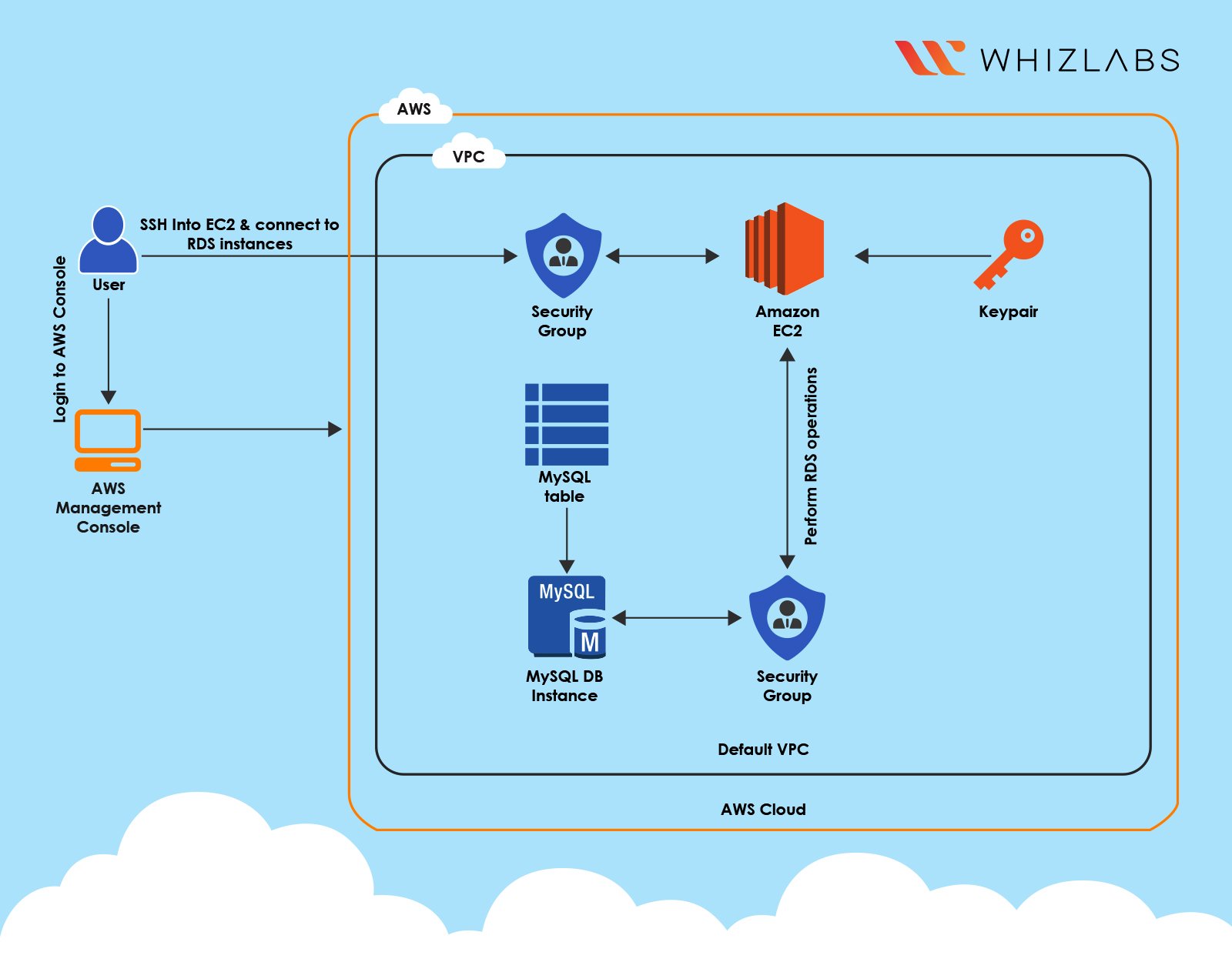
- Create an EC2 instance with AMI as Amazon Linux 2023 kernel-6.1 and instance type t2.micro and with SSH and HTTP ports.
- Create an RDS instance - MySQL with db.t3.micro, 1 vCPU, 1 GiB RAM, and a 20 GB GP2 volume.
- Create a Database, Table and insert data for testing
Task 3 : Delete AWS Resources
Deleting EC2 Instance
- Navigate to EC2 by clicking on the Services menu at the top, then click on the EC2 in the Compute section.
- All the EC2 Instances will be listed here.
- To terminate the EC2, perform the following task:
- Select your EC2 instance,
- Click on Instance state (If you don’t see an Instance state option, click on the Actions button and then choose Instance state)
- Select Terminate instance
Deleting the RDS DB Instance
- Navigate to RDS by clicking on the Services menu available under the Database section.
- Click on DB Instances
- It will list all the RDS databases
- Click on Actions and select Delete
- Uncheck the option of Create final snapshot,
- Acknowledge by selecting the second option,
- Type delete me to confirm
- And finally, click on the Delete button below.
- It will take around, 5 minutes to delete the instance, you can end the lab now.
End Challenge
- Sign out of the AWS Account
- You have successfully completed the challenge.
- Click on End Challenge button from the IP Lab Portal Labs console and wait till the process gets completed.
What gets checked
When you press Check my work, the platform verifies each of these:- Launch RDS instance — Check whether an RDS Instance is created or not
- Launch an EC2 Instance — Check whether an EC2 Instance is launched or not.