

Overview
Prerequisites
-
Good knowledge of AWS service
- Elastic Compute Service (EC2)
- Virtual Private Cloud (VPC)
- Elastic IP Address
- Laptop/Desktop
- Internet Browser
- Internet connection
Challenge Instructions
- Region : Make sure to use us-east-1 region to create all the resources.
- You will be provided with the requirements of the challenge. If you are new to AWS Cloud, we recommend you go through our hands-on Labs before taking this challenge.
- Challenge Duration: 45 min
How to submit the challenge
- After building the infrastructure, click on the Validation button, to validate if you have built the required infrastructure and completed the challenge successfully.
-
Validation status:
- Success - You have completed the challenge successfully.
- Failed - You have failed to complete the challenge.
- Once you have successfully validated the challenge, click on End Lab button to end the challenge.
Launching Challenge Environment
- To launch the challenge environment, Click on the Start Challenge button.
- Please wait until the cloud environment is provisioned. It will take less than a minute to provision.
- Once the Challenge is started, you will be provided with IAM user name, Password, Access Key, and Secret Access Key.
Lab guide
Sign in to AWS Management Console
- Click on the Open Console button, and you will get redirected to AWS Console in a new browser tab.
- On the AWS sign-in page, Leave the Account ID as default. Never edit/remove the 12 digit Account ID present in the AWS Console. otherwise, you cannot proceed with the challenge.
- Now copy your User Name and Password in the Lab Console to the IAM Username and Password in AWS Console and click on the Sign in button.
- Once Signed In to the AWS Management Console, Make the default AWS Region as US East (N. Virginia) us-east-1.
Cloud Challenge Details
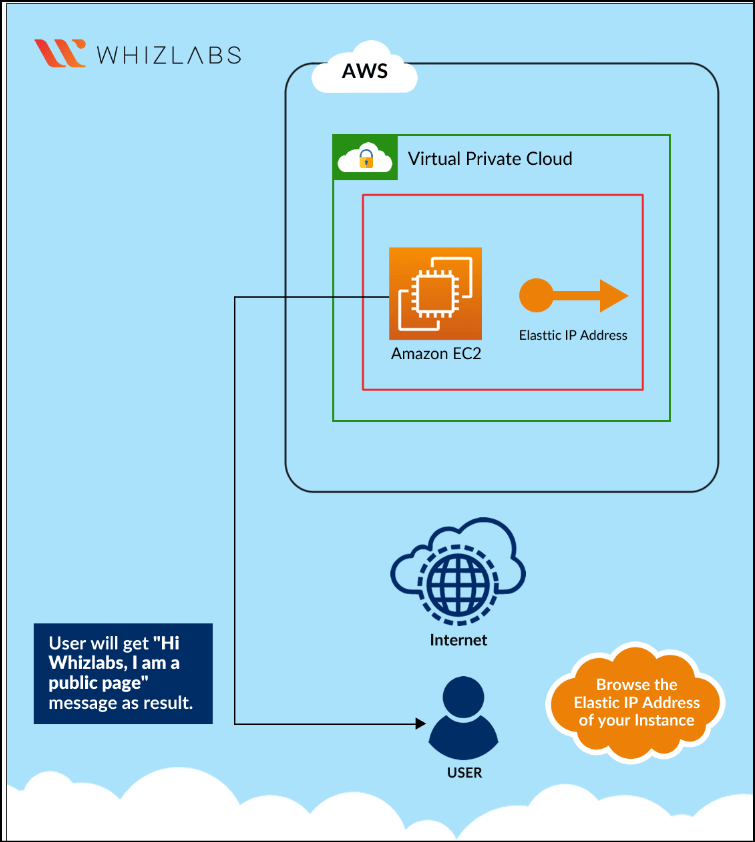
In this challenge, your Virtual Private Cloud (VPC) skills are put to the test. You’ll be given a requirement and you have to reach it using your knowledge of Elastic Compute (EC2) and Elastic IP Address which will be used in this challenge. This Challenge will help you understand the real-time scenarios. A company XYZ wants to set up and configure a virtual machine in Amazon’s cloud using Amazon Machine Images to launch Amazon EC2 Instances and using key pairs for SSH authentication to log in. The below are the tasks that need to be performed by you in order to create the stack.Architecture Diagram
- Create a new default VPC.
-
Create EC2 Instance with below configurations:
- Amazon Machine Image: Amazon Linux 2023 kernel-6.1 AMI
- Instance Type: t2.micro
- Create Key Pair
- Create a new Security Group with 2 ports i.e., SSH and HTTP
- Connect EC2 instance.
- Install Apache server and check web server status.
-
Develop and release a web page with basic HTML content and restart the server and check HTTP protocol.
- Compare the newly allocated IP address with the old one to assess any changes in the instance state.
- Allocate an Elastic IP Address.
- Associate an Elastic IP Address with a Running Instance and check IPv4 Public IP.
- Alter the status of an instance.
- Click on the Validate to complete the challenge.
- Delete the resources after validation.
End Challenge
- Sign out of the AWS Account.
- You have successfully completed the challenge.
- Click on End Challenge button from IP Lab Portal Labs console and wait till the process gets completed.
What gets checked
When you press Check my work, the platform verifies each of these:- Launch an EC2 Instance — Check whether an EC2 Instance is launched or not.
- Validate EC2 Instance Type t2.micro — Check whether the EC2 instance type is t2.micro.
- Launch EC2 AMI type Amazon Linux — Check whether the EC2 instance is launched using an Amazon AMI.
- Create an Elastic IP — Check whether an Elastic IP is created or not.
- Associate Elastic IP — Check whether an Elastic IP is attached to an EC2 Instance or not.