

Overview
Prerequisites
-
Good knowledge of AWS service
- RDS
- Elastic Compute (EC2)
- Laptop/Desktop
- Internet Browser
- Internet connection
Challenge Instructions
- Region : Make Sure To Use Us-East-1 Region To Create All The Resources.
- You Will Be Provided With The Requirements Of The Challenge. If You Are New To AWS Cloud, We Recommend You Go Through Our Hands-On Labs Before Taking This Challenge.
- Challenge Duration: 120 Min
How to submit the challenge
- After Building The Infrastructure, Click On The Validation Button, To Validate If You Have Built The Required Infrastructure And Completed The Challenge Successfully.
-
Validation Status:
- Success - You Have Completed The Challenge Successfully.
- Failed - You Have Failed To Complete The Challenge.
- Once You Have Successfully Validated The Challenge, Click On End Lab Button To End The Challenge.
Launching Challenge Environment
- To Launch The Challenge Environment, Click On The Start Challenge Button.
- Please Wait Until The Cloud Environment Is Provisioned. It Will Take Less Than A Minute To Provision.
- Once The Challenge Is Started, You Will Be Provided With IAM User Name, Password, Access Key, and Secret Access Key.
Note : You Can Only Start One Challenge At Any Given Time
Lab guide
Sign in to AWS Management Console
- Click On The Open Console Button, And You Will Get Redirected To AWS Console In A New Browser Tab.
- On The AWS Sign-In Page, Leave The Account ID As Default. Never Edit/Remove The 12 Digit Account ID Present In The AWS Console. Otherwise, You Cannot Proceed With The Challenge.
- Now Copy Your User Name and Password In The Lab Console To The IAM Username and Password In AWS Console And Click On The Sign In Button.
- Once Signed In To The AWS Management Console, Make The Default AWS Region As US East (N. Virginia) Us-East-1.
Cloud Challenge Details
In This Challenge, Your AWS Compute Skills Are Put To The Test. You’ll Be Given A Requirement And You Have To Reach It Using Your Knowledge Of RDS, EC2 instances and databases. Which Will Be Used In This Challenge. This Challenge Will Help You Understand The Real-Time Scenarios.Architecture Diagram
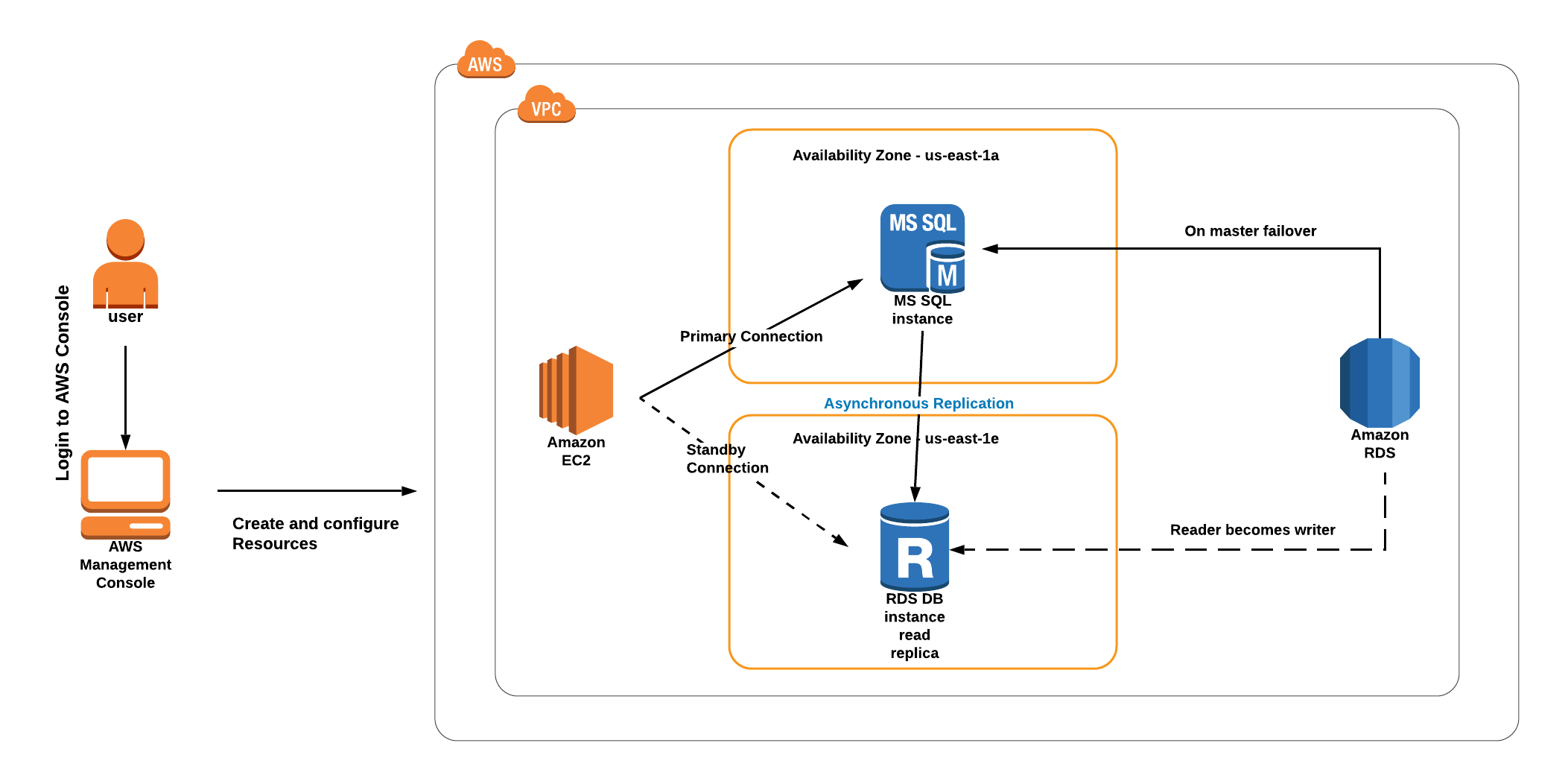
- Launch an EC2 instance named MyRdsEc2server with Amazon Linux 2023 kernel-6.1 AMI, t2.micro type, and MySSHKey key pair.
- Configure the security group for the EC2 instance named MyEC2Server_SG to allow SSH access.
- Install MySQL on the EC2 instance using a user data script.
- Create a security group for the RDS instance named rds-maz-SG allowing MySQL/Aurora port (3306) from anywhere.
- Create an Aurora MySQL database named MyAuroraCluster with Multi-AZ deployment, specifying DB instance size as db.t3.medium, and configuring it to be publicly accessible for connectivity
- Connect to the Aurora database and note down the endpoints for Master (Writer) and Reader instances.
- Modify the RDS security group to allow access from the EC2 instance.
- SSH into the EC2 instance and use MySQL client to interact with the Aurora database.
-
Perform database operations such as creating a database named whizlabsrds, table named whizlabs, with fields mentioned below and insert the data.
-
Fields:
- subject_id (INT, AUTO_INCREMENT)
- subject_name (VARCHAR(255), NOT NULL)
- teacher (VARCHAR(255))
- start_date (DATE)
- lesson (TEXT)
-
Fields:
- Initiate a failover from the RDS console to test Multi-AZ functionality.
- Connect to the new master instance and verify the presence of the database, table, and data.
- Click On The Validate To Complete The Challenge.
End Challenge
- Sign Out Of The AWS Account.
- You Have Successfully Completed The Challenge.
- Click On End Challenge Button From IP Lab Portal Labs Console And Wait Till The Process Gets Completed.
What gets checked
When you press Check my work, the platform verifies each of these:- Create RDS Cluster — Check whether RDS Cluster is created or not.
- Force RDS Database Failover — Check whether RDS database failover is done or not.
- Launch an EC2 Instance — Check whether an EC2 Instance is launched or not.