

Overview
Lab Details
- This lab walks you through Amazon DynamoDB features. We will create a table in Amazon DynamoDB and query, modify insert and delete data to using PartiQL.
- Duration: 1 hour
- AWS Region: US East (N. Virginia) us-east-1.
Introduction
What is AWS DynamoDB?
- DynamoDB is a fast and flexible NoSQL database designed for applications that need consistent, single-digit millisecond latency at any scale. It is a fully managed database, and it supports both document and key value data models.
- It has a very flexible data model. This means that you don’t need to define your database schema upfront. It also has reliable performance.
- DynamoDB is a good fit for mobile gaming, ad-tech, IoT and many other applications.
What is DynamoDB PartiQL?
- DynamoDB PartiQL is a query language designed for Amazon DynamoDB, a fully managed NoSQL database service. PartiQL provides a SQL-compatible language for querying and interacting with DynamoDB tables.
- PartiQL enables expressive and flexible queries, allowing users to perform complex queries with ease.
- PartiQL supports DynamoDB data types, such as strings, numbers, and binary data, making it well-integrated with the underlying DynamoDB storage.
- PartiQL can be used with the AWS SDKs (Software Development Kits), providing seamless integration with various programming languages and platforms.
PartiQL Statements:
- Inserting Data: You can use PartiQL to add new items to a DynamoDB table. It Provide values for the attributes you want to include in the new item.
- Querying Data: PartiQL allows you to retrieve data from DynamoDB tables using SQL-like queries. In this you will specify conditions to filter the data you want to retrieve.
- Updating Data: PartiQL supports updating existing data in DynamoDB. In this you will specify the attribute you want to update and the new value, along with conditions for the update.
- Deleting Data: Use PartiQL to delete items from DynamoDB tables based on specified conditions. It Removes specific items that match the criteria.
Architecture Diagram
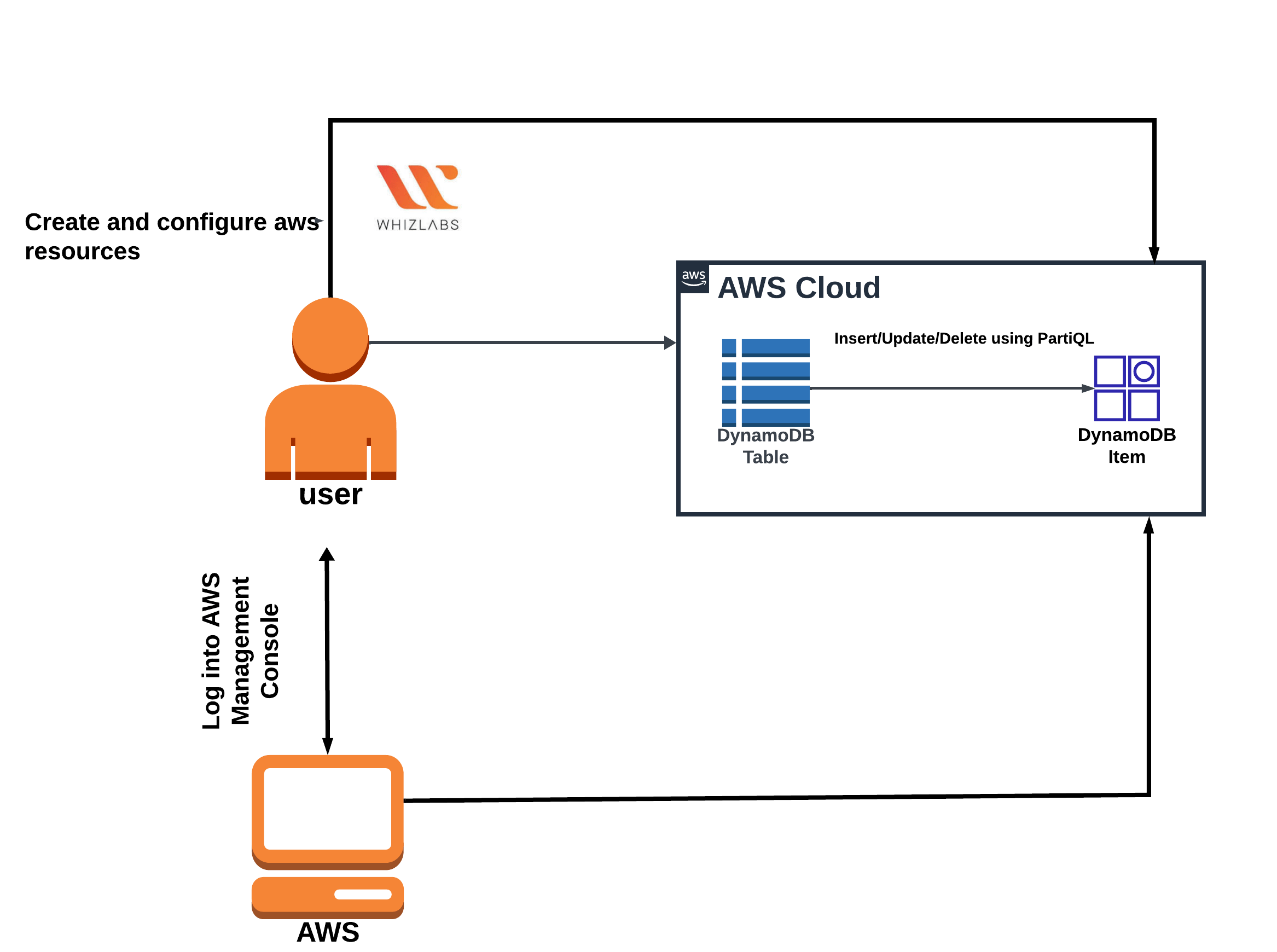
Tasks Details
- Sign in to AWS Management Console.
- Create a DynamoDB table.
- Insert data into DynamoDB table.
- Modify data in DynamoDB table
- Delete data in DynamoDb table.
Launching Lab Environment
- To launch the lab environment, Click on the Start Lab button.
- Please wait until the cloud environment is provisioned. It will take less than a minute to provision.
- Once the Lab is started, you will be provided with IAM username, Password, Access Key, and Secret Access Key.
Lab guide
Task 1: Sign in to AWS Management Console
- Click on the Open Console button, and you will get redirected to AWS Console in a new browser tab.
- On the AWS sign-in page,
- Leave the Account ID as default. Never edit/remove the 12-digit Account ID present in the AWS Console. Otherwise, you cannot proceed with the lab.
- Now copy your Username and Password in the Lab Console to the IAM Username and Password in AWS Console and click on the Sign-in button.
- Once Signed In to the AWS Management Console, make the default AWS Region as US East (N. Virginia) us-east-1.
Note: If you face any issues, please go through FAQs and Troubleshooting for Labs.
Task 2: Create DynamoDB Table
In this task, we are going to create a DynamoDB table.- Make sure you are in the US East (N. Virginia) us-east-1 Region.
- Navigate to DynamoDB page by clicking on the Services menu at the top. DynamoDB is available under the Database section.
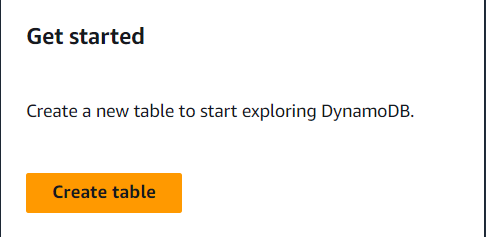
- Click on Create table button
- Table Name: Enter mytable
- Primary key: Enter id and select String
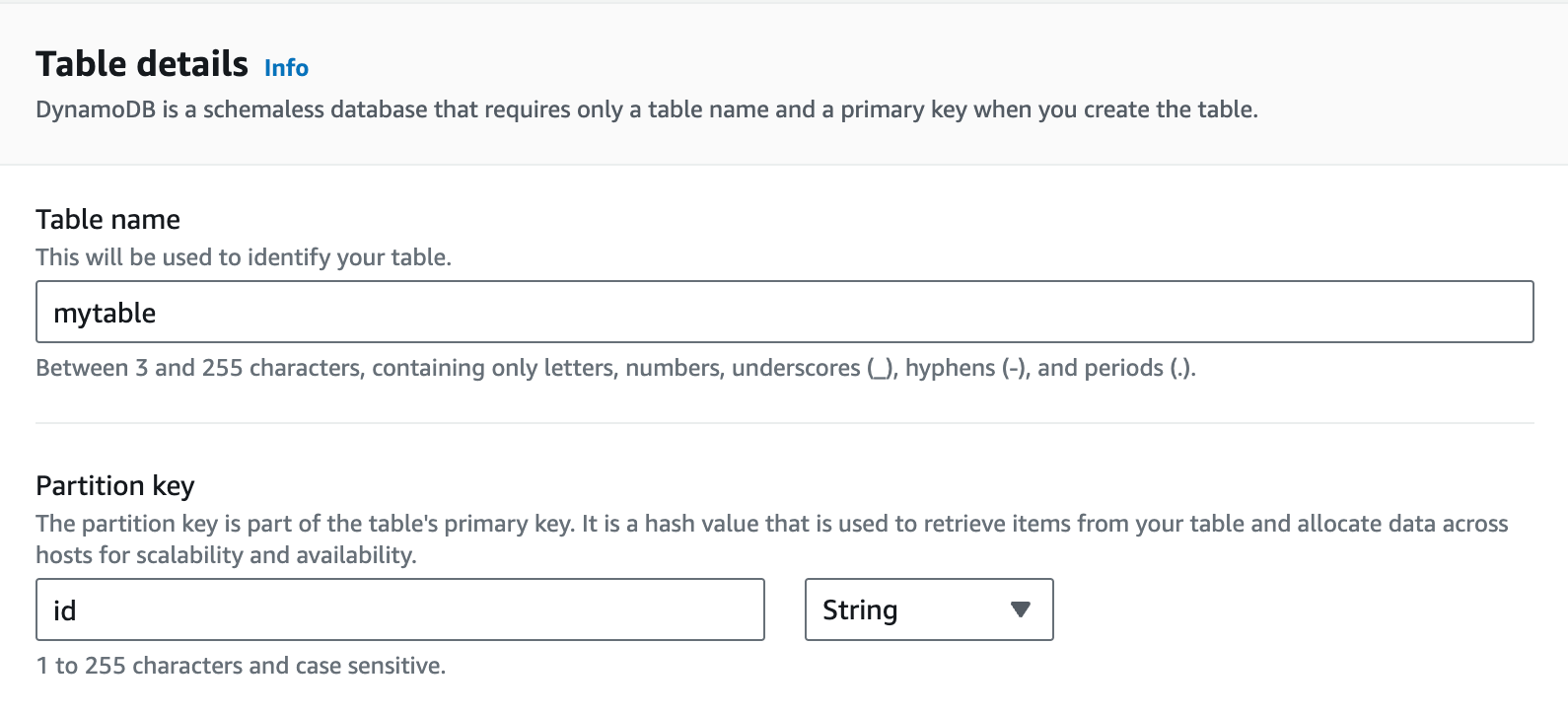
- Leave all the other settings as default and then click on Create table.
- Your table will be created within 2–3 minutes.
Task 3 : Inserting Data into DynamoDB Table
In this task, we are going to insert data into a DynamoDB table using PartiQL.- Next, we are inserting data in the table we created.
- Click on PartiQL Editor form the left navigation menu.
- You can see mytable listed and a Query editor
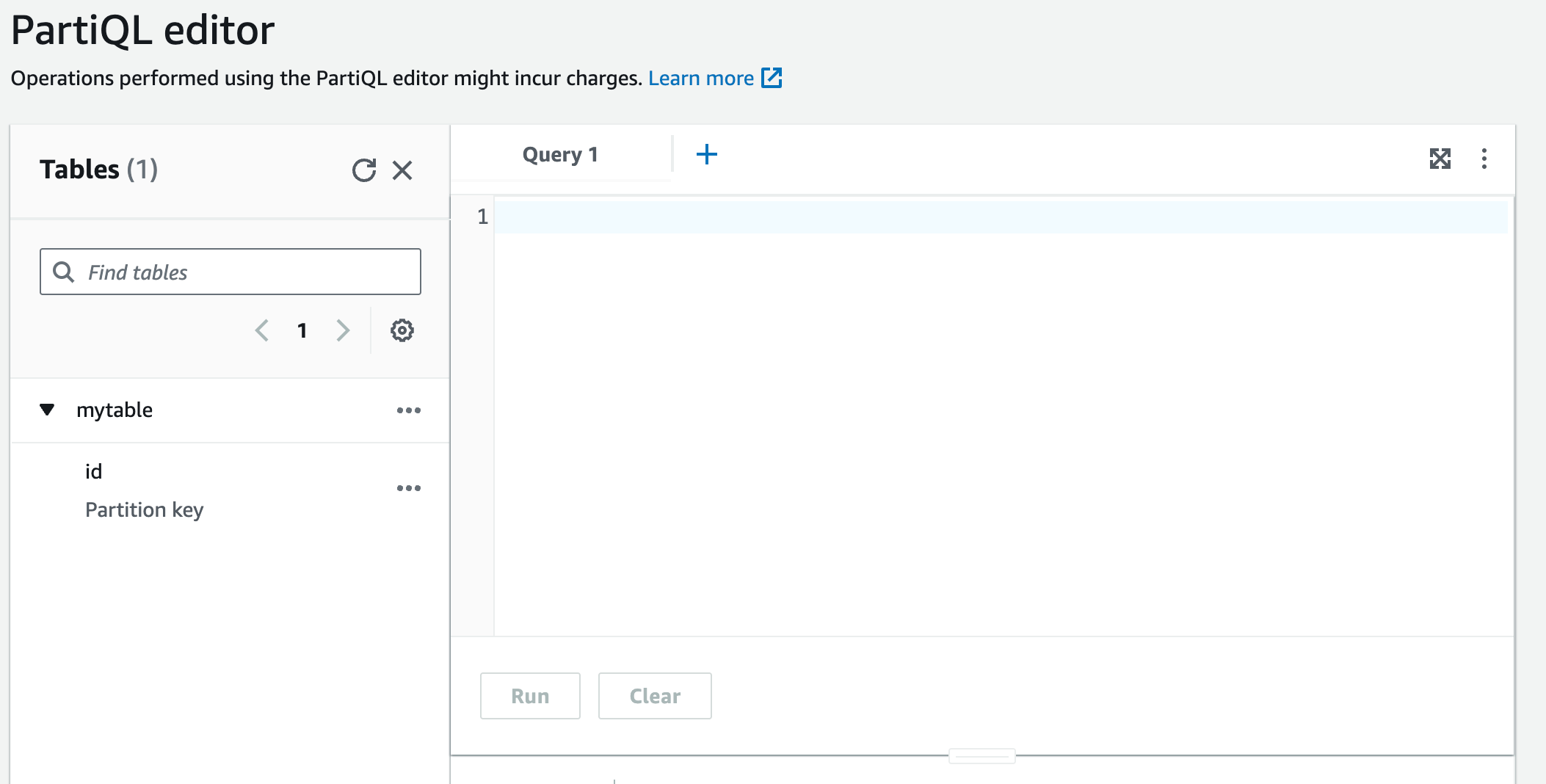
- Now, to insert items in DynamoDB table copy paste below command in query editor.
- Now, click on Run button to run the query
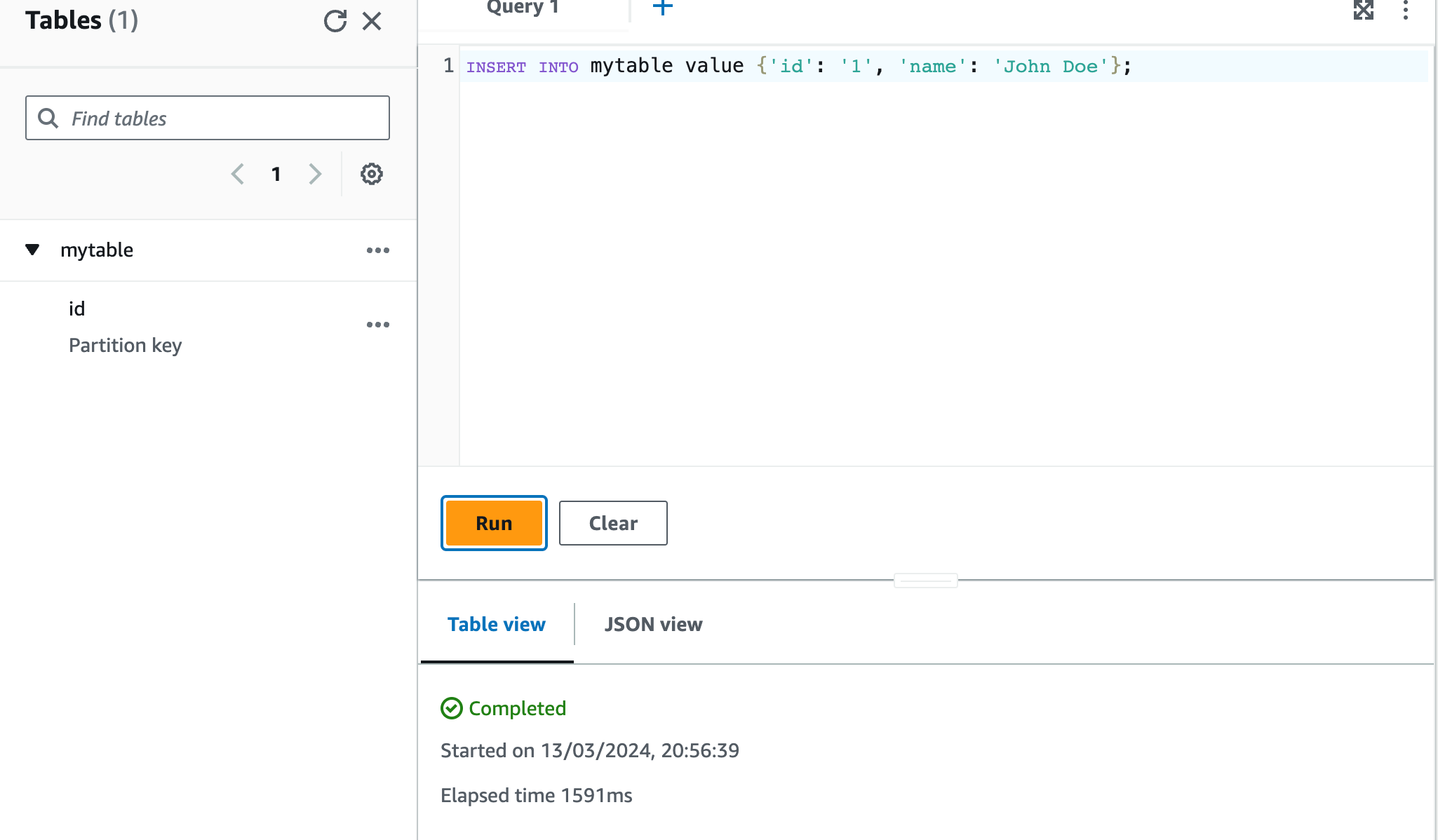
- Similarly, for testing purposes, add 4–5 items more using below commands.
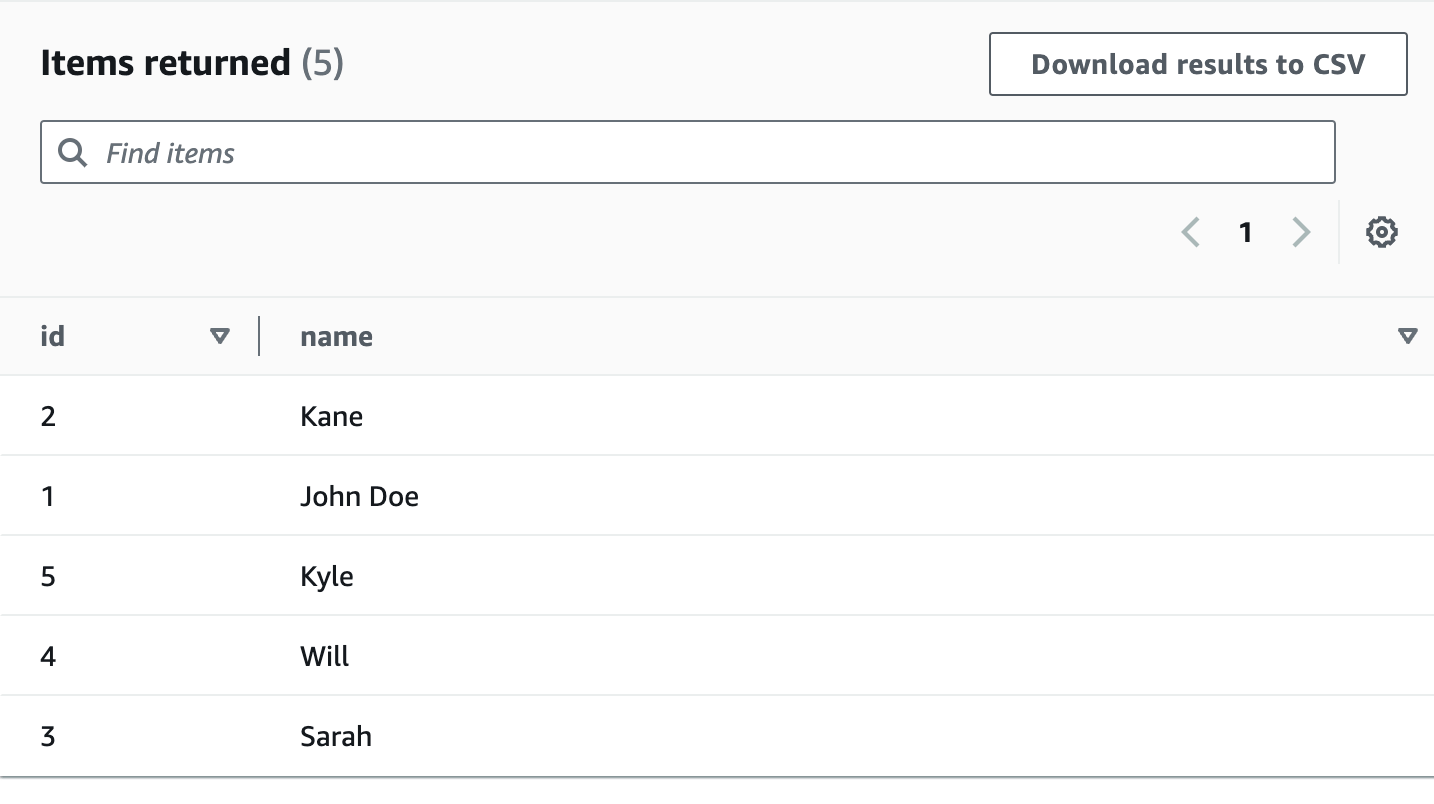
- Use below command to verify the inserted data.
Optional step:
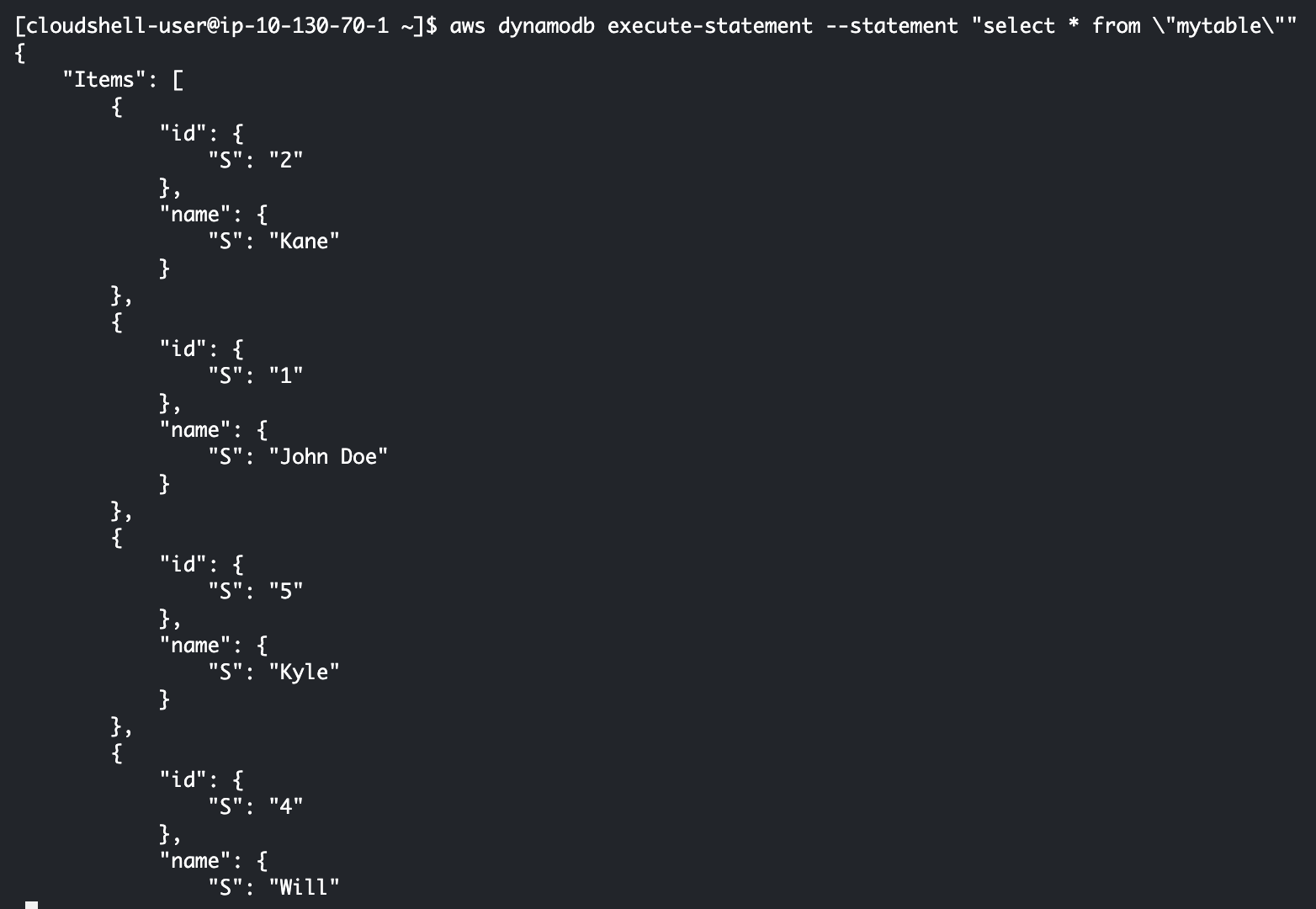
- You can also use CLI to access PartiQL for DynamoDB.
- Copy paste the below command in cloudshell to view items in dynamodb using cli method.
Task 4 : Modify data in the Table
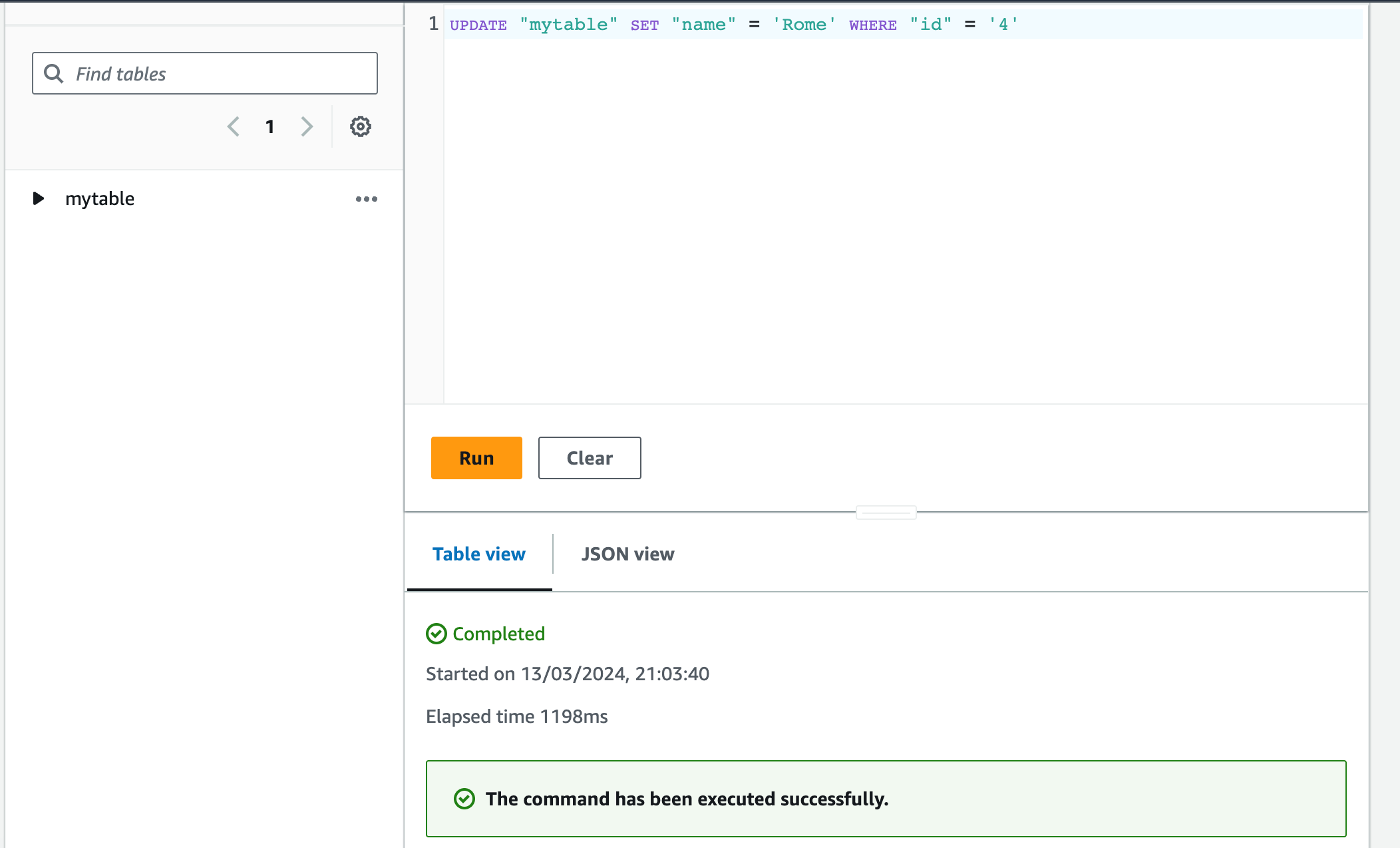
In this task, we are going to modify/update existing data in the DynamoDB table using PartiQL.- Copy paste below command in editor to modify item name of data with id = 4.
- Now, run below command to verify the updated name
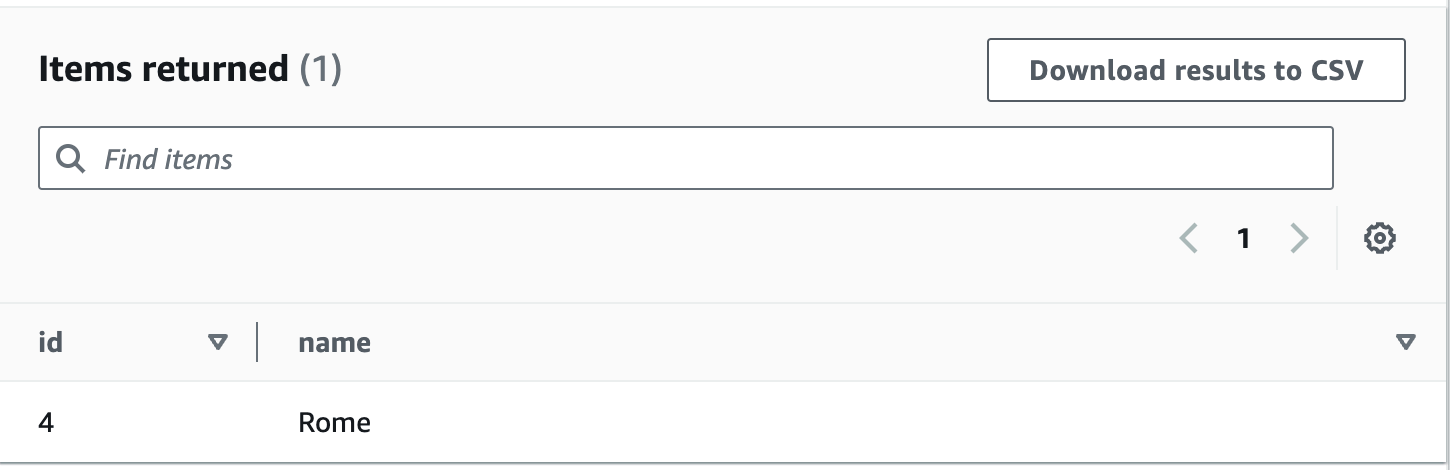
- Here you can see the modified name of id = 4.
Task 5 : Delete Data in DynamoDB Table
In this task, we are going to delete item in a DynamoDB table using PartiQL.- Now, to delete an item in DynamoDB table copy paste below command in query editor. This command will delete the item with id = 5
- Now, click on Run button to run the query
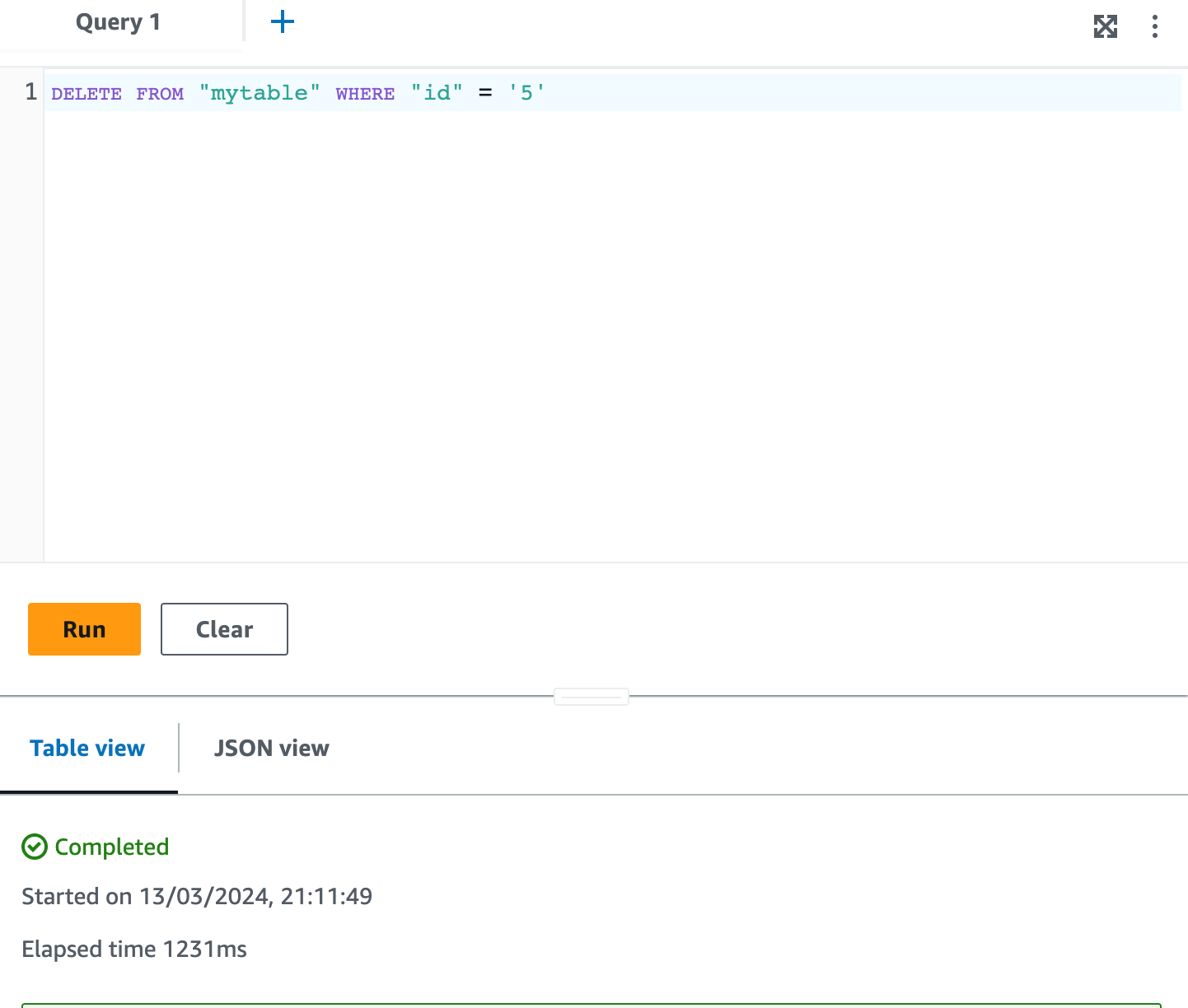
- Use below command to verify the deleted data.
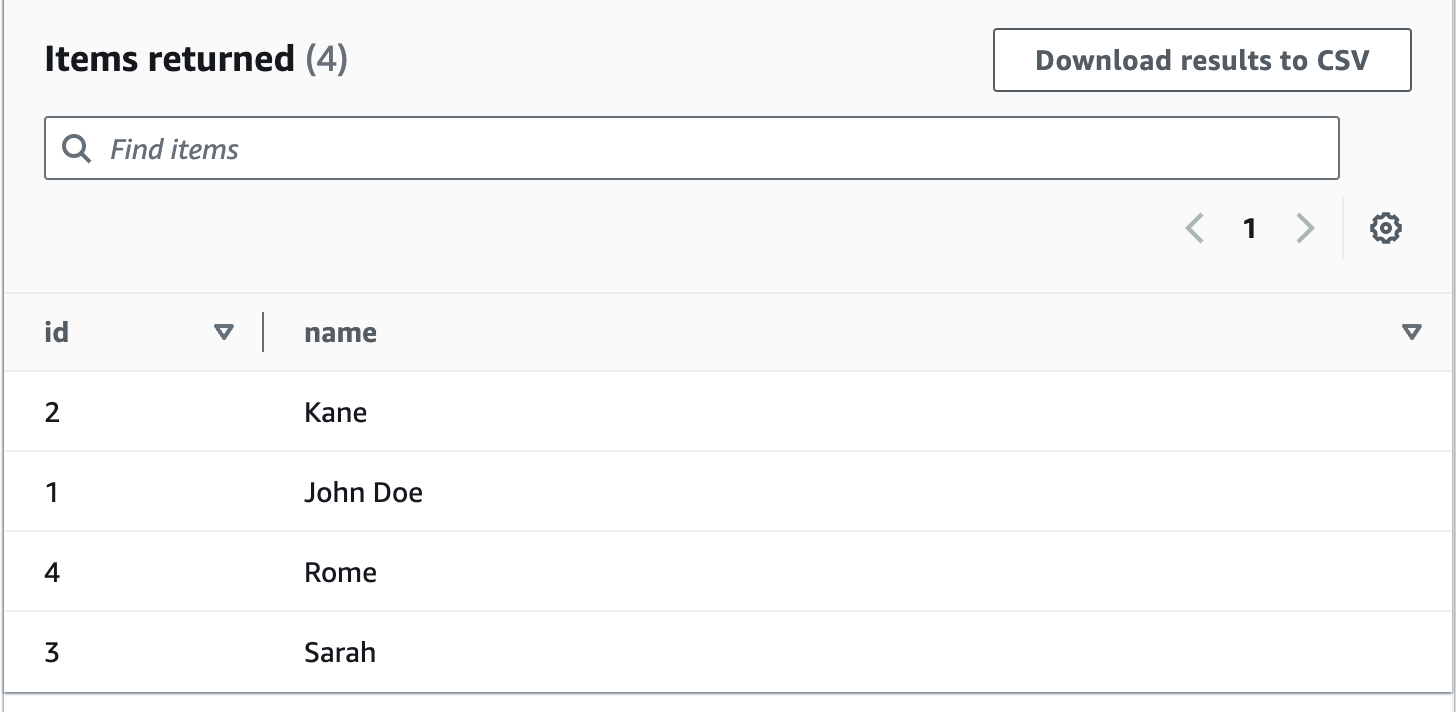
- Here you can verify, the item deleted with id = 5.
Do You Know?
PartiQL is a SQL-compatible query language supported by DynamoDB, enabling developers to query, insert, update, and delete data in DynamoDB tables using familiar SQL syntax, thus simplifying data manipulation tasks for those accustomed to SQL-based systems
Completion and Conclusion
- You have successfully created an Amazon DynamoDB table.
- You have inserted items into the table using PartiQL.
- You have modified an item in the table using PartiQL.
- You have deleted an item in the table using PartiQL.
End Lab
- Sign out from the AWS Management Console.
- Click on End lab button from IP Lab Portal Labs console and wait till the process gets complete
What gets checked
When you press Check my work, the platform verifies each of these:- Create Amazon DynamoDB Table — Check whether a DynamoDB Table is created or not.
- Create Items in DynamoDB Table — Check whether items in the DynamoDB table are created or not.