

Overview
Lab Details
- This lab walks you through the steps for creating and running a step function, as well as working with different types of states within the workflow.
- You will practice using AWS Step Functions.
- Duration: 30 Minutes
- AWS Region: US East (N. Virginia).
Introduction
AWS Step Functions
- AWS Step Functions is a serverless function orchestrator that makes it easy to sequence AWS Lambda functions and multiple AWS services into business-critical applications.
- You can create and run a series of check pointed and event-driven workflows that maintain the application state with the help of a visual interface.
- The output of one-step acts as an input to the next. Each step in your application executes in order, as defined by your business logic.
- Orchestrating a series of individual serverless applications, managing retries, and debugging failures can be challenging.
- Step Functions manages sequencing, error handling, retry logic, and state, removing a significant operational burden from you.
States
- A workflow in step functions is called State Machines.
- The various tasks which are performed inside the workflow are called States.
-
There are different types of States.
- Task State: A Task state is used to perform some work inside the workflow.
- Choice State: A Choice state takes decisions according to the output in the workflow.
- Wait State: A Wait state delays a particular task in the workflow for some time.
- Parallel State: A Parallel state executes 2 or more tasks parallelly.
- Pass State: A Pass state passes its input to its output without performing work.
- Succeed State: A Succeed state stops an execution successfully.
- Fail State: A Fail state stops the execution of the state machine and marks it as a failure.
Tasks Details:
- Sign into the AWS Management Console.
- Create 5 Lambda Functions.
- Create a state machine in step function.
- Use different States in the workflow like Task, Choice, Parallel, Wait, End states.
- Test the step function.
Architecture Diagram
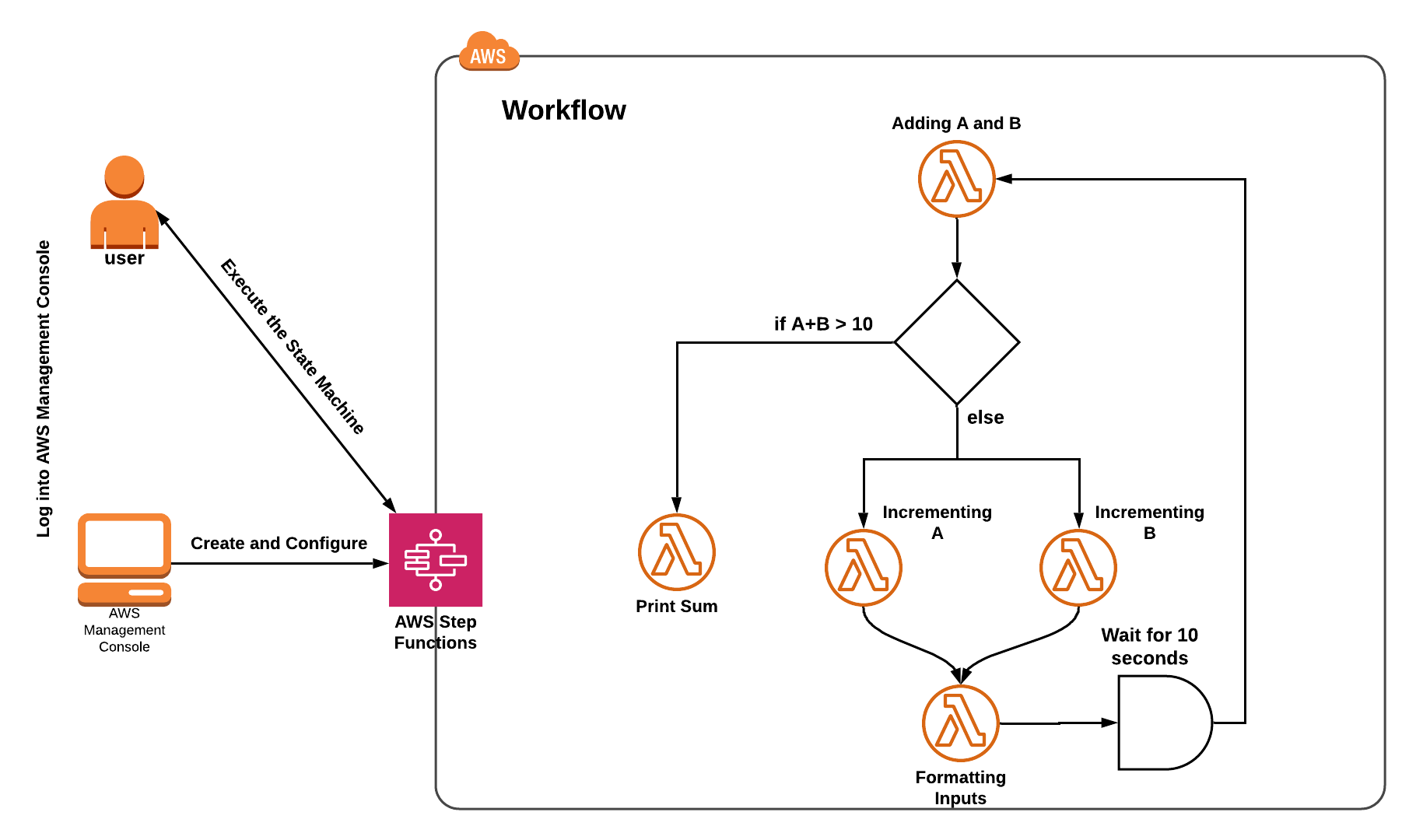
Launching Lab Environment
- To launch the lab environment, Click on the Start Lab button.
- Please wait until the cloud environment is provisioned. It will take less than a minute to provision.
- Once the Lab is started, you will be provided with IAM username, Password, Access Key, and Secret Access Key.
Note : You can only start one lab at any given time
Lab guide
Lab Steps
Task 1: Sign in to AWS Management Console
- Click on the Open Console button, and you will get redirected to AWS Console in a new browser tab.
- On the AWS sign-in page,
- Leave the Account ID as default. Never edit/remove the 12-digit Account ID present in the AWS Console. Otherwise, you cannot proceed with the lab.
- Now copy your Username and Password in the Lab Console to the IAM Username and Password in AWS Console and click on the Sign-in button
- Once Signed In to the AWS Management Console, make the default AWS Region as US East (N. Virginia) us-east-1.
Workflow Explanation :
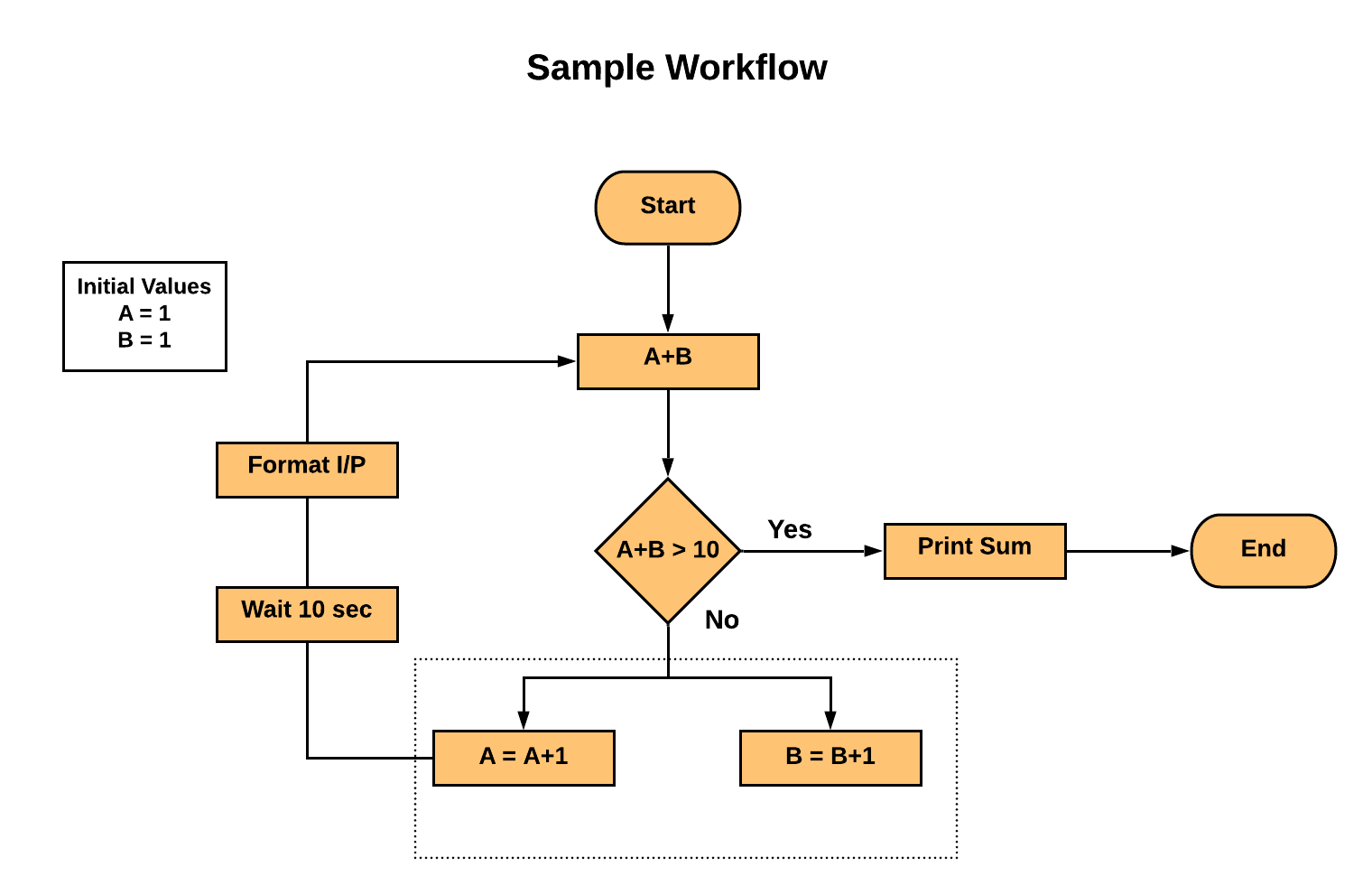
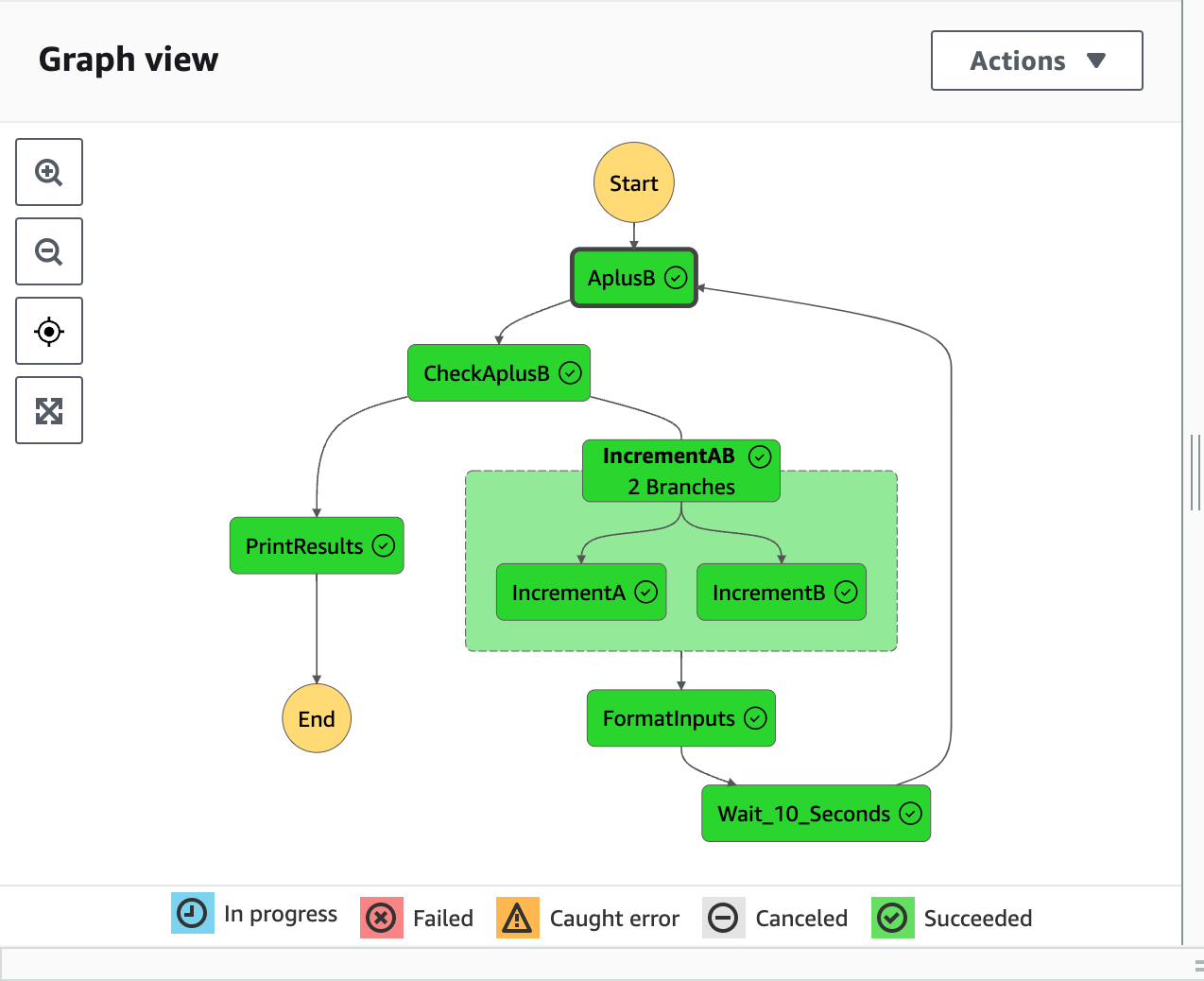
- The workflow takes 2 numbers, A and B as inputs and sum it.
- If the sum is greater than 10, then we will print the Sum and end the workflow.
- If the sum is not greater than 10, then we will increment each number with 1 and wait for 10 seconds.
- Then we will sum the numbers again and compare the sum of the numbers.
- The process repeats all over till the sum is greater than 10.
- Here we are using States like Task state, Choice State, Parallel State, Wait State, and End State.
Task 2: Creating Lambda Functions
In this task, we are going to create five Lambda functions that will be utilized in the AWS Step Functions workflow. Each Lambda function serves a specific purpose:- Adding 2 numbers: This function takes two input numbers, adds them, and returns the sum.
- Incrementing A: This function increments the value of input ‘A’ by 1.
- Incrementing B: This function increments the value of input ‘B’ by 1.
- Printing the sum: This function prints the sum of ‘A’ and ‘B’.
- Formatting the inputs: This function formats the inputs to the required structure for the workflow.
- Navigate to the Services menu at the top, then click on Lambda under the Compute section.
- Lambda function 1: Adding 2 numbers
- Click on Create a function button
- Select Author from Scratch
- Function Name: Enter adding_A_and_B
- Runtime: Select Python 3.9
- Click on Change default execution role and choose Use an existing Role and select Lambdarole. This role will be created for you already.
- Leave other options as default.
- Click on Create function button.
- Copy the Function ARN in your text editor for later use.
- Copy the below code and save the code by clicking on the Deploy button.
- Lambda function 2: Incrementing A
- Click on Create Function button.
- Select Author from Scratch
- Function Name: Enter Increment_A
- Runtime: Select Python 3.9
- Under Change default execution role
- Choose Use an existing Role and select Lambdarole which was created earlier.
- Leave other options as default.
- Click on Create Function button.
- Copy the Function ARN in your text editor for later use
- Copy the below code and save the code by clicking on the Deploy button.
- Lambda function 3: Incrementing B
- Click on Create Function button.
- Select Author from Scratch
- Function Name: Enter Increment_B
- Runtime: Select Python 3.9
- Under Change default execution role
- Choose Use an existing Role and select LambdaRole which was created earlier.
- Leave other options as default.
- Click on Create Function button.
- Copy the Function ARN in your text editor for later use
- Copy the below code and save the code by clicking on the Deploy button.
- Lambda function 4: Printing the sum
- Click on Create Function button.
- Select Author from Scratch
- Function Name : Enter print_sum
- Runtime : Select Python 3.9
- Under Change default execution role
- Choose Use an existing Role and select LambdaRole which was created earlier.
- Leave other options as default.
- Click on Create Function button.
- Copy the Function ARN in your text editor for later use
- Copy the below code and save the code by clicking on the Deploy button.
- Lambda function 5: Formatting the inputs
- Click on Create Function
- Select Author from Scratch
- Function Name: Enter format_inputs
- Runtime: Select Python 3.9
- Under Change default execution role
- Choose Use an existing Role and select LambdaRole which was created earlier.
- Leave other options as default.
- Click on Create Function.
- Copy the Function ARN in your text editor for later use
- Copy the below code and save the code by clicking on the Deploy button.
- We have created all 5 required lambda functions.
- Make sure you have the right ARNs’ of the lambda functions.
Task 3: Create a State Machine in Step Function
In this task, we are going to create a state machine using AWS Step Functions. The state machine defines the flow of the workflow, specifying which Lambda functions to execute and the decisions to be made based on the output of each function.- Navigate to the Services menu at the top, then click on Step Functions in the Application Integration section.
- Click on the Menu button (three parallel lines) in the top left corner and select State Machines
- Click on Create State machine button.
- Choose the template: select Blank. Enter the name of your choice and click Create.
- Select Code and enter the below code.
- Definition: Replace the existing state machine JSON code with the below one.
-
Now replace the entire value of the Resource key with the lambda ARNs that you have copied and placed in the text edit.
Note: Make sure you enter the correct lambda ARN of each Task.
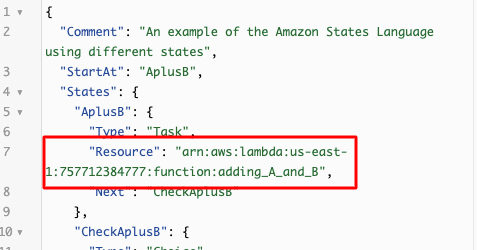
- Now on the right side, the flow diagram will be as follows :
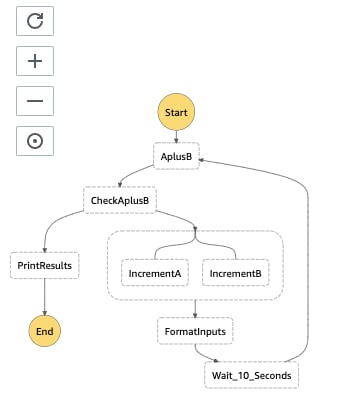
Note: If this image is not displayed, please click the refresh button, to reload the diagram.
- Now click on the Config button.
-
Specify details:
-
Name : Enter FirstStateMachine
- Type: Standard
-
Permissions :
- Execution role : Select Choose an existing role
- Existing roles : Select whizrole
- Leave everything as default.
-
Name : Enter FirstStateMachine
- Click on the Create button
Task 4: Test the Step function
In this task, we are going to test the created state machine by providing input values for ‘A’ and ‘B’. By testing the step function, we will observe how the workflow progresses based on the inputs and the logic defined in the state machine. This allows us to ensure that the step function is working correctly and producing the expected results.- Click on the Execute button.
-
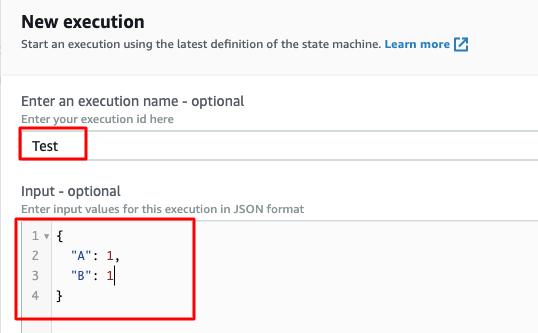
New execution:
- Enter an execution name: Enter Test
-
In the Input: We have to give inputs for A and B.
- Enter A and B as 1 in the inputs as shown below.
- Click on the Start execution.
- In the Graph inspector diagram, the color of invoke Lambda will become green (success) as shown in the image below.
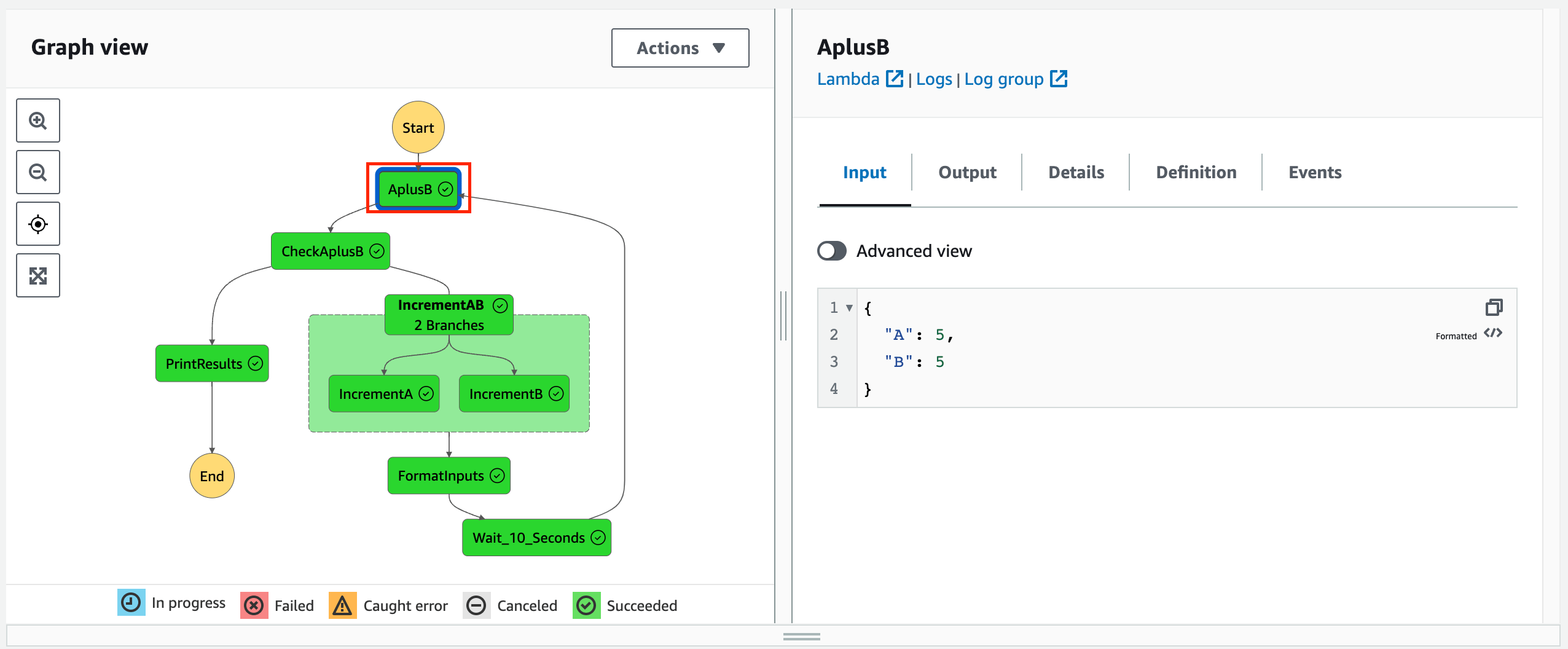
- Click on each task to know more about them. You will be able to see the more details on the right side column.
-
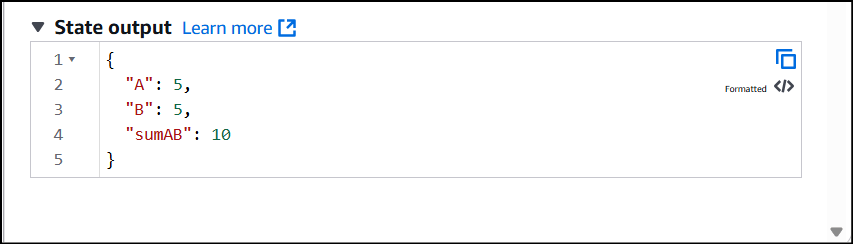
Now click on the Input/Output tab on the right side, and you will see the output from our lambda function.
- Live execution of the workflow can be monitored below in the Events.
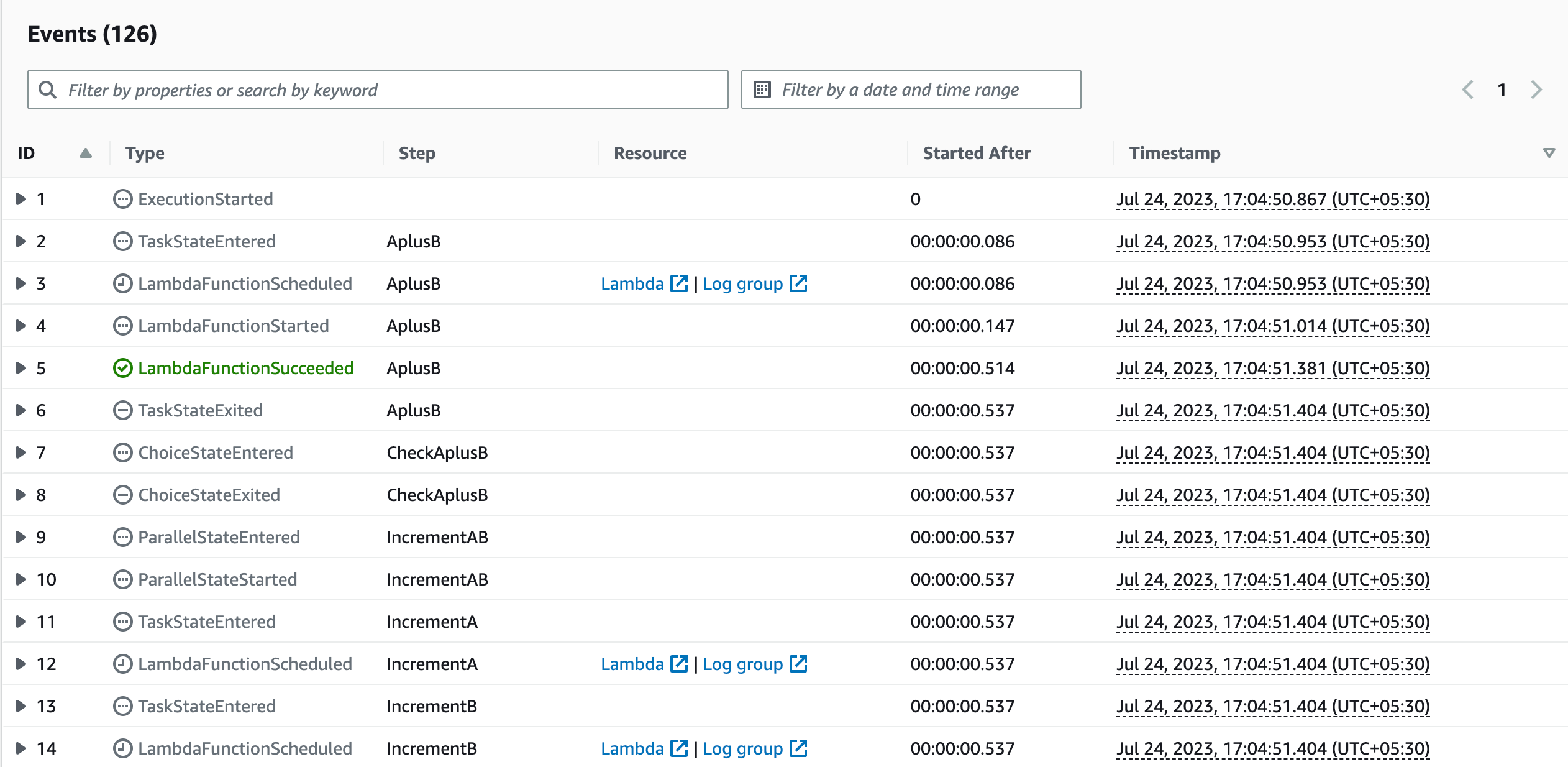
Do You Know? This visual interface not only aids in designing and developing the state machine but also facilitates troubleshooting and debugging. Developers can quickly identify any potential bottlenecks, errors, or misconfigurations in the workflow, making it a valuable tool for building and managing complex serverless applications.
- Once the lab steps are completed, please click on the Validation button on the left side panel.
Completion and Conclusion
- You have successfully created 5 Lambda functions.
- You have successfully created a state machine in step function.
- You have successfully used different States in the workflow like Task, Choice, Parallel, Wait, and End states.
- You have successfully tested the step function.
End Lab
- Sign out of AWS Account.
- You have successfully completed the lab.
- Once you have completed the steps, click on End Lab from the IP Lab Portal dashboard.
What gets checked
When you press Check my work, the platform verifies each of these:- Create an AWS Lambda Function — Check whether a Lambda Function is created or not
- Check State Machine Exists — Check whether a StepFunctions state machine is created.
- Check State Machine Execution — Check whether a StepFunctions state machine executes successfully.