

Overview
Lab Details
- In this lab, you will be guided through the process of building a step function and integrating it with a Lambda function. You will practice it using AWS Step Functions.
- Duration of the Lab : 30 minutes.
- AWS Region: US East (N. Virginia) us-east-1
Introduction
AWS Step Functions
- AWS Step Functions is a serverless function orchestrator that makes it easy to sequence AWS Lambda functions and multiple AWS services into business-critical applications.
- You can create and run a series of checkpointed and event-driven workflows that maintain the application state with the help of visual interface.
- The output of one step acts as an input to the next. Each step in your application executes in order, as defined by your business logic.
- Orchestrating a series of individual serverless applications, managing retries, and debugging failures can be challenging.
- Step Functions manages sequencing, error handling, retry logic, and state, removing a significant operational burden from you.
Architecture Diagram
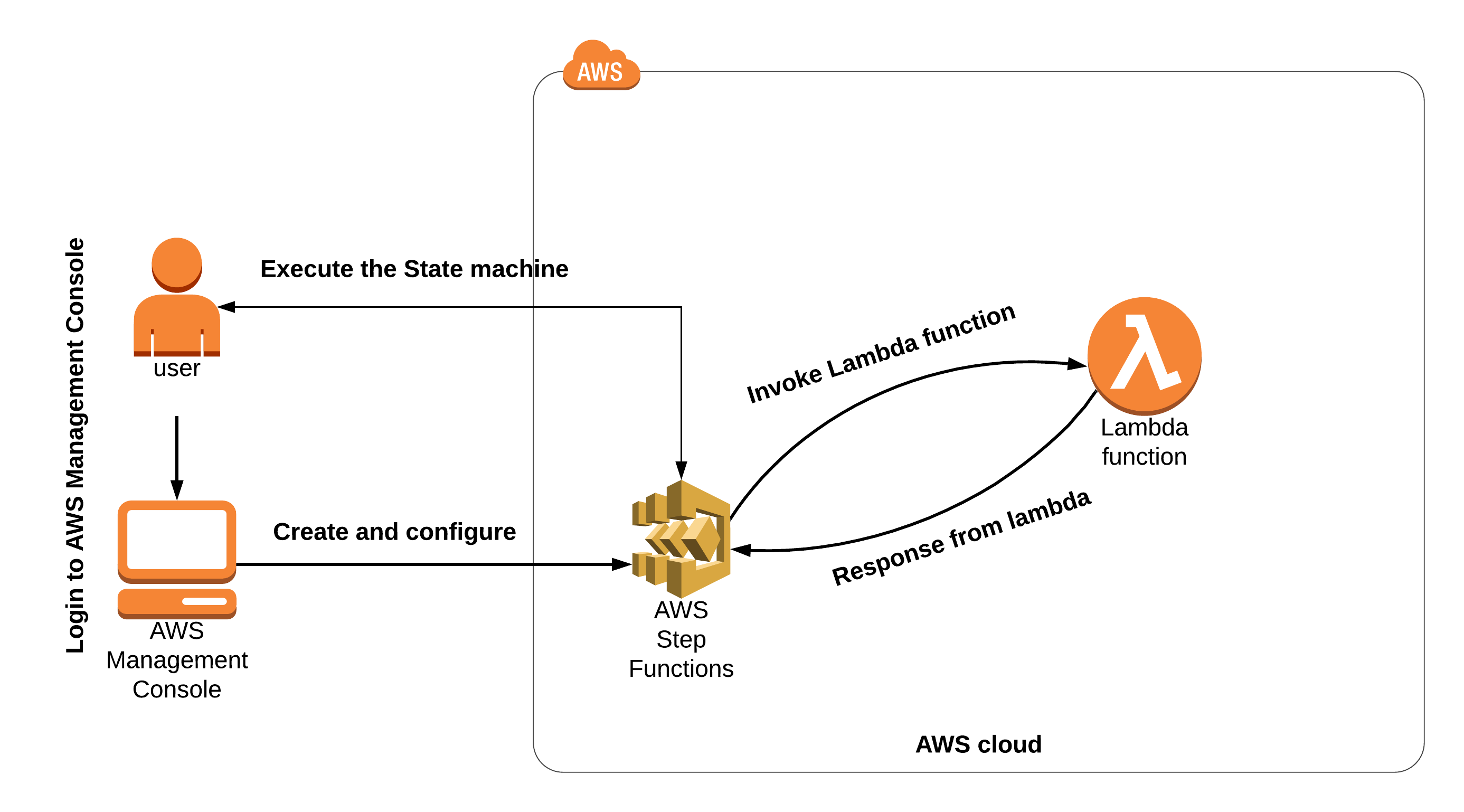
Task Details
- Sign in to AWS Management Console
- Create a Lambda Function.
- Create a state machine in step function.
- Test the step function
Launching Lab Environment
- To launch the lab environment, Click on the Start Lab button.
- Please wait until the cloud environment is provisioned. It will take less than a minute to provision.
- Once the Lab is started, you will be provided with IAM user name, Password, Access Key, and Secret Access Key.
Note : You can only start one lab at any given time
Lab guide
Lab Steps
Task 1: Sign in to AWS Management Console
- Click on the Open Console button, and you will get redirected to AWS Console in a new browser tab.
-
On the AWS sign-in page,
- Leave the Account ID as default. Never edit/remove the 12 digit Account ID present in the AWS Console. otherwise, you cannot proceed with the lab.
- Now copy your User Name and Password in the Lab Console to the IAM Username and Password in AWS Console and click on the Sign in button.
- Once Signed In to the AWS Management Console, Make the default AWS Region as US East (N. Virginia) us-east-1.
Note : If you face any issues, please go through FAQs and Troubleshooting for Labs.
Task 2: Create a Lambda Function
In this task, we are going to create a Lambda function by providing the required parameters like name, runtime, execution rule etc.- Navigate to the Services menu at the top, then click on Lambda under the Compute section.
-
Click on Create a function button.
- Select Author from Scratch
- Function Name : Enter MyStepFunction_lambda
- Runtime : Select Python 3.13
- Expand Adavanced Settings Option, Enable Custom execution role
- Select Lambdarole-<RANDOM_NUMBER>
- Leave other options as default.
- Click on Create function button.
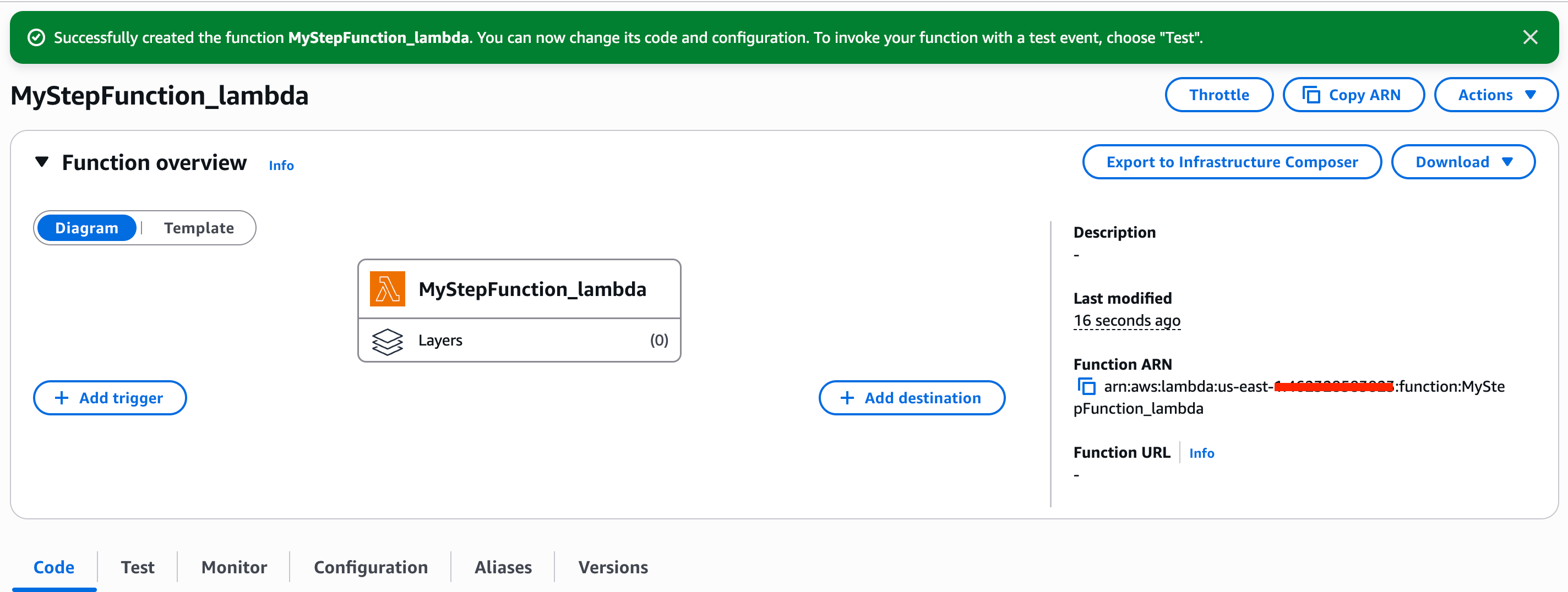
- Once the Lambda Function is created successfully, it will look like the screenshot below:
-
Under Function code:
- Replace the existing code with the below python code.
- Now save the code using by clicking on the Deploy button.
- Now copy your lambda function ARN from the top right corner and place it in a text editor. This arn will be used later.

Task 3: Create a State Machine in Step Function
- Navigate to the Services menu at the top, then click on Step Functions in the Application Integration section.
-
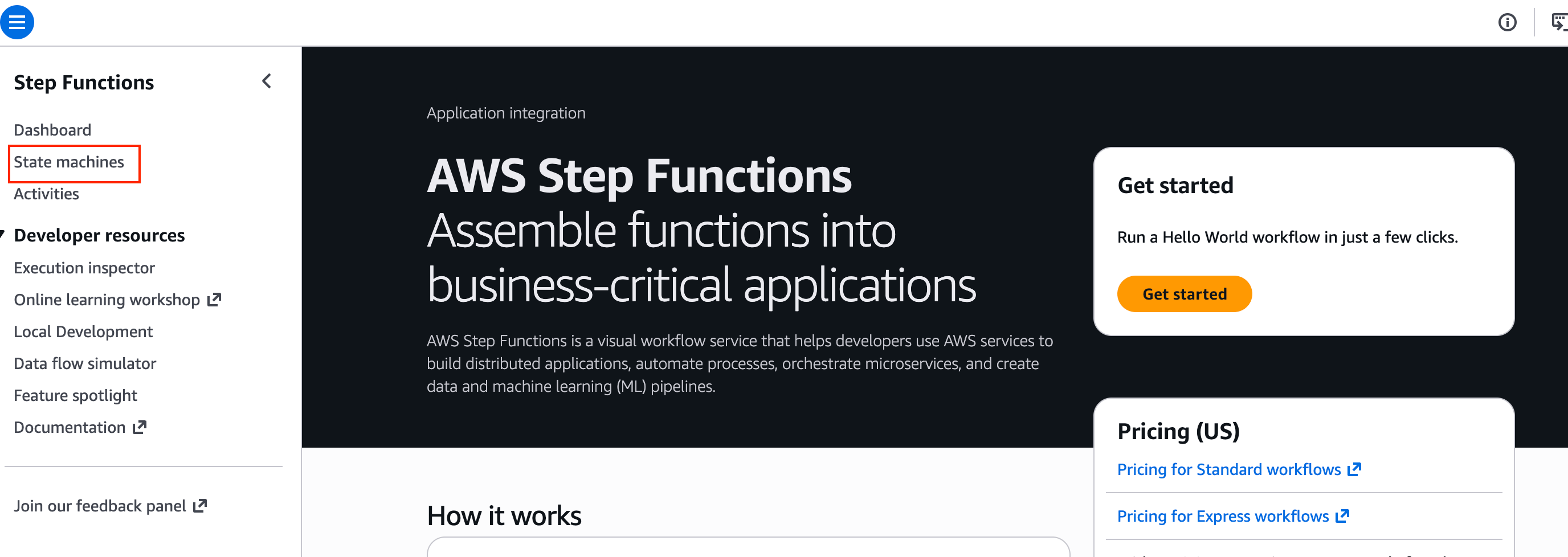
Click on the State machines from the left navigation panel.
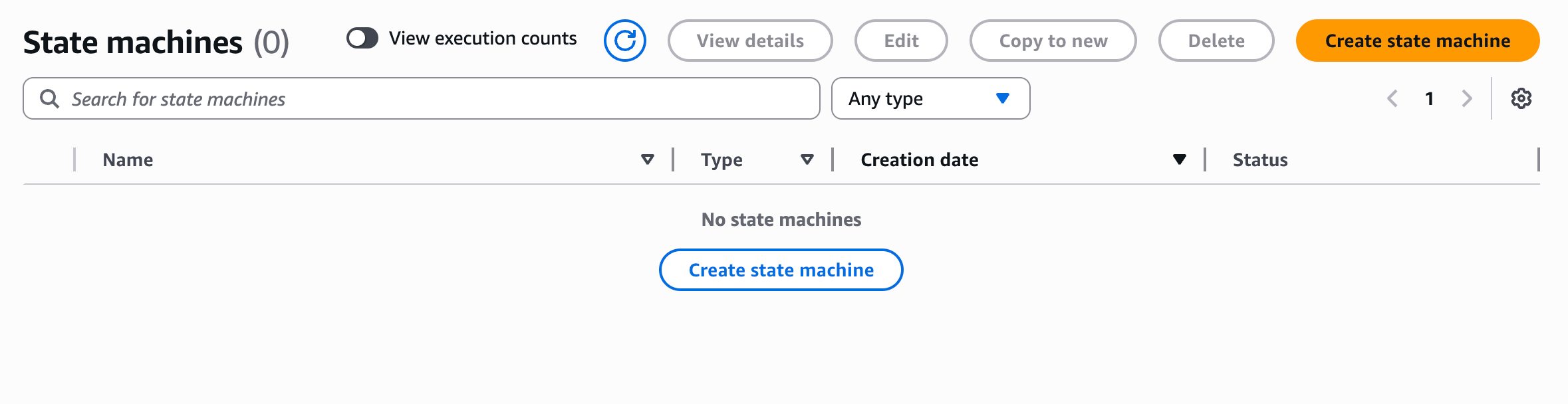
- Click on Create state machine button.
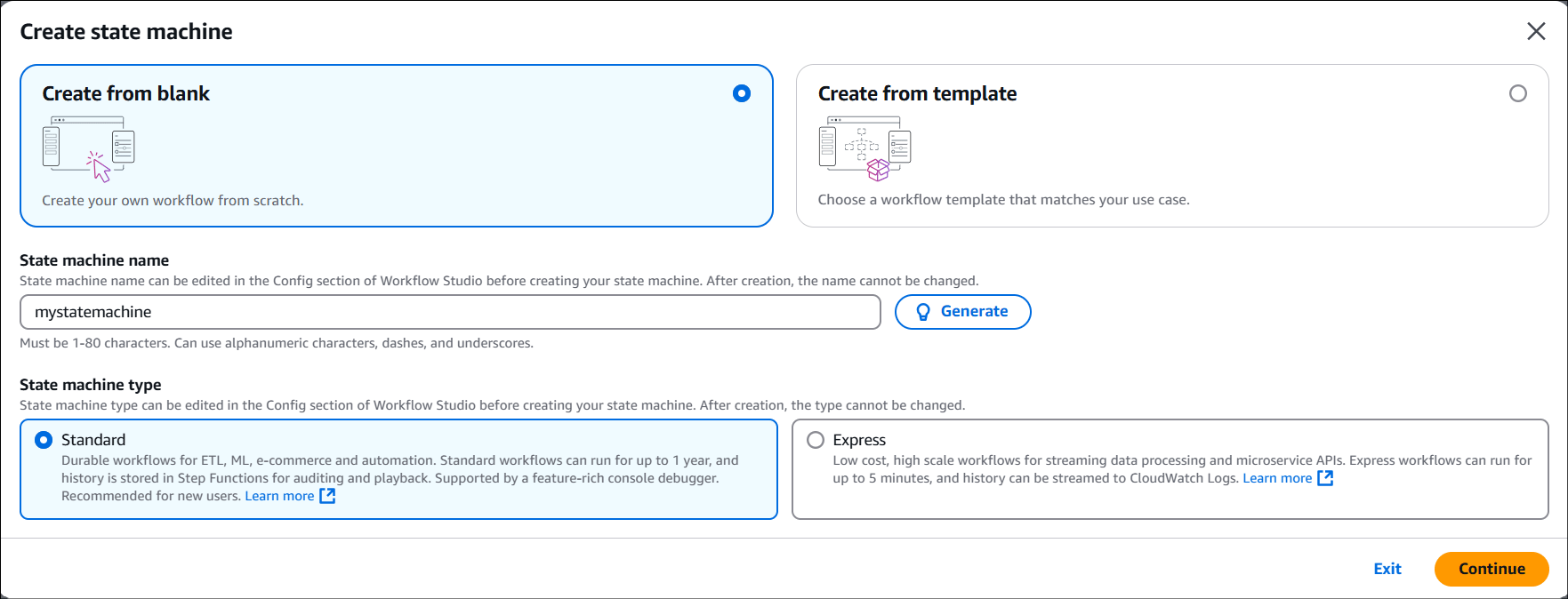
- Select Create from blank. Give the name of your choice and Click on Continue.
- Click on {}Code.
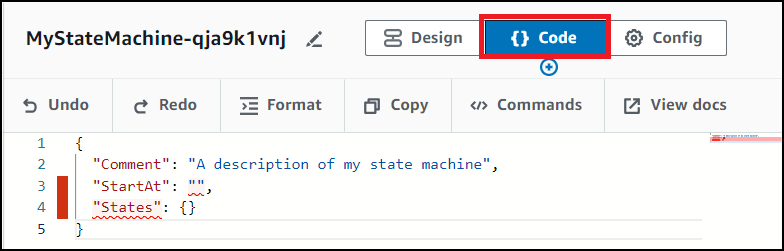
- Definition : Replace the existing state machine JSON code with the below one.
-
Now replace the entire value of Resource key with the lambda ARN that you have copied and placed in the text edit.
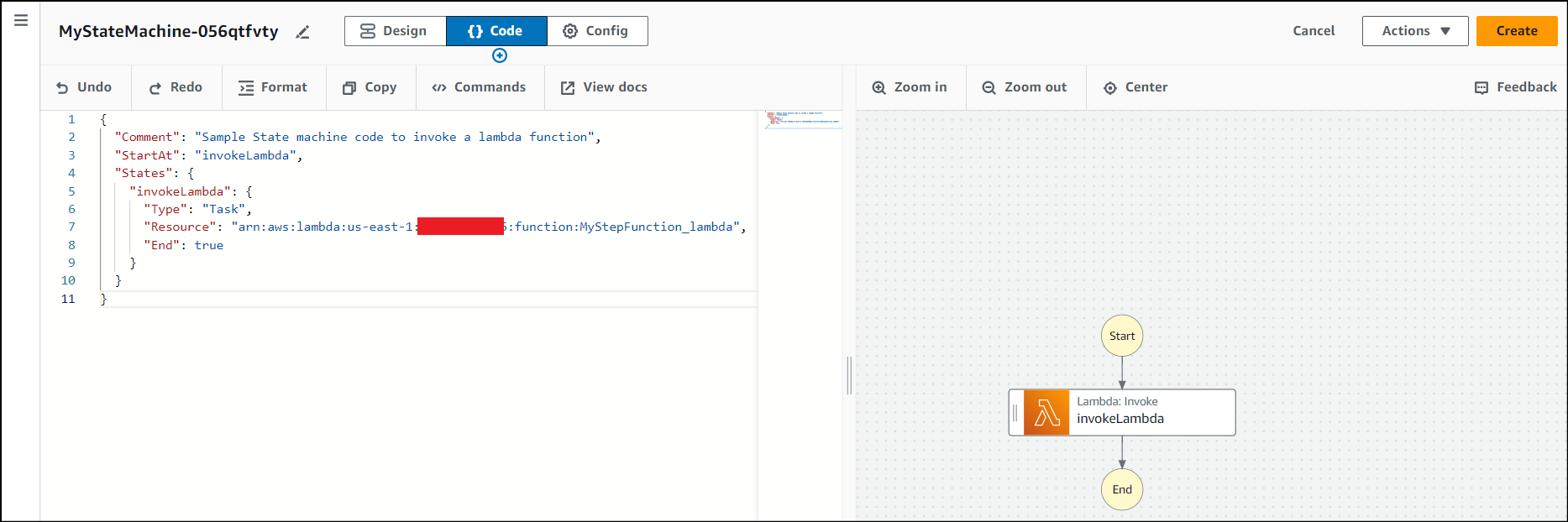
- Now on the right side the flow diagram will be as follows :
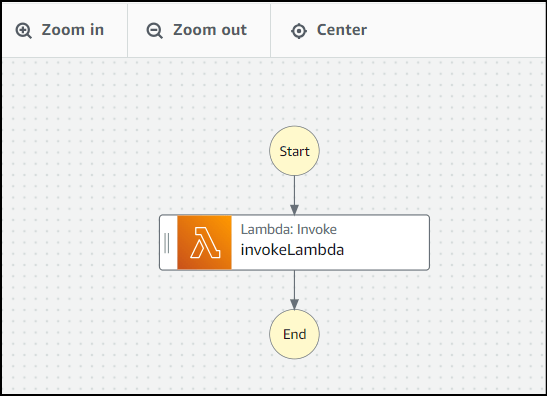
- Note : If this image is not displayed, please click the refresh button, to reload the diagram.
- Now click on the Config button.
-
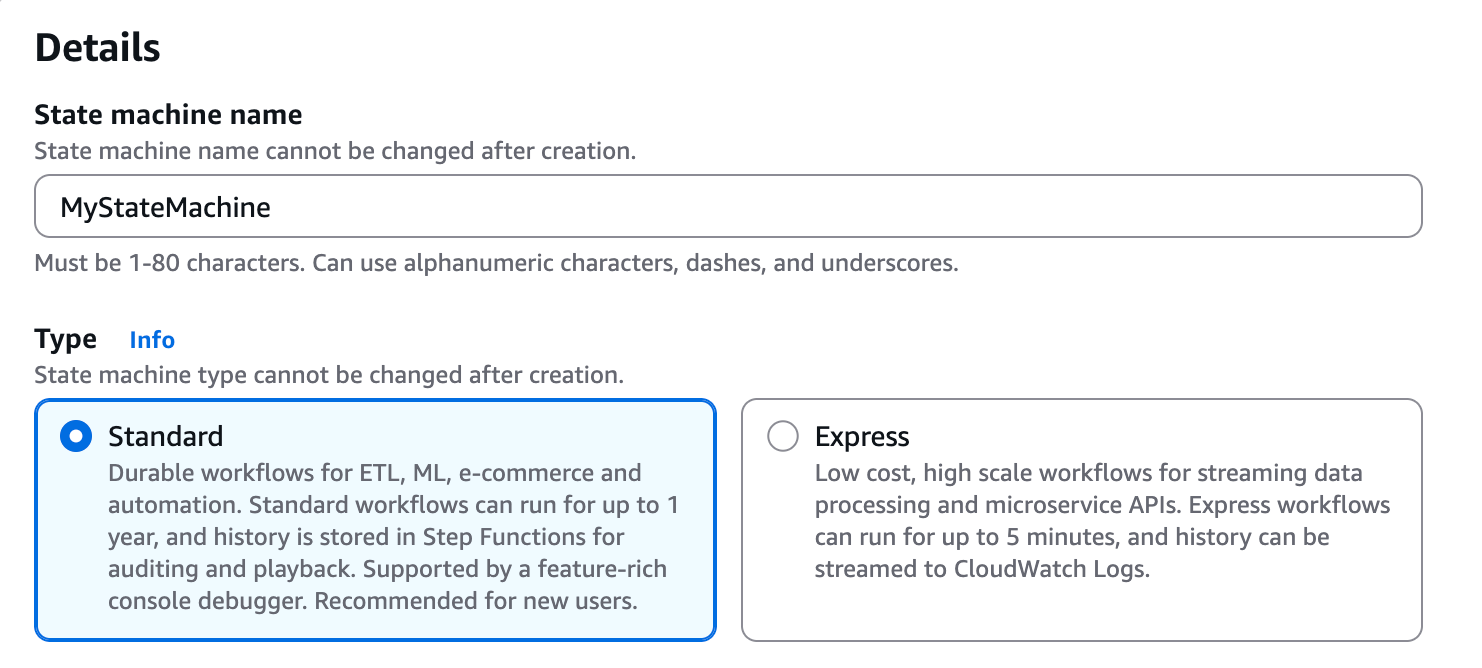
Specify details:
-
Name : Default MyStateMachine (This name cannot be changed here) and Select Standard as Type.
-
Permissions :
- Execution role : select Choose an existing role
- Existing roles : select StepFunction_lambda_role-RANDOM_NUMBER
-
Name : Default MyStateMachine (This name cannot be changed here) and Select Standard as Type.

- Leave everything as default.
- Click on the Create button.
Task 4: Test the Step function
-
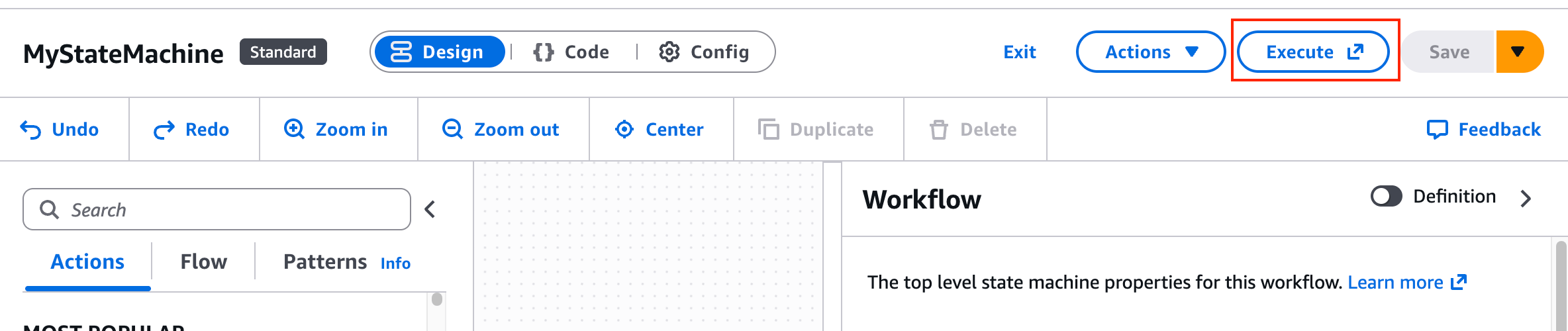
Click on the created state machine and select Execute button.
- New execution :
- Enter an execution name : Enter SampleTest1
-
Input : leave as default.
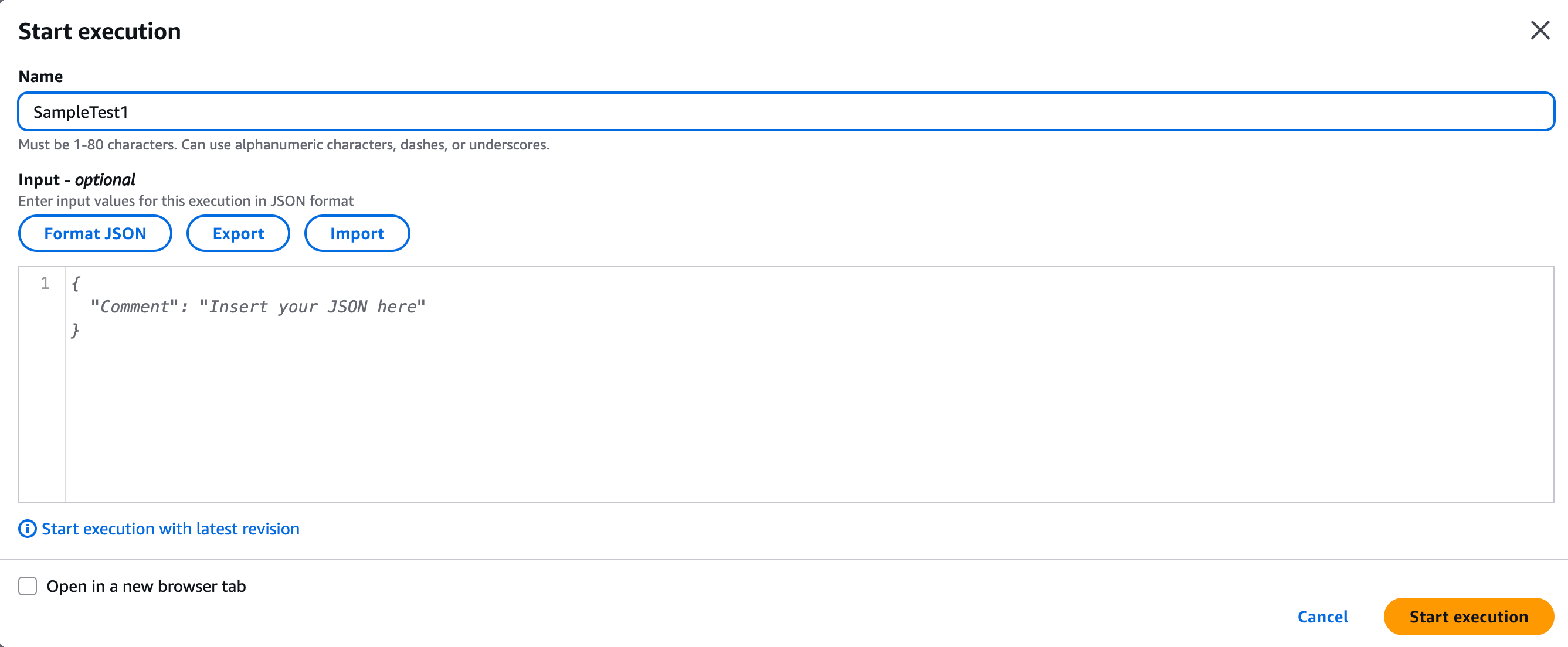
- Click on the Start execution button.
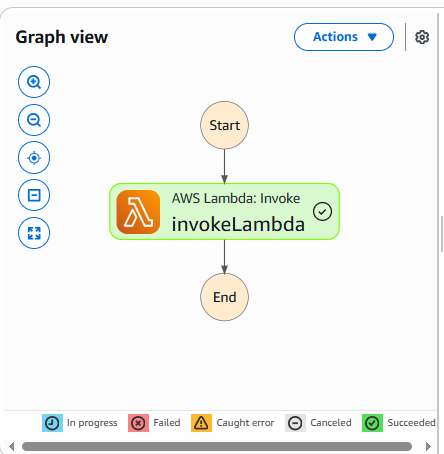
- In the Graph inspector diagram, the colour of invokeLambda will become green (success) as shown in the image below.
-
Click on the invokeLambda step.
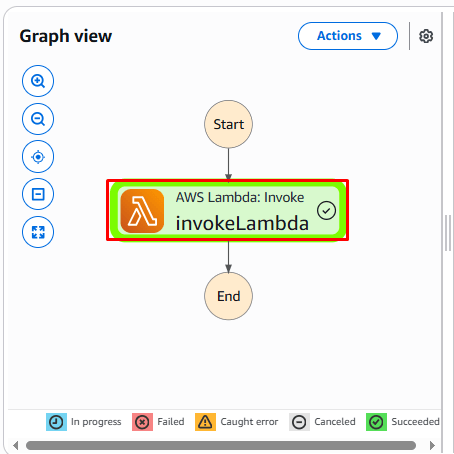
- You will be able to see the details below on the right side column.
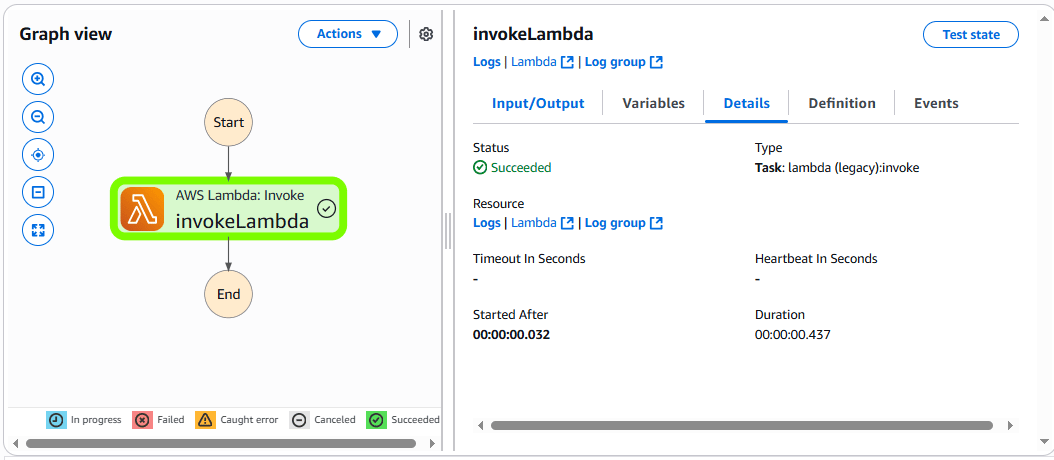
-
Now, click on the Input/Output tab. You will see the output from our lambda function.
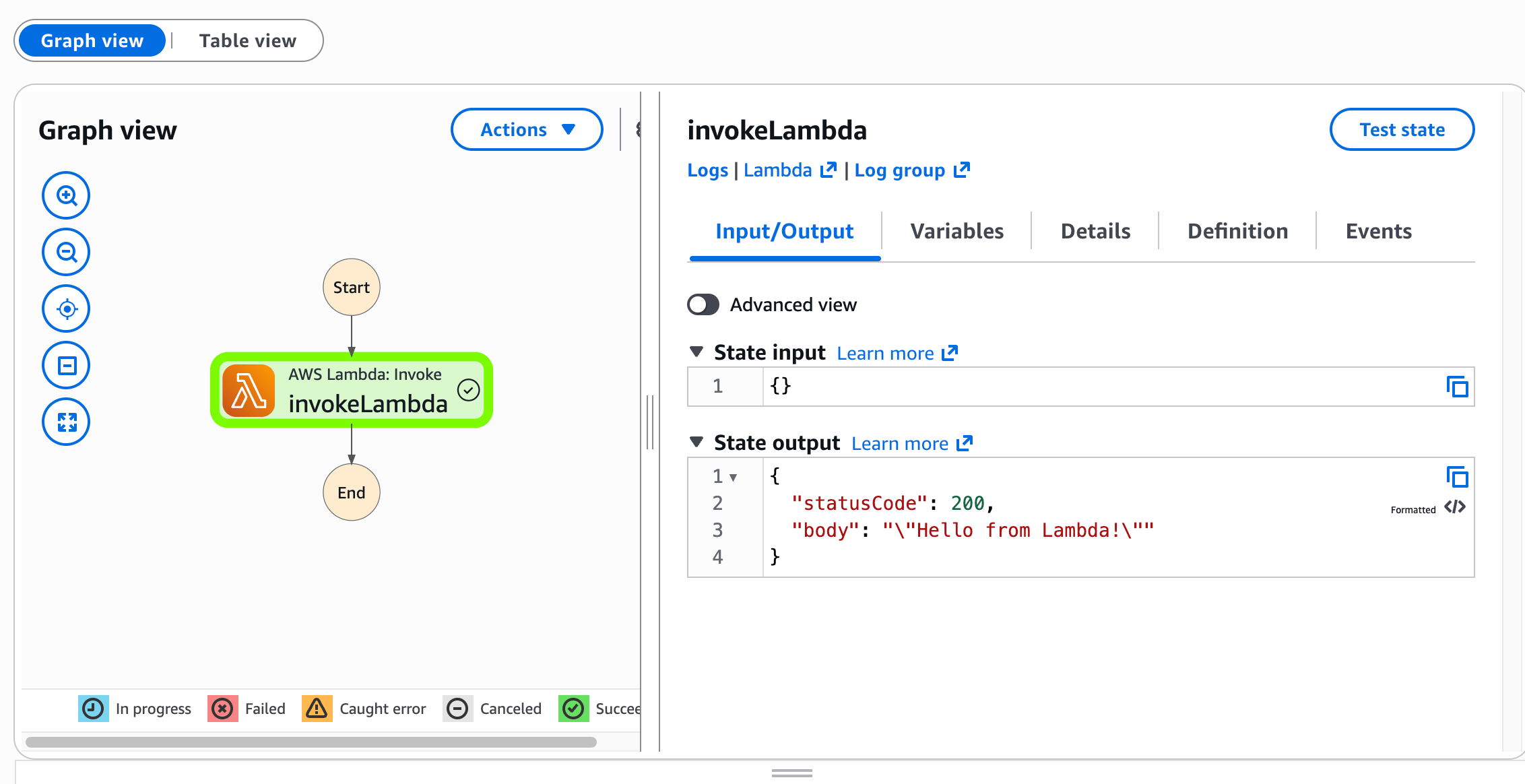
- Once the lab steps are completed, please click on the Validation button on the left side panel.
Do You Know?
Step Functions include built-in support for wait states, where you can pause the workflow execution for a specific duration, until a specified time, or until a specific event occurs.
Completion and Conclusion
- You have successfully created a Lambda function.
- You have successfully created a state machine in a step function.
- You have successfully tested the step function.
End Lab
- Sign out of AWS Account.
- You have successfully completed the lab.
- Once you have completed the steps, click on End Lab from the IP Lab Portal dashboard.
What gets checked
When you press Check my work, the platform verifies each of these:- Create an AWS Lambda Function — Check whether a Lambda Function is created or not
- Check State Machine Exists — Check whether a StepFunctions state machine is created.
- Check State Machine Execution — Check whether a StepFunctions state machine executes successfully.