

Overview
Lab Details
- The lab involves creating an inspector and lambda function
- Trigging the lambda function to scan the inspector to finding the vulnerabilities
- Duration: 1 hour
- AWS Region: US East (N. Virginia) us-east-1
Introduction
- Amazon Inspector is a service provided by Amazon Web Services (AWS) that helps you to automatically assess the security and compliance of your AWS resources, including AWS Lambda functions.
- It performs security assessments by analyzing your resources and identifying potential vulnerabilities and deviations from best practices.
- Learn how to navigate the Amazon Inspector console to view detailed findings of scanned Lambda functions, including CVE identifiers and severity ratings.
- Inspector v2 integrates seamlessly with AWS services such as EC2, ECR, and Lambda, allowing for continuous vulnerability assessment and management.
- In this lab, you will learn how to scan your AWS Lambda functions using Amazon Inspector
Architecture Diagram
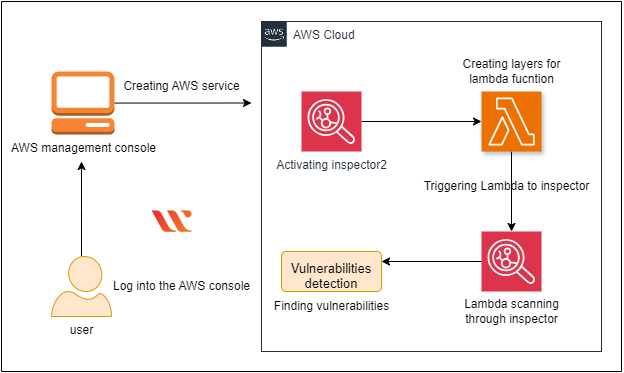
Task Details
- Sign in to AWS Management Console
- Creating an inspector2 and activating it
- Creating a lambda function and the layers
- Triggering the lambda function
- Scanning the lambda function to check the vulnerabilities
Launching Lab Environment
- To Launch the lab Environment, Click On The Start Lab Button.
- Please Wait Until The Cloud Environment Is Provisioned. It Will Take Less Than A Minute To Provision.
- Once The lab Is Started, You Will Be Provided With IAM User Name, Password, Access Key, And Secret Access Key.
Note : You can only start one guided lab at any given time
Lab guide
Lab Steps
Task 1: Sign in to AWS Management Console
- Click On The Open Console Button, And You Will Get Redirected To AWS Console In A New Browser Tab.
- On The AWS Sign-In Page, Leave The Account ID As Default. Never Edit/Remove The 12 Digit Account ID Present In The AWS Console. Otherwise, You Cannot Proceed With The Lab.
- Now Copy Your User Name And Password In The Lab Console To The IAM Username And Password In AWS Console And Click On The Sign In Button.
- Once Signed In To The AWS Management Console, Make The Default AWS Region As US East (N. Virginia) Us-East-1.
Task 2: Enable Amazon Inspector for your AWS Account
- In the AWS console, search for Amazon Inspector and click on it.
- Click on Get started.
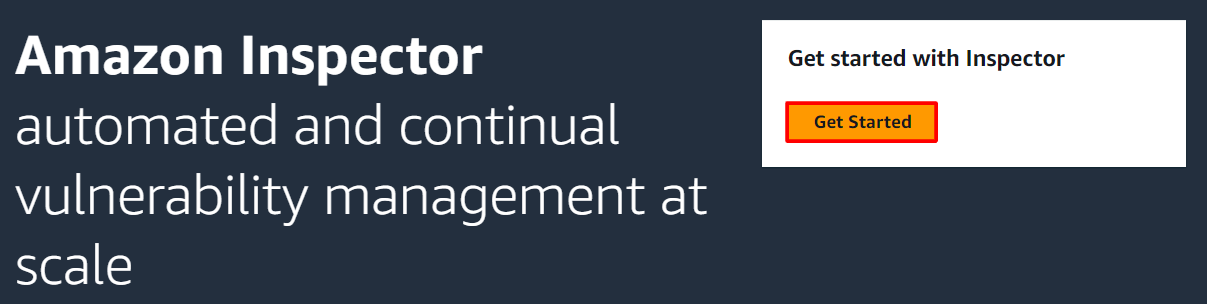
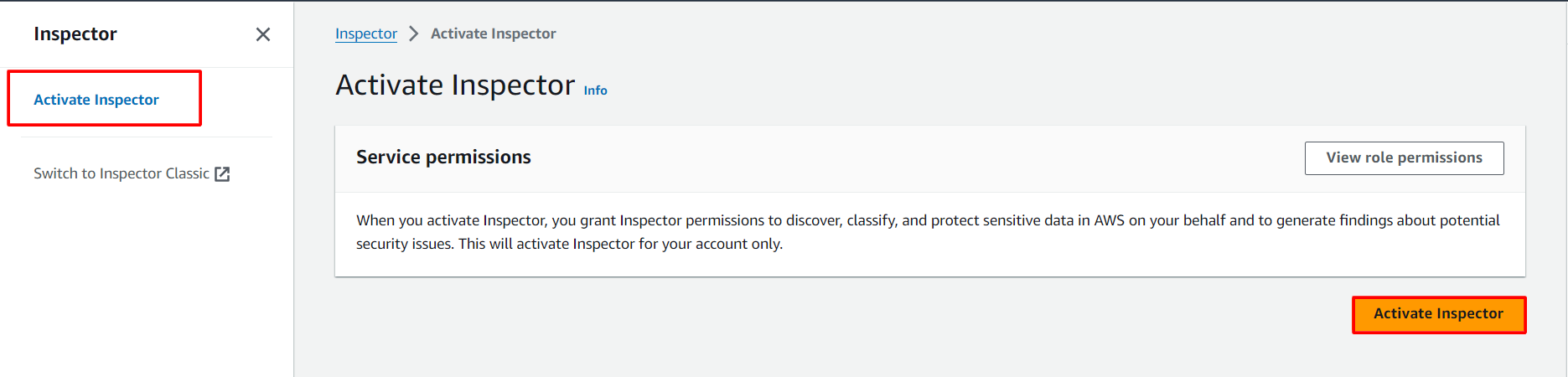
- And you will be able to see Activate Inspector.
- Click on the Activate Inspector
- In the left-side dashboard, scroll down and click on Account management.
- Click on the Activate button.
- Check AWS Lambda Standard scanning.
- Lambda standard scanning — With this option enabled, Amazon Inspector only scans for package dependencies in your Lambda functions and associated layers.
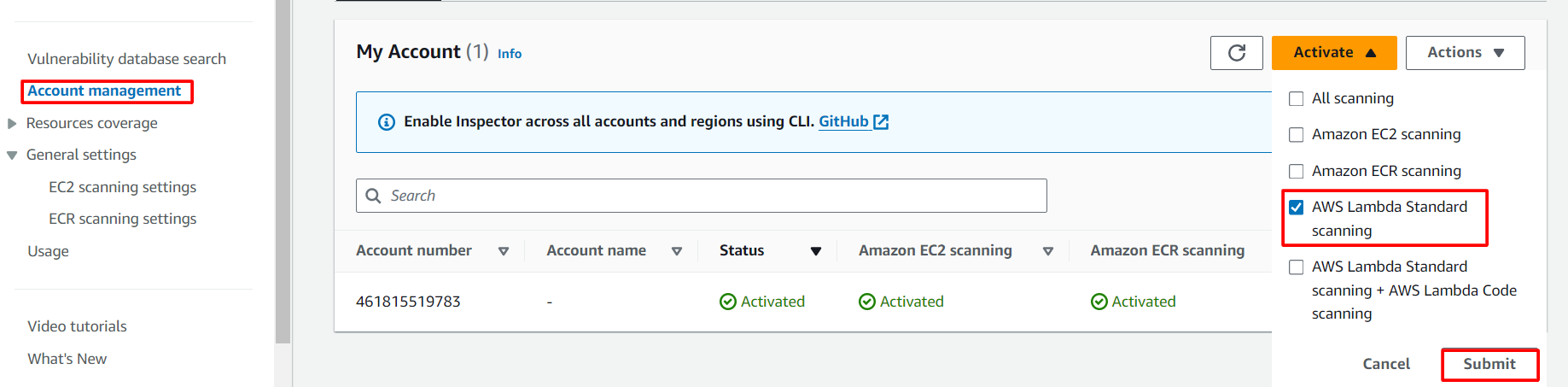
- Click on Submit.

Task 3: Create a Lambda Function
- Make sure you are in the US East (N. Virginia) region.
- Go to the Services menu and click on Lambda under Compute section.
- Click on the Create a function button.
- Choose Author from scratch
- Function name : testing_lambda
- Runtime : Select Python 3.11
- Expand Change default execution role select use an existing role and select Lambda_role from the drop-down.
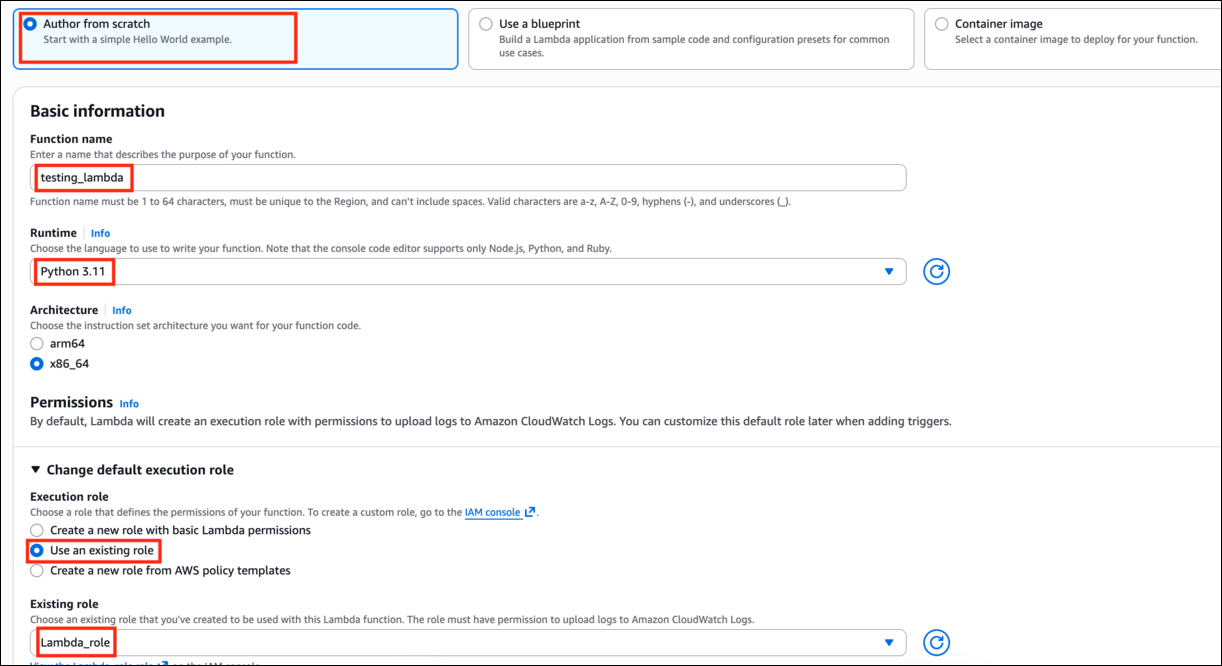
- Click on the Create function button.
- If you scroll down a little bit, you can see the Code source section. Here we are going to replace the python function code.
- Remove the existing code in AWS lambda_function.py. Copy the below code and paste it into your lambda_function.py file.
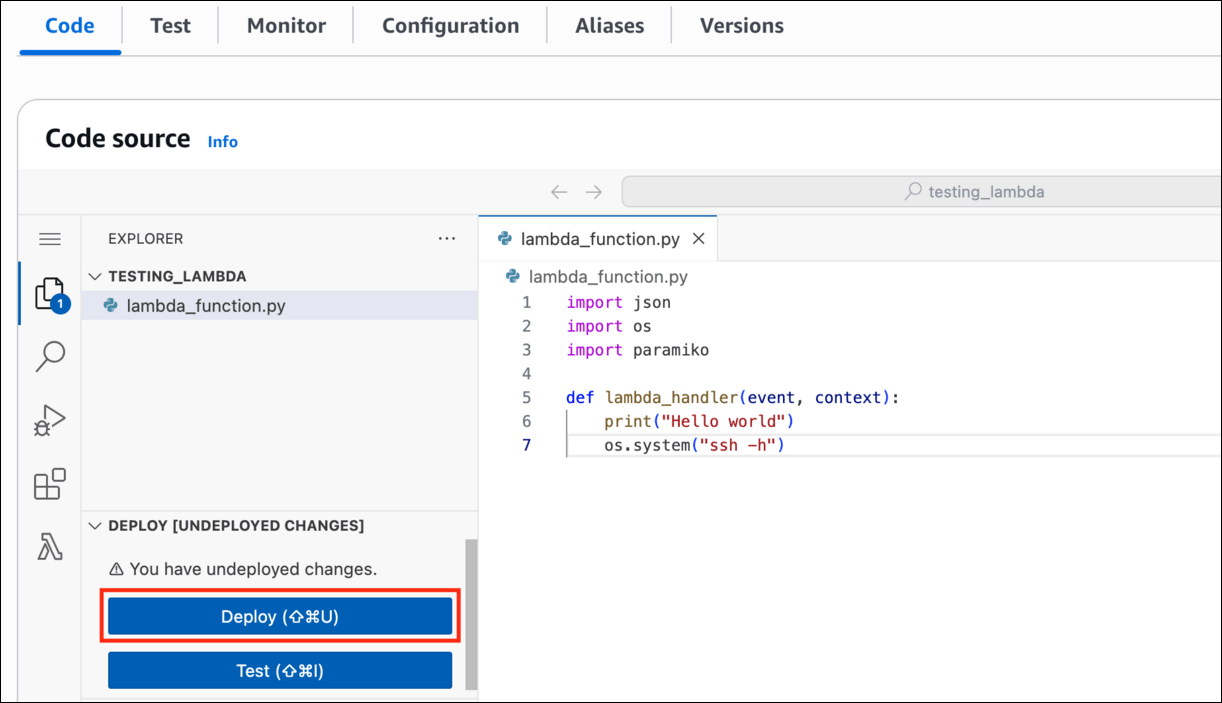
- click on Deploy button.
Task 4: Creating Layers for Lambda function
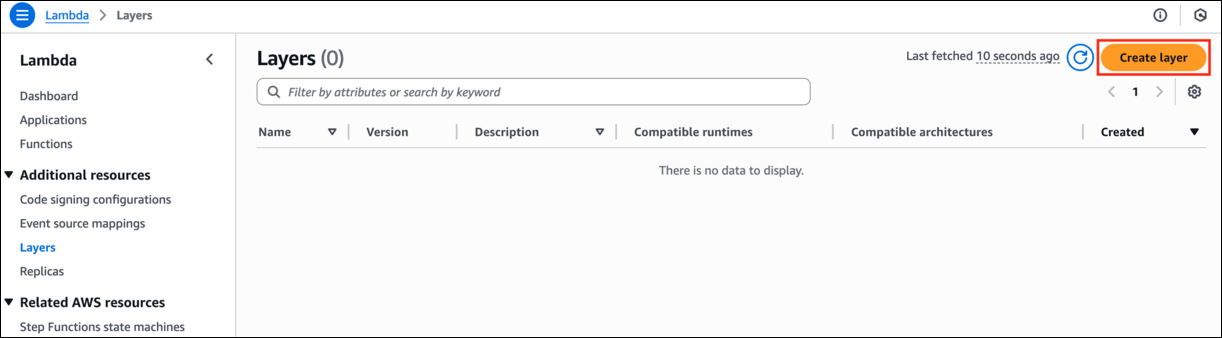
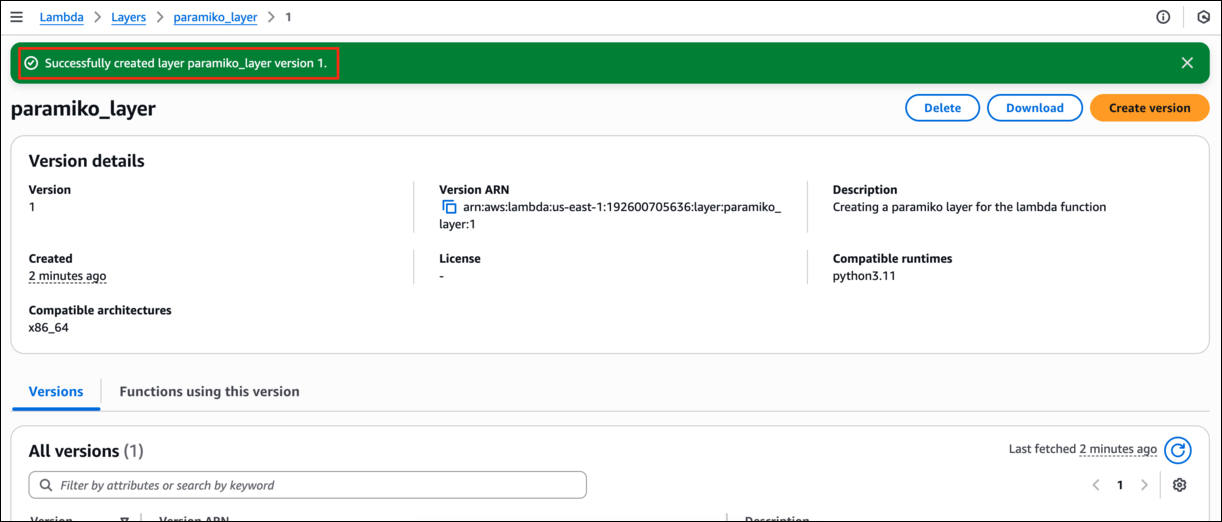
- In the Lambda console, click on the Layers section in the left-hand navigation pane
- Click on the Create Layer button.
- Layer name: paramiko_layer
- Description: Creating a paramiko layer for the lambda function
- Click on the below link to download the zip file to upload in the layers.
- Compatible architectures: x86_64
- Runtime: python 3.11
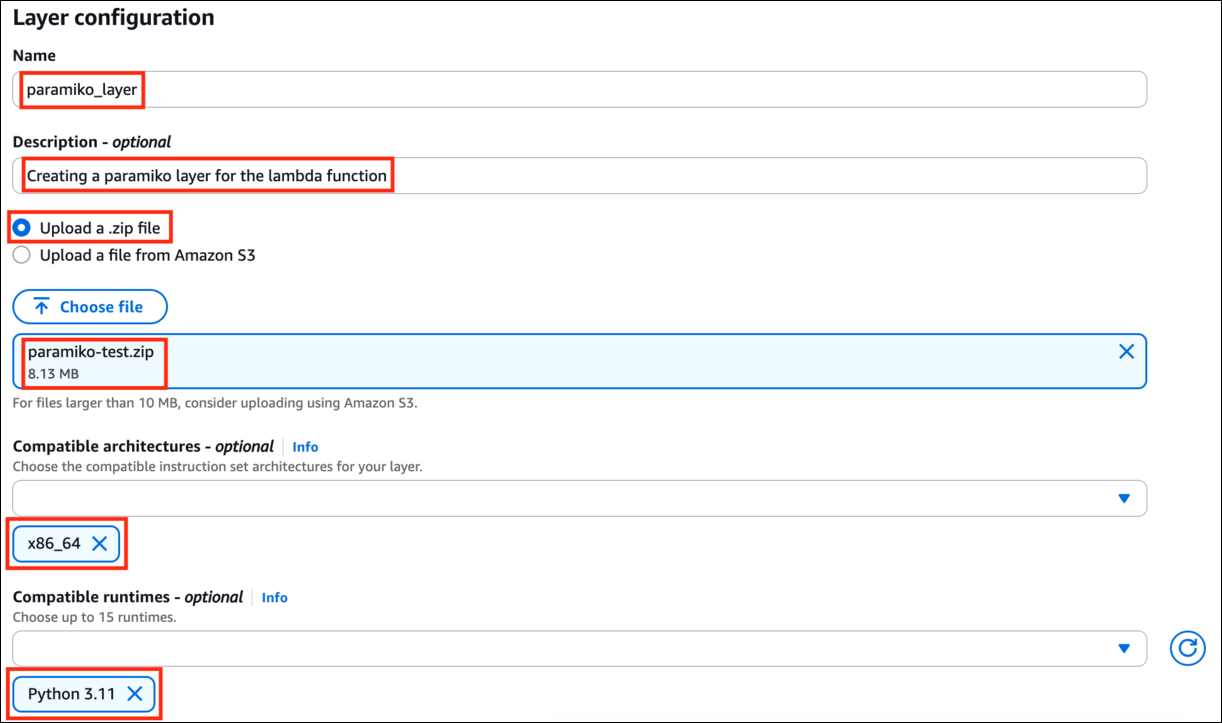
- Click on the Create button.
Task 5: Adding the layers to the lambda function
- In the Lambda console, click on the function you created earlier.
- In the Code section, scroll down to the Layers section.
- Click on the Add Layer button.

- Go to the Custom Layers section.
- Under the custom layers dropdown, choose the Paramiko layer you created earlier.
- Click on the version dropdown and select the appropriate version.
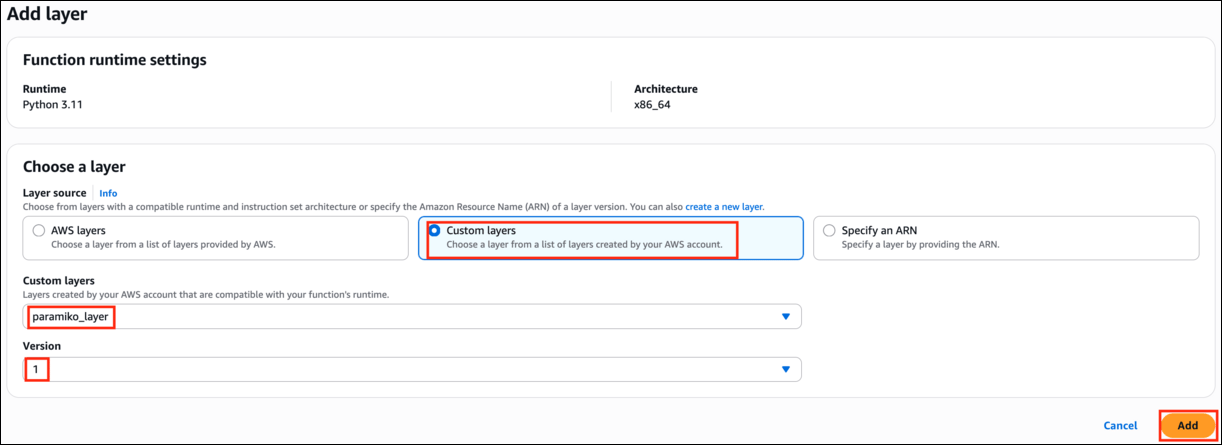
- Click the Add button.
- After creating the layer scroll it will look like these.

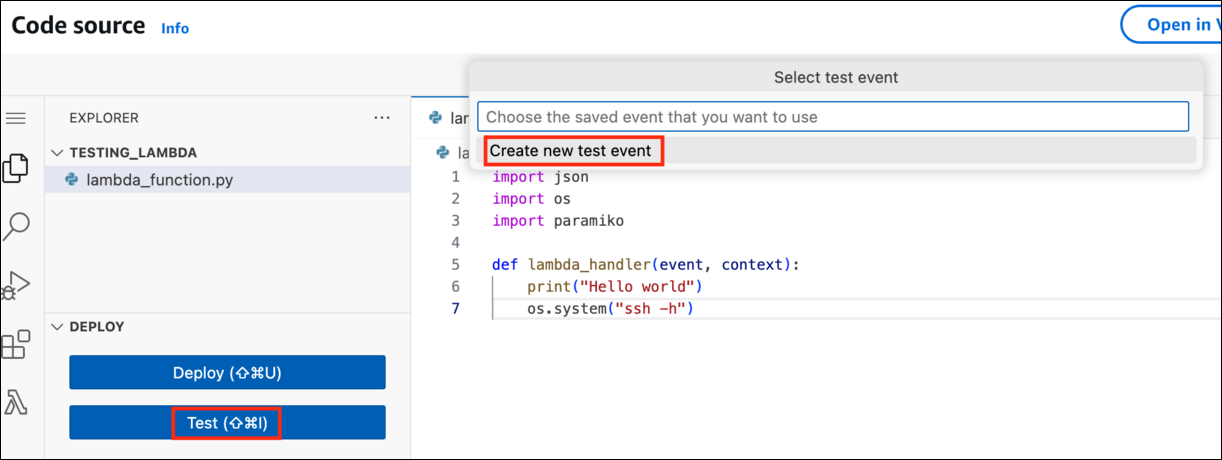
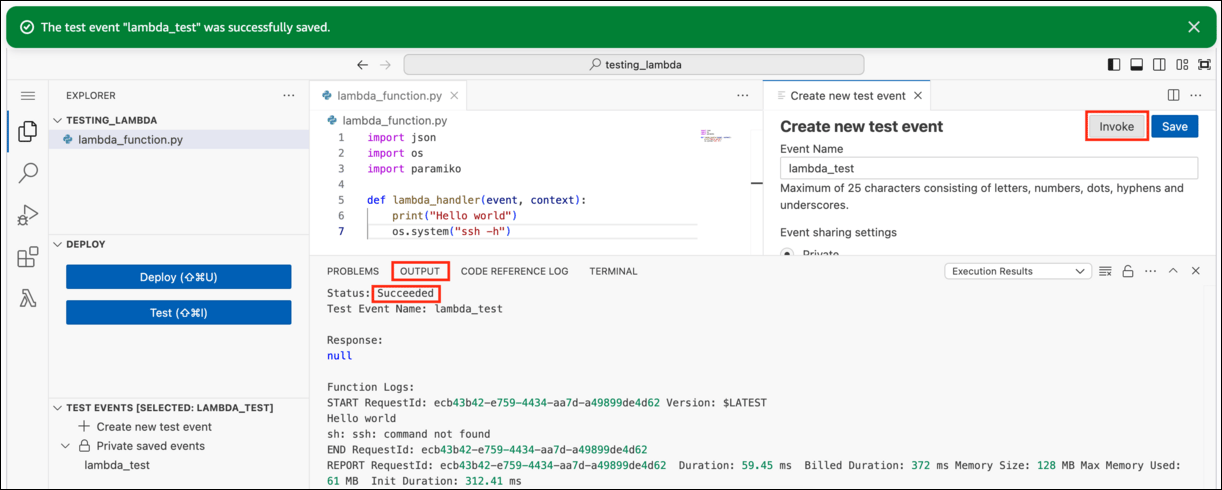
- Now, go back to your Lambda function and click the Test button and click Create new test event.
- Enter the name as lambda_test and click Save.
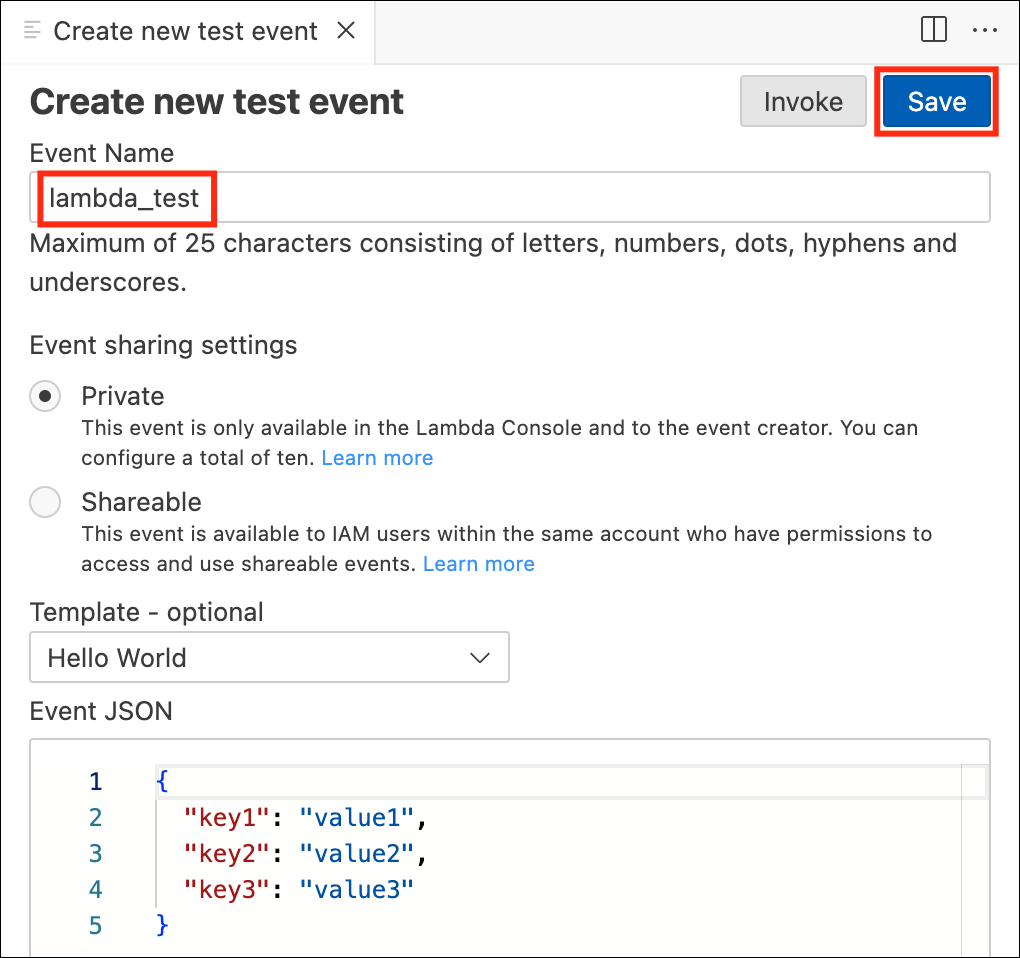
- Now click Invoke button. It will trigger the Inspector Lambda scanning.
Task 6: Finding the vulnerability for the Lambda function
- Go back to the Inspector console.
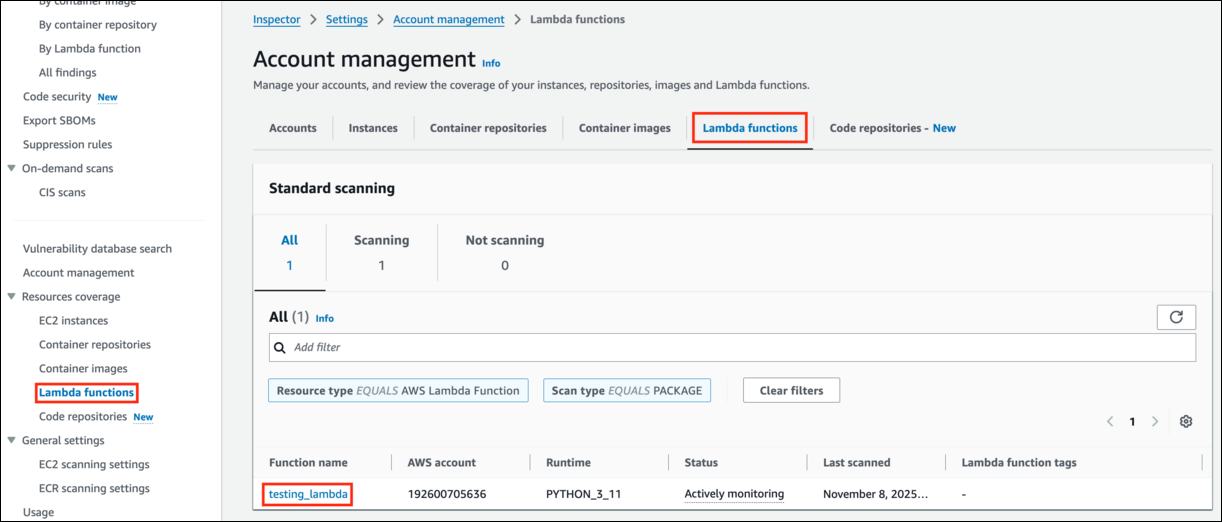
- Scroll down and click on Resources coverage from the left panel.
- Click on the Lambda functions to see the status of the scanning.
- Now click Findings from the left panel and click By Lambda function.
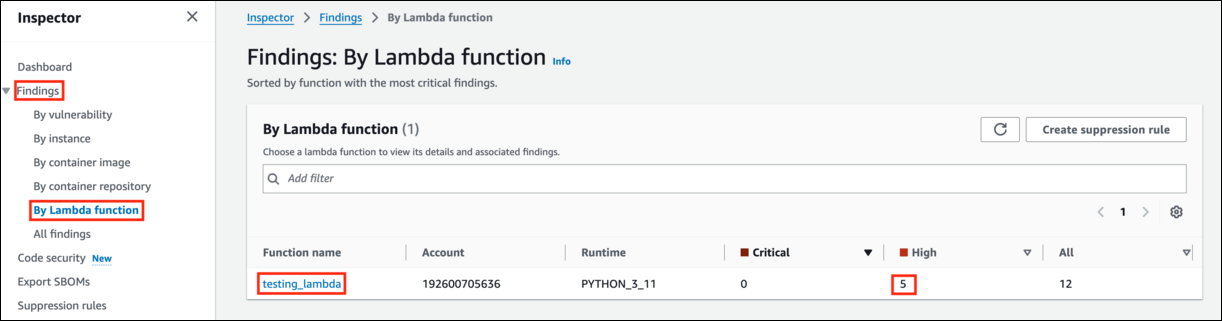
- Click on the testing_lambda and scroll down, you will be able to see the different CVE names.
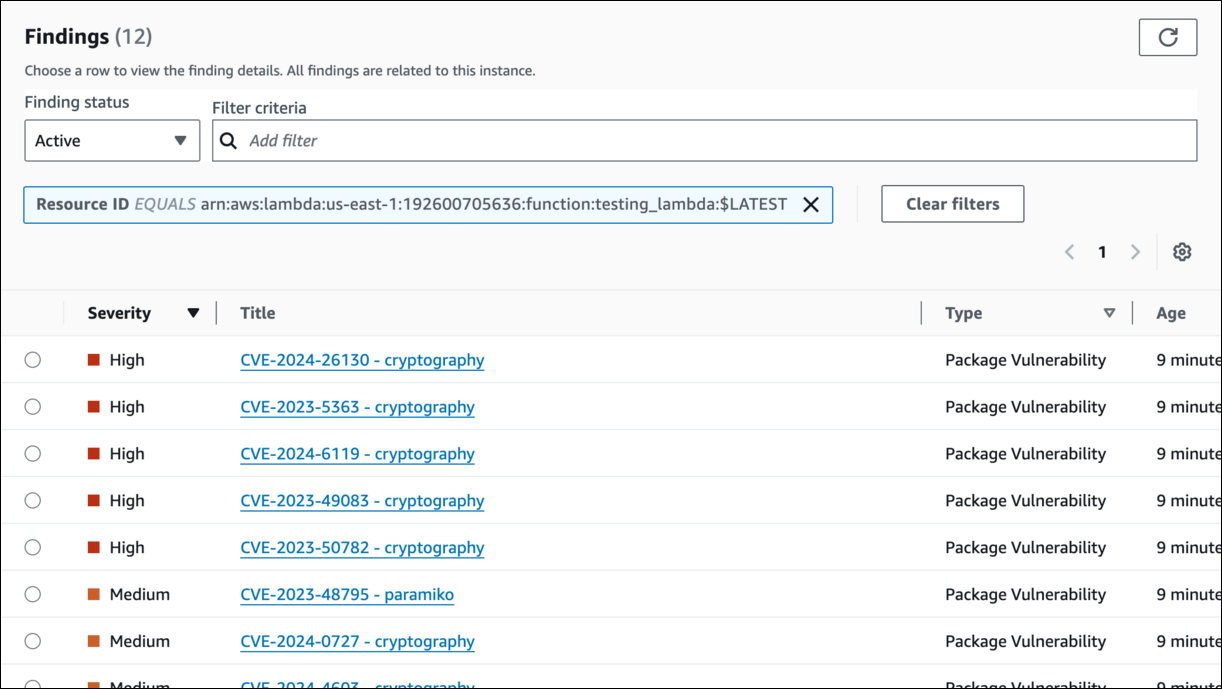
- Click on any CVE title to see the findings details.
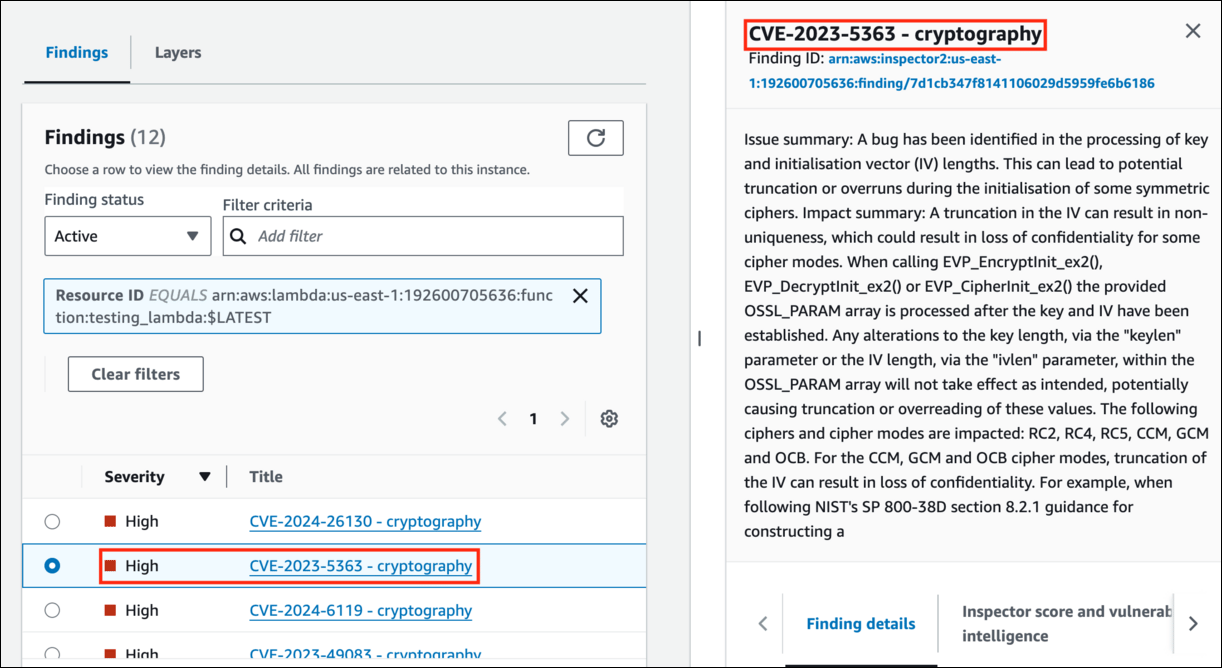
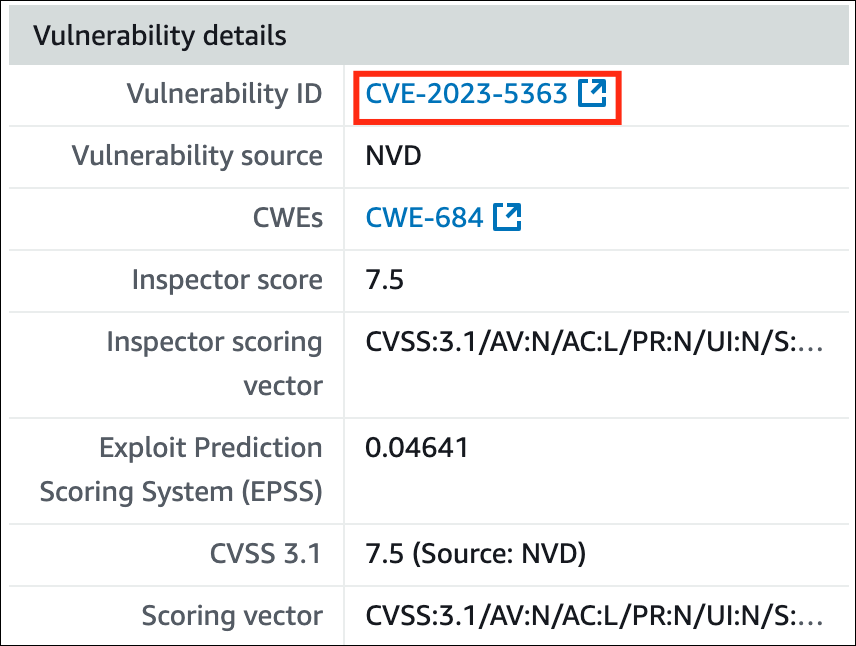
- Scroll down CVE tab to see more details.
- In Vulnerability details click on the Vulnerability ID to see the National vulnerability database.
- Government Repository: Managed by the U.S. National Institute of Standards and Technology (NIST).
- Vulnerability Information: Contains detailed data on known software vulnerabilities.
- CVE Identifiers: Uses Common Vulnerabilities and Exposures (CVE) identifiers for each vulnerability.
- Severity Ratings: Provides severity scores using the Common Vulnerability Scoring System (CVSS).
- Impact Analysis: Describes potential impacts on confidentiality, integrity, and availability.
- Remediation Guidance: Offers recommendations for fixing or mitigating vulnerabilities.
- Search Tools: Includes tools for searching and analyzing vulnerabilities.
Do you know? Amazon Inspector for Lambda functions provides advanced security features, including dependency vulnerability scanning, Lambda layer analysis, and environment variable inspection. It enforces least privilege, checks runtime policies for compliance, and evaluates network accessibility to prevent public exposure. Inspector also maps findings to compliance frameworks like PCI-DSS, HIPAA, and GDPR, ensuring regulatory adherence for serverless applications.
Completion and Conclusion
- You Have Successfully logged into AWS console.
- You Have Successfully created inspector2.
- You Have Successfully created lambda.
- You Have Successfully triggered the lambda scanning.
- You Have Successfully found the vulnerability using lambda scanning.
End Lab
- Sign Out Of AWS Account.
- You Have Successfully Completed The Lab.
- Once You Have Completed The Steps, Click On End Lab From Your IP Lab Portal And Wait Till The Process Gets Completed.
What gets checked
When you press Check my work, the platform verifies each of these:- Create an AWS Lambda Function — Check whether a Lambda Function is created or not
- Check Lambda Findings in InspectorV2 — Check whether lambda findings are present or not