

Overview
Lab Details
- This lab walks you through the steps to create an S3 Bucket to compare the speeds of Direct Upload and Transfer Accelerated Upload of a file.
- You will practice using Amazon S3.
- Duration: 45 minutes.
- AWS Region: US East (N. Virginia) us-east-1
Introduction
S3 Transfer Acceleration is a feature provided by Amazon Web Services (AWS) that enhances the speed of transferring files to and from Amazon S3 (Simple Storage Service) buckets. It is designed to overcome the limitations of traditional data transfer methods and provides faster data uploads and downloads. Here’s how S3 Transfer Acceleration works:- Edge Locations: AWS has a network of edge locations distributed globally. These edge locations act as data transfer endpoints and are geographically distributed closer to users.
- Endpoint Optimization: When you enable Transfer Acceleration for an S3 bucket, AWS assigns a unique endpoint URL to it. This endpoint directs your data transfer to the nearest edge location.
- Optimized Routing: When you initiate a file transfer using the Transfer Acceleration endpoint, AWS automatically routes the data through the optimized network path to the edge location closest to the user. This reduces the time taken for data to travel over long distances.
- Network Optimization: At the edge location, AWS employs various techniques like parallelization and multi-part uploads to optimize the transfer process. This ensures that the available network bandwidth is utilized efficiently, resulting in faster data transfers.
Architecture Diagram
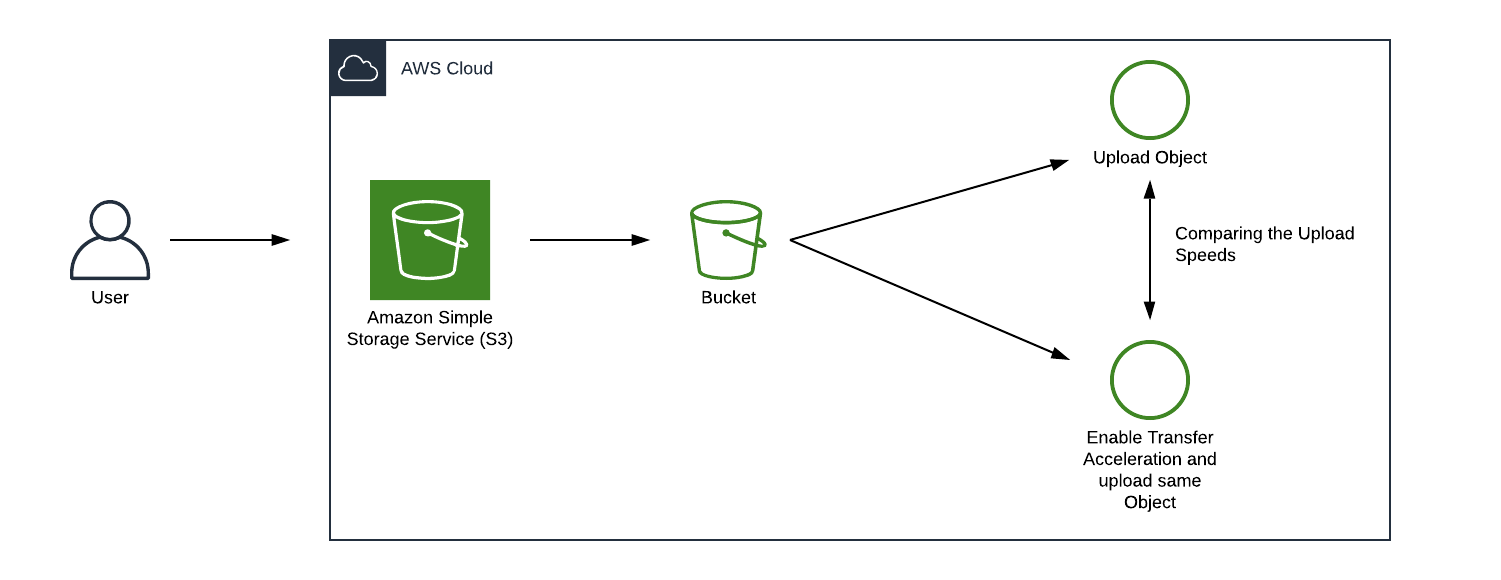
Task Details
- Sign into the AWS management Console
- Create an Amazon S3 Bucket.
- Upload a 55MB file through Direct Upload.
- Enable Transfer Acceleration.
- Upload a 55MB file after enabling Transfer Acceleration
Launching Lab Environment
- To launch the lab environment, Click on the Start Lab button.
- Please wait until the cloud environment is provisioned. It will take less than a minute to provision.
- Once the Lab is started, you will be provided with IAM user name, Password, Access Key, and Secret Access Key.
Note : You can only start one lab at any given time
Files you need
Download these before you start — the lab cannot be completed without them.Lab guide
Lab Steps
Task 1: Sign in to AWS Management Console
- Click on the Open Console button, and you will get redirected to AWS Console in a new browser tab.
-
On the AWS sign-in page,
- Leave the Account ID as default. Never edit/remove the 12 digit Account ID present in the AWS Console. otherwise, you cannot proceed with the lab.
- Now copy your User Name and Password in the Lab Console to the IAM Username and Password in AWS Console and click on the Sign in button.
- Once Signed In to the AWS Management Console, Make the default AWS Region as US East (N. Virginia) us-east-1.
Task 2: Creating S3 Bucket
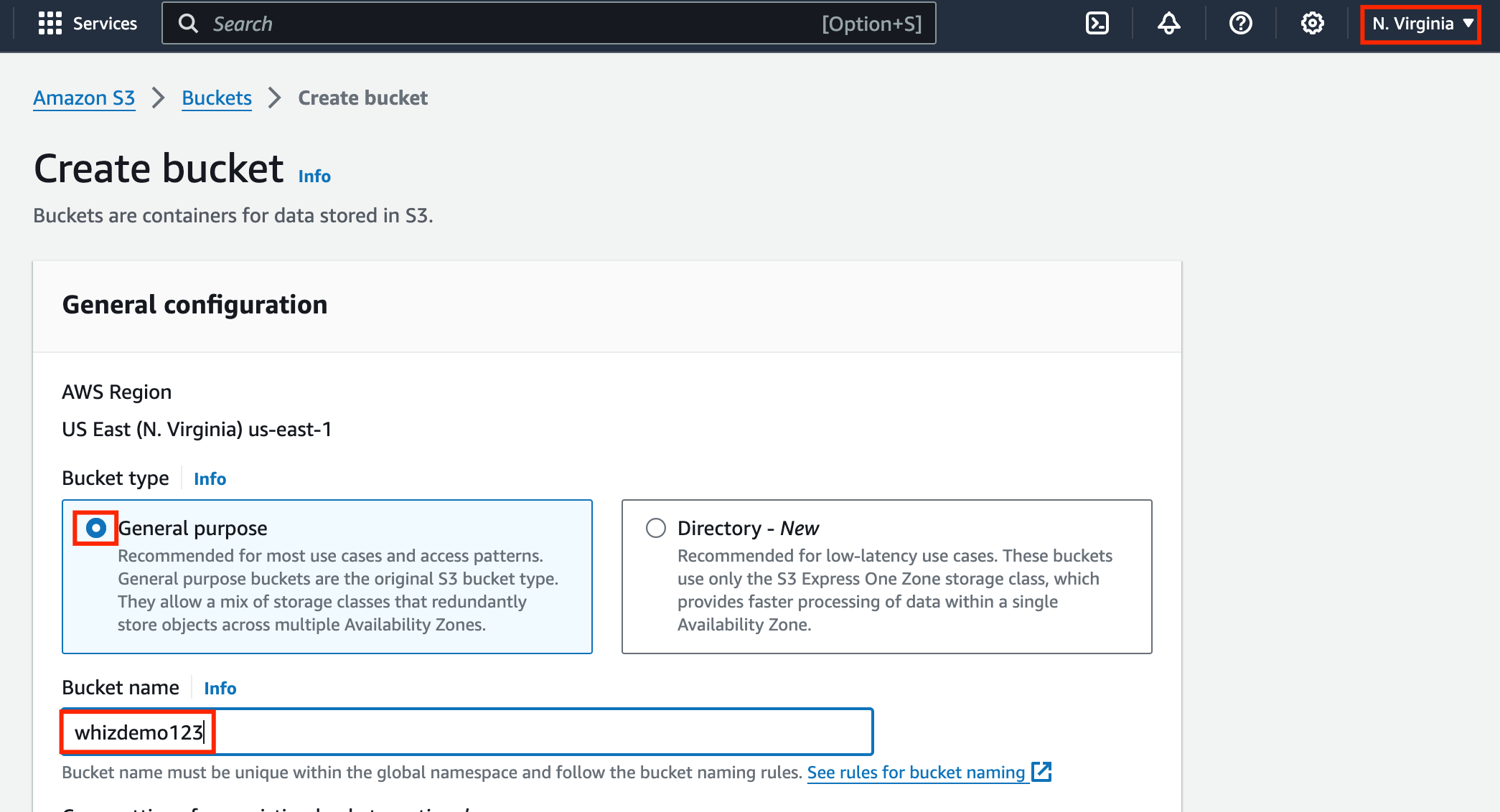
In this task, we are going to create an S3 bucket by providing details about the name, region and object ACLs.- Make sure you are in the US East (N.Virginia) us-east-1 Region.
- Navigate to the Services menu at the top. Click on S3 in the Storage section.
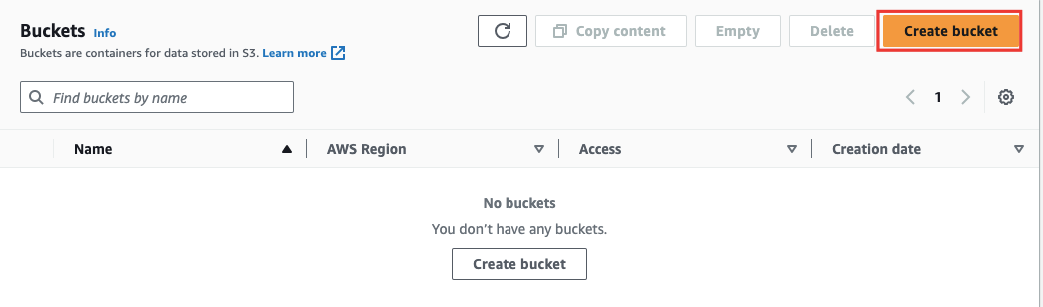
- In the S3 dashboard, click on the Create bucket button and fill in the bucket details.
- Bucket Type select : General purpose
- Bucket name: Enter whizlabs123
- Note: S3 Bucket names are globally unique, choose a name that is available. Maybe you can enter your name and create one.
- Object ownership: Select ACLs disabled (recommended) option
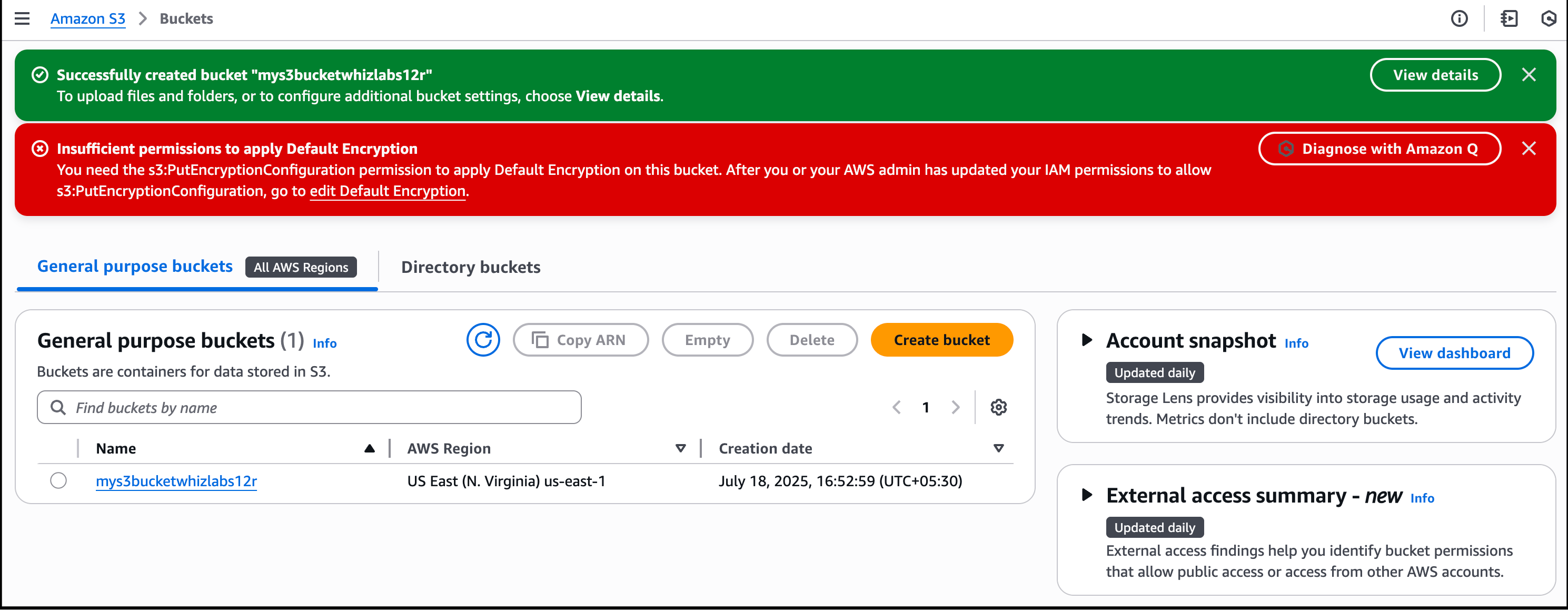
- Leave all other settings as default and click on Create bucket.
Kindly ignore the permission error if it appears during the process
- Let’s see a live example of the upload speed by uploading a 55MB image file with and without Transfer Acceleration, starting with our old method.
Task 4: Direct Upload of 55MB file without Transfer Acceleration
-
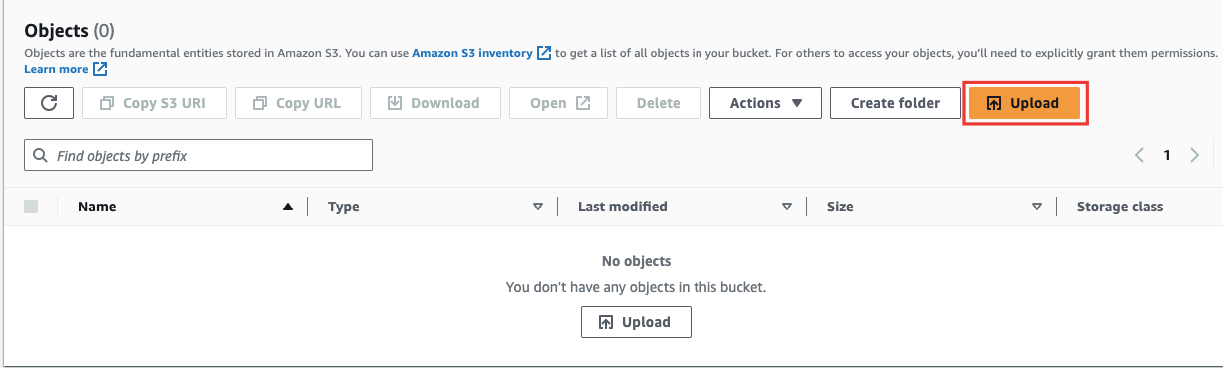
Download a 55MB Video file from this link (vpc_demo). In the bucket, under Objects click on Upload.
Once redirected to download link follow below step to download file.
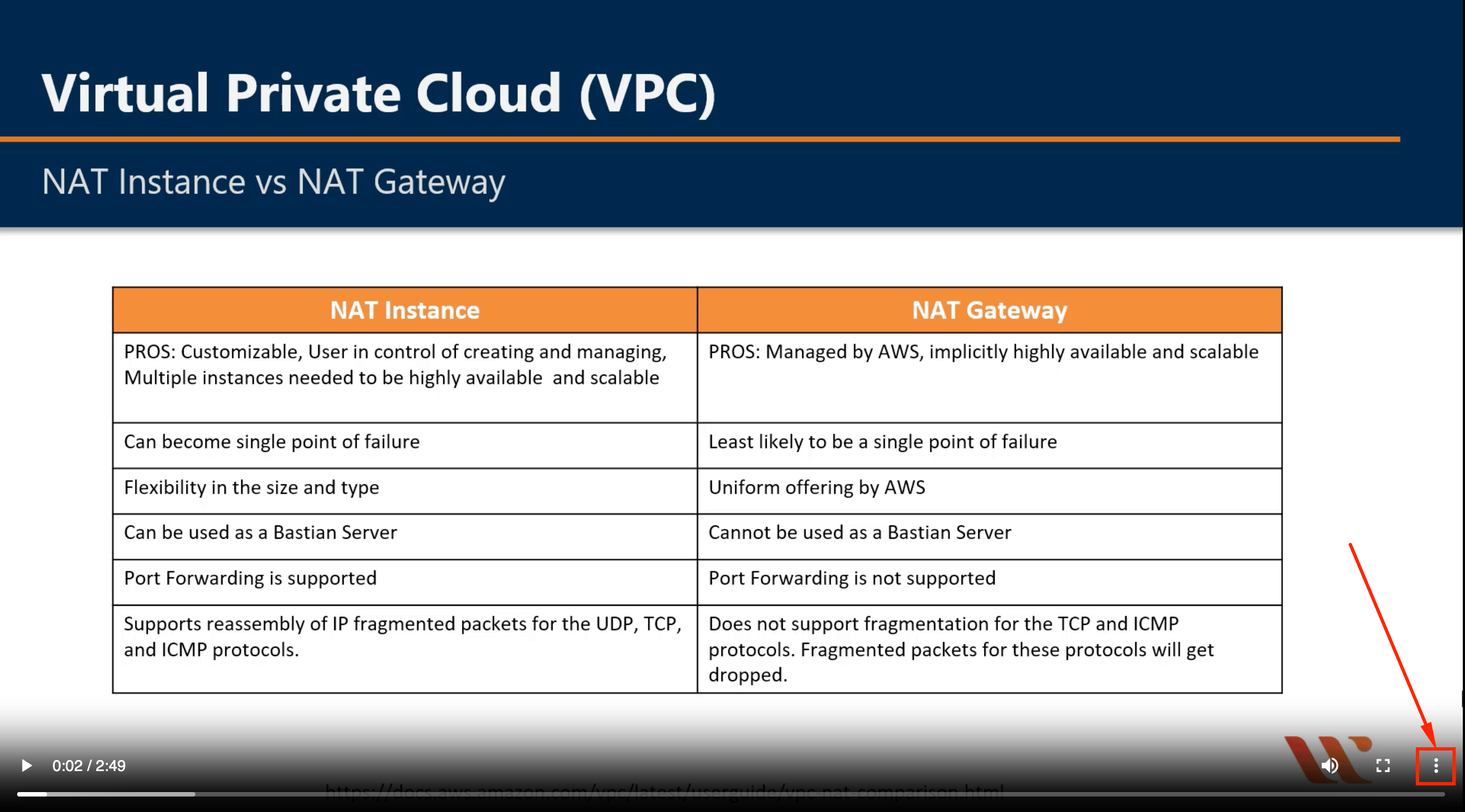
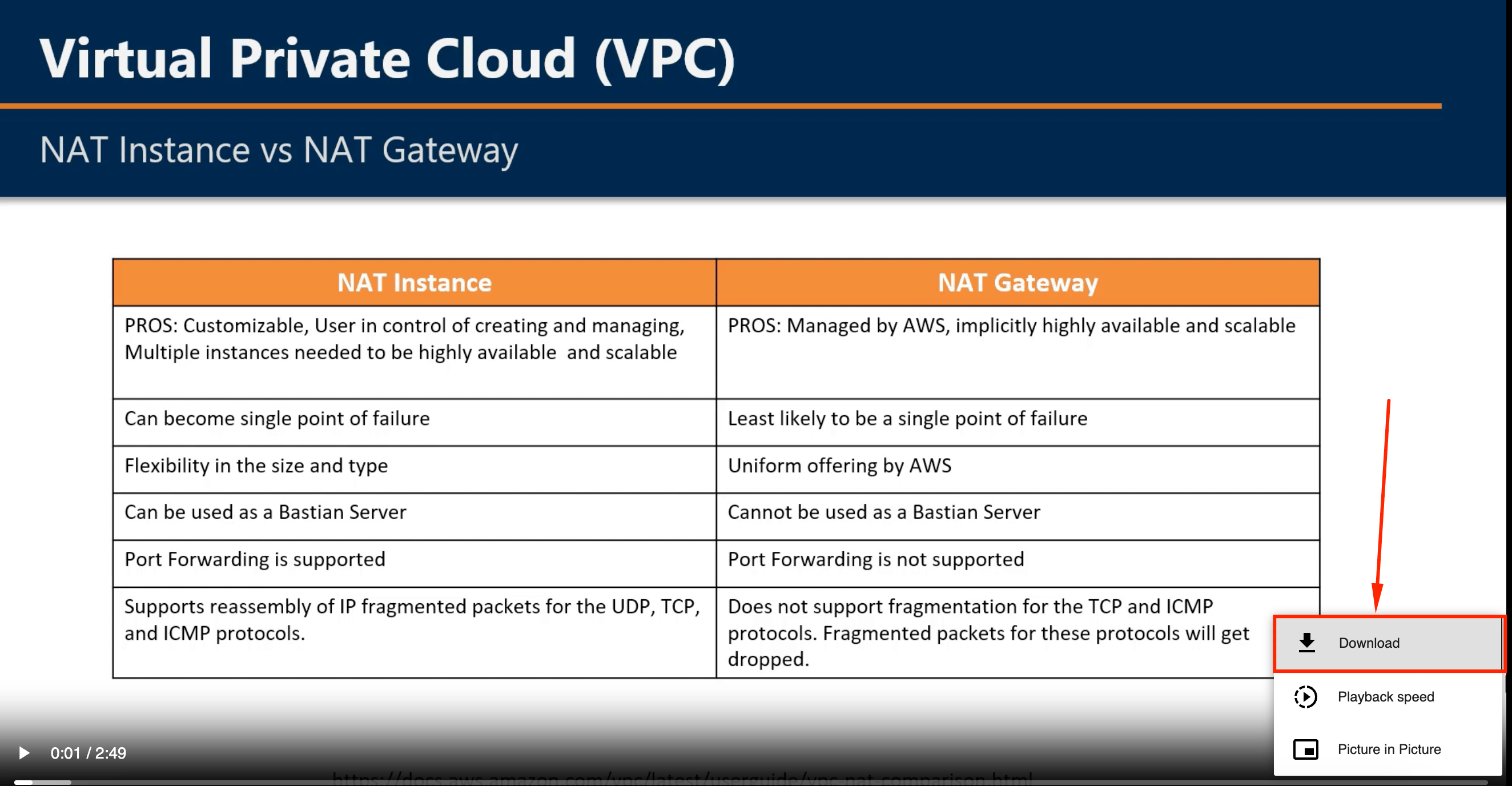
Once the file is downloaded to your local system, please upload it to the S3 bucket using the steps provided below.
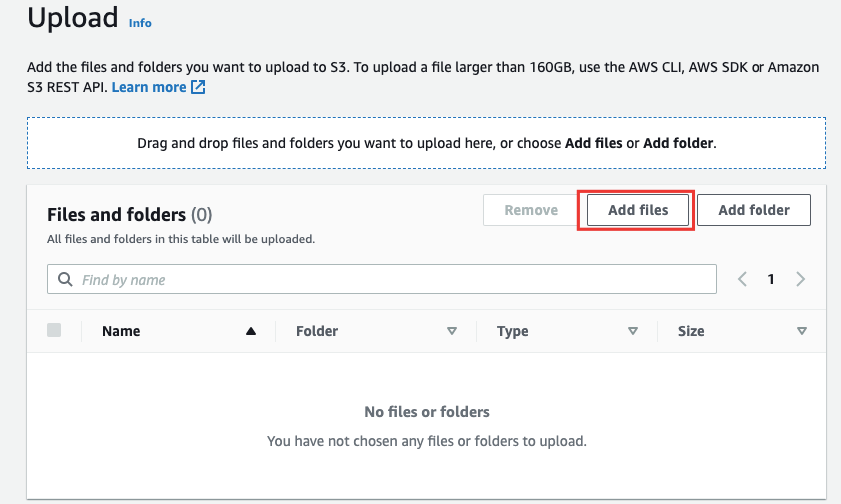
- Now click on Add files to upload the 55MB file that you downloaded. Note the time of upload to see the difference.
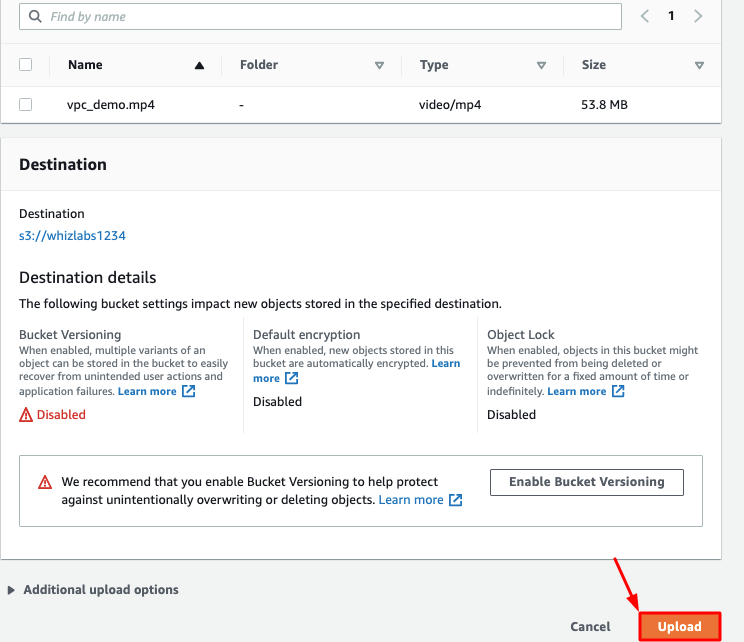
- You’ll notice it takes approximately 4-5 minutes to upload the file (Time depends on the speed of the internet).
- Once the upload is done, click on Close in the top right corner
Task 5: Uploading 55MB file with Transfer Acceleration
In this task, we will be enabling Transfer acceleration to our bucket and re-upload the object.- Click on your bucket and select Properties.
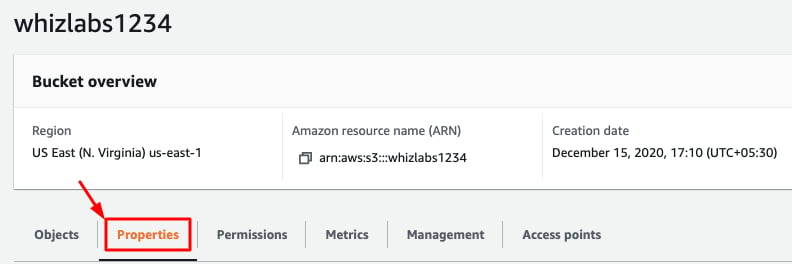
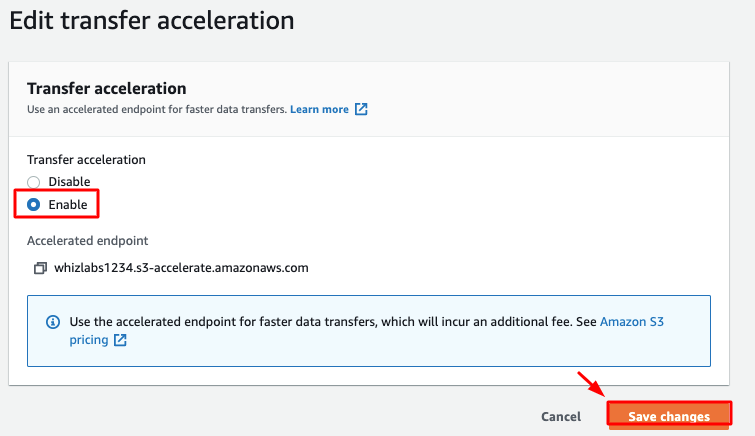
- Scroll down to see Transfer acceleration and click on it.
- Click on the Edit button.
- Choose Enable, and then click on Save changes.
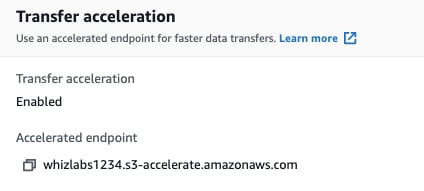
- Endpoint displays the endpoint domain name that you use to access accelerated data transfers to and from the bucket. If you suspend transfer acceleration, the accelerated endpoint no longer works.
- You will see the Transfer acceleration is now enabled.
- Rename the downloaded filename as vpc_demo(1).mp4 in your local disk.
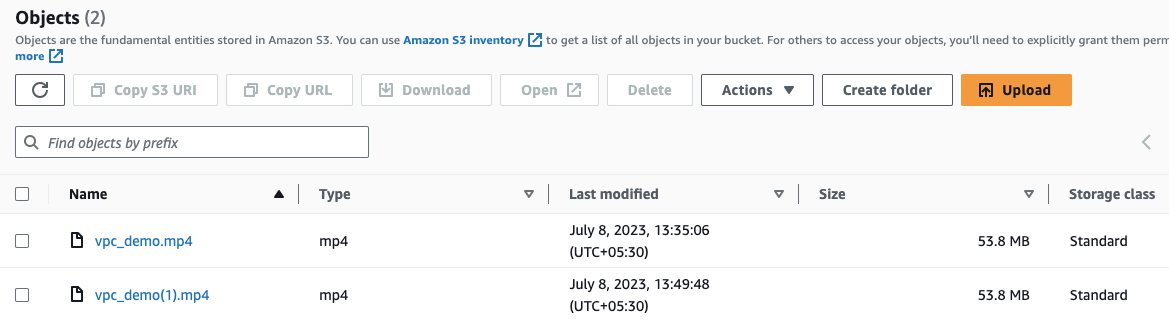
- Now go back to the bucket and upload vpc_demo(1).mp4. Note the time of file upload to see the difference.
- It should take less time compared to the direct upload.
Do you know?
It’s important to note that S3 Transfer Acceleration works best for large files or when transferring data over long distances. For small files or when the source and destination are in close proximity, the performance improvement may not be significant. S3 Transfer Acceleration provides an efficient and faster way to transfer data to and from Amazon S3 buckets, making it beneficial for scenarios where speed and performance are crucial.
- This will validate the resources in the AWS account and shows you whether you have completed this lab successfully or not.
Completion and Conclusion
- You have successfully used the AWS management console to create an Amazon S3 Bucket.
- You have uploaded a 55MB file with Direct Upload and noted how long it took to upload.
- You have enabled Transfer Acceleration, uploaded a 55MB file and noted how long it took to upload.
- You have experienced the data transfer speeds with and without Transfer Acceleration by Live Demo.
- You have successfully validated the lab.
End Lab
- Sign out from AWS Account.
- You have successfully completed the lab.
- Once you have completed the steps click on End Lab from the IP Lab Portal dashboard.
What gets checked
When you press Check my work, the platform verifies each of these:- Enable S3 Bucket Transfer Acceleration — Check whether an S3 Bucket transfer acceleration is enabled or not
- check s3 object — Check whether an object is uploaded to the S3 bucket.
- Create Public AWS S3 Bucket — Check whether a Public S3 Bucket created or not